Move applications to SD memory in Android to save storage space - without root
 By Admin
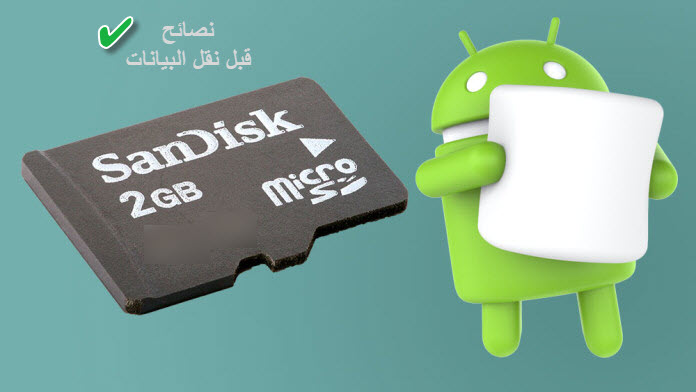
Moving applications to the SD memory may be considered a good choice if you are suffering from the problem of low Android storage space. You can do this if you have a large external memory that contains some free space. After transferring the applications, you will save a lot of space on the phone’s internal memory, especially if you use a lot of applications of large sizes, such as games. This will allow you to download new applications from the Play Store without the annoying “Low internal storage Android” message appearing. There are many applications that help to perform this process, but they require root privileges, while you can transfer applications to SD memory without the need for third-party applications and even without root, and this is what we will tell you in the next steps.
What you should know before moving applications to SD memory The feature of moving applications to SD memory is actually available in most Android phones, but the process of accessing it varies from one version to another. It moves some of the application running files to the SD card from the internal memory, and although the feature may be supported in your phone, not all applications can be moved to external memory, especially large applications such as Facebook and games that keep a large portion of data on the internal memory, but you can do the same thing with other applications to save storage space. Read also: 4 ways to increase storage space in Android. The first method: - Move applications to the SD Card via the Application Manager. Open the list of applications, then click on the Settings icon, then click on the Apps Manager section to view all the applications installed on the mobile phone and the internal memory. Now click on the application that you want to move to the external storage memory (SD Card), and you will find some options for controlling the application’s properties. Click on the Storage option to view an analysis of the application’s use of space, and you will find a Change button (if not Finding it means that the application does not support moving to external memory. Click on it, then select SD Card to begin the process of changing and moving the application’s location from internal to external memory. To confirm the transfer process, click on the Move button below, then wait a little while for the selected application to become part of the external SD Card storage memory. Therefore, if you try to remove the card from the phone, you will be unable to run the application again until you re-download and install it again.
The second method: - Convert the external memory to internal memory. If the feature of transferring applications to external memory is not supported in your phone, there is another option that you can do, which is to use the Adoptable feature, which was introduced for the first time in the Android Marshmallow version and is available in many phones except Samsung phones. The idea of the feature is that it converts the external storage memory to the internal memory of the phone so that it can be relied upon to store any data related to the system and applications, and therefore it is useful if the internal space is small and does not have enough space to install many applications. External memory can improve this. But keep in mind that you need a fast SD Card of Class 10 or higher, and the card will be completely formatted after activating the feature, so save a backup copy of the data before following the next steps to activate the feature. Go to Settings, then go to the Storage section. Statistics will be displayed about the phone’s internal and external storage memory. Click on the external storage card, and from Memory Settings, click on Format as Internal.
Then, on the next screen, press the Erase & Format button to format and format the SD Card so that it accepts work as internal memory. After that, select Move now or Move Later if you want to perform the transfer process later. After that, press the Move button and the process of transferring data to the external memory will begin and it will show you an estimate of the time it takes until the process is completed. Generally, after completion, press the Done button, so the SD Card becomes part of the phone as it is shared with the internal memory.
DROPIDEA
We hope this article has added real value to you. At DROPIDEA, we always strive to deliver high-quality content that helps you grow and evolve in the digital space. Follow us for more useful articles and guides.
Admin
DROPIDEA
Latest Articles

Pangram Raises $9 Million to Detect AI-Generated Content

Encore AI تجمع 30 مليون دولار لبناء وكلاء ذكاء اصطناعي يتعلمون من مكالمات العملاء

Hint: The AI-Powered Home Management Assistant with Martha Stewart's Touch

Startup Runlayer Accuses Rippling of Stealing Its MCP Product Idea