Explaining adding images and questions to Google Forms
 By Admin
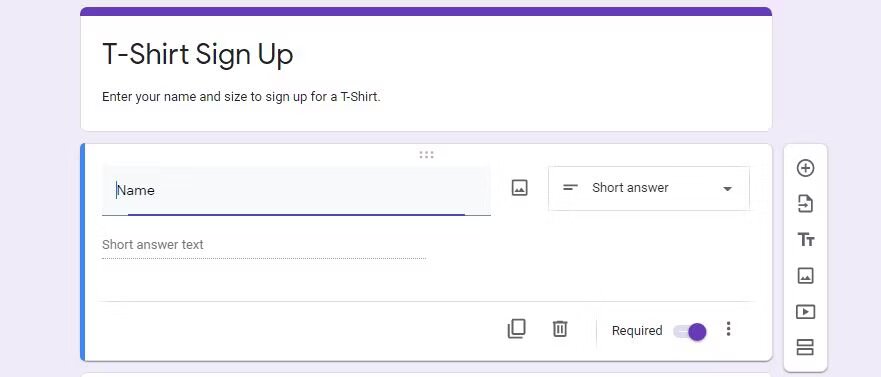
Explaining adding images and questions to Google Forms: Google Forms enables the user to collect images, polls, answer questions, create tests for students, prepare people’s data, or collect any other files from users in an easy way. Creating your own Google form is the first step, and then sending this link to people who want to fill out this form. With this step, you have at your fingertips all the data you need to know to complete your work in an optimal manner.
It is worth noting that the more Google forms are prepared in a distinctive and interesting way, the more this contributes to producing the work in a decent manner that arouses the recipient’s passion to continue reading. The importance of Google Forms The importance of Google Forms is many, so the use of images is considered one of the most important means used to highlight Google Forms in an interesting and organized manner.
Google Forms allows its user to create surveys, quizzes, or questionnaires by adding images. Images are added to Google Forms through two main methods: the first is adding images to the question, adding images to a multiple-choice answer option, or adding images to checkbox-style questions. Inserting images in Google Forms There is no doubt that including images in Google Forms adds real value, giving the form a more diverse style that attracts the reader to continue the form and perform the task for which the form was created professionally.
Here, dear user, is how to attach images intended for use within a Google Forms form through simple steps as follows: Open a Google Form, and then choose New Form. Type the questions you want to fill out. When you have finished all the questions, select one of these questions and click the image icon on the right.
Select the appropriate option for the image to be entered via 6 different options which may be Upload, Camera, URL, Photos, Google Drive, and Google Image Search. There are six different editing options here: Upload, Camera, URL, Photos, Google Drive, and Google Image Search. Select the appropriate option for the image you want.
For example, if you choose your favorite image option from the Google Image Search option, you only have to write the desired image and you will receive a display of the available options as follows: Click “Insert” at the bottom of the screen to the right. After inserting the image, you will get a three-dot menu at the top left.
It gives you several options to edit, change, delete, or add a comment to the image if you wish. Adding an image to a Google Forms answer Images are added to a Google Forms answer through several easy steps as follows: First: Write the questions and their answer options.
Second: Move the cursor over the answer.
Third: Click on the image icon that appears on the right. Fourth: Select which of the six options suits you to select and insert the desired image. Fifth: Once the image appears in the answer, a small
It is worth noting that Google Forms is adopted so that it is not limited to text only. This works to achieve the greatest benefit by including images within the questions or answers, which enriches the model and achieves the desired goal without a doubt. In conclusion, an explanation of adding images and questions to Google Forms contributes to providing users with the experience required to complete their work professionally within a high-level technical scope.
Related articles:
How to download Google Sheet forms from 4 sources
8 Tools to Create Online Quizzes – Quizzes for Everyone
DROPIDEA
We hope this article has added real value to you. At DROPIDEA, we always strive to deliver high-quality content that helps you grow and evolve in the digital space. Follow us for more useful articles and guides.
Admin
DROPIDEA
Latest Articles

Nscale Acquires Anyscale for $1.65 Billion to Expand Its Dominance in AI Infrastructure

How Is AI Accelerating Meta's New App Launches?

Okta Acquires Security Firm Permiso for Around $200 Million

Microsoft Gains $3.2 Billion from Its Investment in Anthropic

Zuckerberg: Billions of People Will Have AI Assistants Within Five Years
Related Articles

ASUS ROG Flow Z13 (2025) available: Everything you could dream of in a gaming tablet.
Pay attention: 10 symptoms that confirm damage to the hard disk and the need for your quick intervention!
