Explaining how to modify a WordPress template in 5 different ways
 By Admin
The WordPress template determines the design of the website, and there are a large number of templates that show the site in different appearances. However, it is difficult to find a ready-made, full-featured WordPress template that is completely suitable, so all website owners need to know how to modify the WordPress template in order to modify the template of their site so that it becomes completely suitable for what they need. In this article, we will highlight the reasons why you will need to modify your WordPress theme, and then we will explain different ways in which you can modify the template, so you can use the method that is most convenient for you.
Contents of the article Why will you need to modify a WordPress template?
How to modify a WordPress template Method 1: Modify the WordPress template through the customization tool (the easiest) Method 2: Modify the template using the template file editor tool Method 3: Modify the template code through the file manager in the hosting control panel Method 4: Modify the WordPress template through the full site editor Method 5: Modify the WordPress template using page creation plugins Tips related to modifying the WordPress template Why will you need to modify the WordPress template? WordPress templates are usually built to suit certain types of websites more than others. For example, there are templates that are more suitable for travel blogs than for online stores, and there are templates that are more suitable for online stores than for corporate websites. But template designs and features are not usually completely suitable for what site owners need, even if the template is used in the same field for which it was designed, as you may need to customize and modify your site template until it becomes appropriate. There are also some simple modifications that you will definitely need to make, such as adding a custom logo to the site (your logo), and selecting the appropriate colors.
The amount of modifications that you will need to make to the template varies depending on how appropriate the template's appearance is for what you need, as well as on the extent to which the template provides the functions that you need. Therefore, you must be careful to choose a template that has an appropriate appearance and provides the functions that you need as much as possible in order to reduce the amount of modifications that must be made to it so that you can use it on your website. It is also necessary to take into account when choosing a WordPress template for a website that it has excellent performance, is compatible with search engines, supports the Arabic language, is suitable for various types of devices, and has good customization options. We have Arabized a group of the best WordPress templates in these aspects and published them on the Arabized WordPress templates page for website owners, where you can view them, download them, and use them on your websites easily and completely free.
There are many ways to modify a WordPress template
Methods that provide users of the WordPress content management system with the ability to make modifications to the WordPress template. Although many modifications can be made in more than one of these methods, some methods provide the ability to make special modifications, faster, or more easily. Therefore, we will explain here more than one method that can be used to modify a WordPress template, but we would like to point out first that there are other methods different from what we will explain that provide the possibility of performing the task, but what we will highlight here is one of the best and most appropriate methods in most cases.
Method 1: Modify the WordPress template through
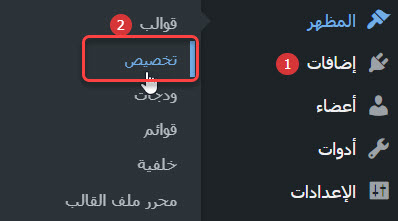
Customization tool (the easiest): The method of modifying the appearance of a WordPress template through the customization tool integrated by default in the program is one of the easiest methods, as it does not require writing programming codes in most cases, and although the customization options provided by this tool vary from one template to another, most WordPress templates support the ability to modify the basic aspects of the appearance. WordPress themes usually support the ability to change the site's logo, widgets, colors, fonts, and home page settings, as well as include additional CSS to make it easier to change the appearance of a set of elements selected in the theme, so using them is often enough to adapt a WordPress theme to make it a great fit for your website. To go to the customization tool to change the appearance of the site, place the mouse cursor on the word (Appearance) on the home page of the WordPress backend, then click on the (Customize) option from the drop-down menu that appears.
Go to the customization tool that allows you to easily modify the WordPress template. You will be taken directly to the customization tool page, which includes many options that allow you to modify the active WordPress template on the site, and other templates installed on it. You will notice that there are two sections on the page, one of which appears on the right, and the other appears on the left, where you will be able to make modifications to the template through the options in the various tabs that appear in the right section, while the left section represents a live preview of the site, as it changes based on the modifications you make, and other sections can also appear depending on the modification option that you use. WordPress Template Customization Tool Page As we mentioned earlier, the options available in the right section will not be the same for all WordPress templates. Some templates provide many customization options, while other templates provide few customization options. If there are both free and paid versions of a WordPress template, the paid version of the template usually provides more customization options than the free version.
As a practical example of using the customization tool to modify a WordPress template and customize its appearance, you can see our detailed article (Explaining the Astra template and customizing the template in a practical way in WordPress), in which we explained the various options that the template provides in the modification options section on the customization page. Note: Not all WordPress themes support customization. If the (Customize) option appears in the drop-down list that appears when you place the mouse cursor on (Appearance), this means that the template supports the possibility of customization through the tool, and if it does not appear, you will have to use another method to customize and modify the template.
Method 2: Modifying the template using the Template File Editor tool. WordPress provides the ability to modify the template by editing its code through the Template File Editor tool (in older versions it was called the Template Editor). This tool enables opening and editing the files of various WordPress templates installed on the site using a built-in text editor. This method of modifying a WordPress theme is usually not recommended except by experienced programmers, and before using it, you should always create a backup copy of the site, because any mistake made while modifying the code, especially in the theme’s properties file (functions.php), can cause the site to crash completely. But if you want to learn how to modify a WordPress template by editing the code on a demo site, or if you want to look at the code of your WordPress template to make sure of something, then you will want to learn how to go to the page of this tool and use it.
To go to the Template File Editor tool page, place the mouse cursor on the (Appearance) option located in the WordPress side menu in the backend, then click on the (Template File Editor) option in the drop-down menu that appears, where the tool page will directly open, and all its options will appear. The template file editor tool enables you to modify any WordPress template installed on the site. It is good to note that there are 3 important sections on the page. There is a section at the top left that includes a drop-down list that enables you to select a WordPress template to edit from the installed templates. There is a section below that gives you the ability to choose a file from the template files to show its code in the third section and modify it. The page also includes an (Update File) button that you must click on after you finish modifying the code for the changes to be applied to the site. We would like to point out that the modifications made to the template code will be lost when it is updated in the future. To avoid this, you will need to create a child template from the template. In this case, the modifications will be applied to the template’s appearance, although they will be kept independently of the core template files. You can learn more about the concept of the child template, and how to create it, by reviewing the following articles: What is a Child theme?
What are its uses for WordPress website owners? How do you create a Child theme in WordPress to enjoy its benefits? Method 3: Modify the template code through the file manager in the hosting control panel. Other than the template file editor tool method in WordPress, there are many other ways through which the template file codes can be modified, the most important of which is the method that relies on opening and modifying the template files through the file manager located in the web hosting control panel, as it is easy to access and edit those files by following it. To edit the WordPress template code through the file manager in the hosting control panel, all you have to do is open the control panel, then the file manager, then go to the folder that contains the WordPress site files, then open the (wp-content) folder located in that folder, then move to the (themes) folder, which contains all the template files installed within their own folders.
After accessing the themes folder, open the folder that bears the name of the template you want to modify, where all its files will appear to you, and you will be able to open any of them in order to modify it, but as is the case with the template file editor tool method, this method is not recommended except by experts, or on a demo site, and it is also preferable to create a child template and modify its files instead of modifying the original template files. We would also like to draw attention to the fact that there is another common method for modifying WordPress template file codes, which is the File Transfer Protocol (FTP) method, which allows you to access your hosting files through a program that runs on the computer operating system instead of through the file manager in the hosting control panel. We have introduced this protocol more and explained how to use it in detail in a separate, comprehensive article entitled (FTP explained for beginners, and how to use it to manage your site’s files).
Method 4: Modify the WordPress template through
Full Site Editor This method of modifying a WordPress template is new, as the first support for it came in the version of WordPress 5.8, which was released in July of 2021, and features were added to it in version 5.9, which was released in January 2022. However, it is considered one of the best ways to perform the task, if not the best at all, but we did not provide it at the beginning because only a few templates currently support it. The Twenty Twenty-Two template that comes installed on WordPress 5.9 when the program is installed on the hosting is one of the most prominent templates that support this feature, as it was specifically designed to support the ability to edit the entire site and demonstrate the efficiency of the new method of modifying WordPress templates. The Full Site Editor (FSE) is a component-based WordPress template editor that provides the ability to modify component-based WordPress themes only, by adding components to various parts of the site, not just the content area, meaning that you can modify the WordPress template in a similar way to editing the article through the component editor.
To find out whether a WordPress template supports the full site editor, you must install it on the site using one of the methods for installing WordPress templates explained in the article (How to install a WordPress template correctly). Then you must make it the active template on the site by activating it by clicking on the activation button. After that, you must place the mouse cursor on the (Appearance) option located in the side menu of the backend of WordPress. If a drop-down menu appears that includes two options, one of which is (Editor), this means that the activated template supports the full site editor. However, if the usual options for this menu appear, this means that the template does not support this editor.
How to know if a WordPress theme supports...
Editing it using the full site editor. If the WordPress template supports the full site editor, all you have to do is click on the word (Editor) in the drop-down list that appears when you place the mouse cursor on (Appearance) to go to it. The editor will open and you will be able to modify all parts of your site in a way similar to modifying components in articles and pages using the component editor. The working environment of a complete site editor based on components that allows modification of the WordPress template easily. Method 5: Modifying the WordPress template using page building plugins. There are many free and paid plugins that can be installed on WordPress in order to modify the template and improve it to become more compatible with what the site owner wants. Among the most prominent of these plugins are the so-called Page Builders that allow you to modify the WordPress template through drag and drop. Modifying a WordPress template using a page builder plugin. It is not possible to modify any WordPress template using any page builder. Rather, the template must be compatible with the page builder that you want to use. Therefore, when you want to use this method, you must make sure that you install a builder that is compatible with your site’s template. If you are accustomed to using a specific page builder, make sure to choose a template that is compatible with this builder when creating a website.
We talked in a separate article entitled (The 6 Best Visual Builders Drag-and-Drop Add-ons) about page building tools in WordPress and the best ones in more detail. You can see that article for more information about creating websites and modifying WordPress templates using them. Tips related to modifying a WordPress template When you want to modify a WordPress template to change the appearance of your site or add new functions to it, be sure to follow the tips that we will provide in the following list in order to keep your site away from crashes and hacking: Use a method for modification that is different from any method that includes modifying the code, and do not use any method that includes editing the code unless you are an expert in CSS and PHP, or at least one of them. If you are not an expert in code, and what you want to do on your site requires modifying the WordPress template by modifying the code, hire a specialized WordPress developer to perform the task for you.
Do not make any modifications to your original site directly without testing them. Rather, try the modifications on a local test site, and then when you are sure that those modifications are working properly, apply them to the original site. If your hosting plan supports the staging sites feature, first apply the modifications to a staging site, make sure it works as it should, and then move the copy of the staging site to the published site that visitors see. And here, dear reader, we have finished introducing you to the best ways through which you can modify a WordPress template. In conclusion, we point out the necessity of following the tips we provided while making any modifications in order to prevent any damage to the site or its complete breakdown.
DROPIDEA
We hope this article has added real value to you. At DROPIDEA, we always strive to deliver high-quality content that helps you grow and evolve in the digital space. Follow us for more useful articles and guides.
Admin
DROPIDEA
Latest Articles

Pangram Raises $9 Million to Detect AI-Generated Content

Encore AI تجمع 30 مليون دولار لبناء وكلاء ذكاء اصطناعي يتعلمون من مكالمات العملاء

Hint: The AI-Powered Home Management Assistant with Martha Stewart's Touch

Startup Runlayer Accuses Rippling of Stealing Its MCP Product Idea