Explaining how to delete Messenger messages from both parties via Facebook
 By Admin
Easily being able to delete Messenger messages from both parties has been a matter of great interest since Facebook launched this feature, which was limited to some countries and not others. The company later extended this feature to all users. Messenger has become one of the important means of communication between friends and relatives. It has even become one of the effective means of work and study due to the speed of sending and receiving messages quickly and easily. Perhaps, dear reader, you regret sending some messages to another person by mistake, and you want to delete this message before the other party reads it, or you wish to delete the message that you sent intentionally for any reason.
Hey, dear reader, take it easy. Things have become different now. There are many ways that enable you to delete Messenger messages from both parties in simple steps. Now we will review the sure methods of how to delete Messenger messages from both parties. Just follow all the steps and apply them correctly to be able to delete unwanted messages from both parties. Deleting Messenger messages It is worth noting that Facebook has provided this feature to undo unwanted messages, provided that the time of sending the message does not exceed 10 minutes only.
After ten minutes have passed from the time the message was sent, you can no longer “unsend,” but you can delete the message from your message history, even if the other person has seen and read the contents of the message, which helps you save some face. We will review together, dear reader, how to cancel sending a Facebook message from a mobile phone in several steps. Delete Messenger messages from both parties at once from the phone. Messenger messages from both parties can be deleted at once from the phone in easy steps. Facebook gives its users the advantage of canceling sending within 10 minutes from the time the original message was sent.
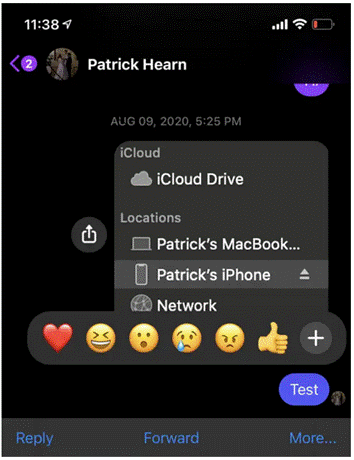
This feature enables Messenger users to delete their message so that it appears as if it was never sent in the first place, a first of its kind. The method of deleting Messenger messages from both parties includes the following steps: When you want to remove the message sent to the other party, you must continuously click on the message for a few seconds until the emoji options appear, then click on the “More” option. Then click on the “Do not send” option and click on the “Do not send to all people” option.
The message will be replaced with an indicator stating that you did not send the message, and the message will be displayed to the other party, and you can justify it as a typo that needs to be corrected or as an accidental message. If someone reports an inappropriate conversation, Facebook can still access the original message you sent. Deleting Messenger messages from the browser Messenger messages can be deleted from your browser when using Facebook Messenger with the same steps as follows: First: Open the conversation on the message you want to delete, place the cursor over it and select the three dots to the left of the text of this message.
Second: Choose the “Remove” option. Third, choose the Do not send to everyone option. As we explained previously, if you use a mobile phone, an alternative message will appear telling you that you did not send a message. By repeating this process, the message will be deleted for you as well, but it will continue to appear on the other party. This feature enables you to remedy the situation if you are sending the message to someone you know and you have already spoken to him and you have rushed into the conversation with something you should not have said. But if the message is from someone unknown to you and you have not spoken to him before, it may arouse his curiosity in knowing the content of the message that he did not receive in order to know its content.
Related article: How to hide likes from Facebook posts and not show the number of interactions Delete Messenger messages on the desktop application Messenger messages can be deleted on the desktop application To cancel messages very simply according to the following steps: 1- Open the desktop application, then click the right mouse button on the message, then select Remove for All 2- Last option Remove Whenever the user deletes the message within the permitted ten-minute period, the message will inevitably disappear from all versions of Facebook Messenge. How to delete an entire Facebook conversation on a mobile phone The way to delete a Facebook conversation on a mobile phone allows you to delete an entire conversation from appearing on the screen, but this method prevents a complete deletion of the conversation for both parties, but it at least prevents it from appearing on your screen at least. This feature may be useful if you have blocked someone and want to remove all previous correspondence with them from your chat history.
Here are some steps to achieve this as follows: First: Open the Facebook Messenger application. Second: Drag the conversation you want to delete to the left. Third: Click on the More button. Fourth: When the confirmation screen appears, click on the Delete button. It should be noted that there is an option called the “Archive Share” option, which enables the user to hide and prevent only the conversation from being displayed, but it does not remove it. This option also allows you to access the conversation by searching for it, and the conversation can be completely removed using the built-in delete function.
Read also: How to close a Facebook account and prevent it from being seen except by friends How to delete a Facebook conversation from the browser The way to delete a Facebook conversation from the browser may be desirable in two cases, which are either the content of the message is full of spelling errors or the need to free up space in your chat, which is done in a few clicks. 1- Open the Facebook Messenger application 2- Move the cursor over the conversation and select the three dots icon. 3- Choose the Delete Chat button 4- When the confirmation screen appears, select Delete Chat, which will permanently delete the chat from Facebook Messenger Delete a Facebook conversation in one go on the computer You can perform the deletion of a Facebook conversation all at once on the computer through the following points: Open the Facebook Messenger application by clicking the right mouse button on the conversation you want to delete and select Delete Conversation Choose the “Delete” option Summary In light of all the aforementioned methods, we can achieve exactly what is required, which is to permanently delete the conversation from your mobile phone, the browser application, and also from the desktop application.
Finally, we hope that we have succeeded in simplifying the explanation of how to delete Messenger messages from both parties, away from stress and anxiety about what is written or said to others. So that everyone can experience the effectiveness and importance of technology in our lives, so that we can strive to achieve a better life on both the personal and professional levels. Image source: online-tech-tips.com
DROPIDEA
We hope this article has added real value to you. At DROPIDEA, we always strive to deliver high-quality content that helps you grow and evolve in the digital space. Follow us for more useful articles and guides.
Admin
DROPIDEA
Latest Articles

Nscale Acquires Anyscale for $1.65 Billion to Expand Its Dominance in AI Infrastructure

How Is AI Accelerating Meta's New App Launches?

Okta Acquires Security Firm Permiso for Around $200 Million

Microsoft Gains $3.2 Billion from Its Investment in Anthropic

Zuckerberg: Billions of People Will Have AI Assistants Within Five Years
Related Articles

ASUS ROG Flow Z13 (2025) available: Everything you could dream of in a gaming tablet.
Pay attention: 10 symptoms that confirm damage to the hard disk and the need for your quick intervention!
