Explaining how to share the screen on a MacBook via the Screen Sharing feature
 By Admin
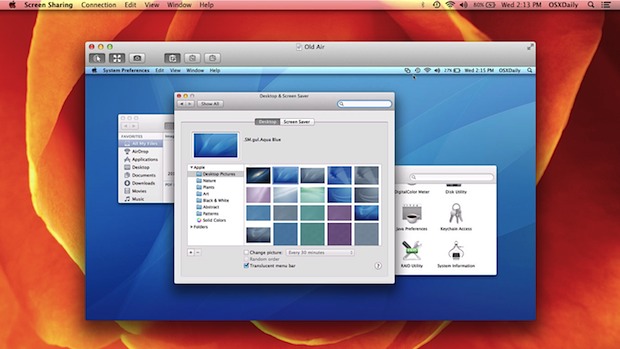
Many times you need to share your computer screen with other people in order to accomplish joint work between you. Therefore, we suggest that you follow the following lines, as you will find useful information on how to share the screen on the MacBook by using the Screen Sharing feature so that other people can take a look at a project you are working on, or control the computer remotely. There are other applications that will help you share the MacBook screen with other devices running the Windows system. This will continue at the end. Share the screen on your MacBook via the Screen Sharing feature. Open the Screen Sharing application on your MacBook, but if you do not find it, you can search for it in Spotlight. Enter the Apple ID of the person whose screen you want to access in the Connect To box. If the contact is already in your Contacts, you will have the option to connect directly without entering the Apple ID.
You'll see a message that your MacBook is waiting for the other user to agree to share their screen. On the other MacBook (the one that will be accessed) the user will receive a notification asking if they would like to share their screen. Once he clicks “accept” he will have the option to either let you control his screen, or just watch the screen.
If they choose “Control My Screen" you will be able to connect and control it. Both users will be able to hear each other, and you will be able to explain or fix a problem with the other person's Mac. Screen sharing on a Mac without an Apple ID The above method works with Macs connected with Apple IDs.
Apple ID, but if you want to share the screen between MacBooks connected on the same network, use the following method: On your MacBook, open System Preferences. Click on “Sharing” and select the “Screen Sharing” option which you find in the pane on the left. Notice the computer address will be written at the top of the open window, copy it.
On the MacBook you want to access, open the Screen Sharing app. Enter the computer address you copied from Step 3. Following these steps will open your MacBook's screen, so you can access files, folders, windows, etc.
Share the screen on MacBooks using the Messages app. Another way to share the screen on Macs is to use the Messages app on those devices. Open the application, then click on “Details” found at the upper left end of the messaging interface, then click on Invite to share the screen, or Request to share the screen. Once you're connected, the call will start automatically, with screen sharing.
If you want to record the screen while sharing it, you can take advantage of the QuickTime Player application, which enables you to record the screen and return to it anytime you want. When you want to end the session, click on “Screen Sharing” next to the Apple logo in the menu bar, then click on “Quit Screen Sharing”.
Related article:
Explaining how to share the screen in Messenger on Android and iPhone How to share the Mac screen with any other device If you are using the MacBook system and want to share the screen with Windows computers, or Chromebooks, you can try the TeamViewer application, which is a free application that allows the feature of controlling the computer remotely if you use it for personal accounts. You can also use the GoToMeeting application, but it requires you to pay for the subscription, after a 14-day trial period.
DROPIDEA
We hope this article has added real value to you. At DROPIDEA, we always strive to deliver high-quality content that helps you grow and evolve in the digital space. Follow us for more useful articles and guides.
Admin
DROPIDEA
Latest Articles

Pangram Raises $9 Million to Detect AI-Generated Content

Encore AI تجمع 30 مليون دولار لبناء وكلاء ذكاء اصطناعي يتعلمون من مكالمات العملاء

Hint: The AI-Powered Home Management Assistant with Martha Stewart's Touch

Startup Runlayer Accuses Rippling of Stealing Its MCP Product Idea

$200 Million to Fight Bots: The Story of Spur Intelligence
Related Articles

ASUS ROG Flow Z13 (2025) available: Everything you could dream of in a gaming tablet.
Pay attention: 10 symptoms that confirm damage to the hard disk and the need for your quick intervention!
