Explain how to record a Zoom video meeting in HD quality in two ways
 By Admin
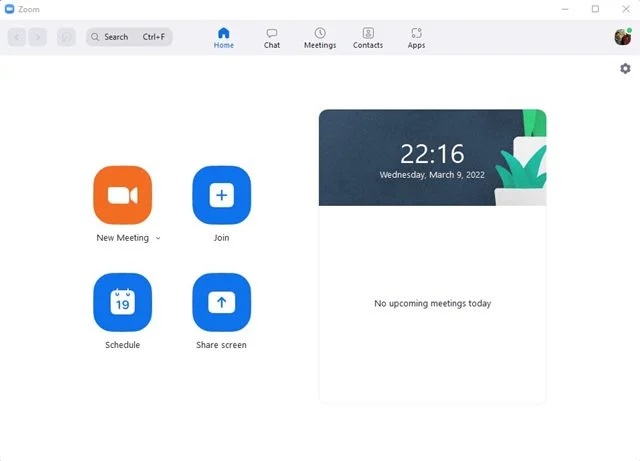
The Zoom application is currently considered one of the basic work applications, and you can now record a Zoom meeting, which is one of the positive things that enabled many to keep up with their work and studies during the past crisis period from the era of Covid until now. Perhaps we are indebted to crises that bring out the best latent energies in humans. Digital technology has contributed to making life more flexible and distinct. For example, conference or meeting services via group video chat applications have become an essential and indispensable productivity tool for communication and cooperation in order to reach the desired goal. When choosing between which is the best service for video conferences or meetings, we will undoubtedly choose the service for hosting or participating in meetings remotely, Zoom.
Features of the Zoom application: Compared to other video conference services, the Zoom application offers many valuable features for users such as: screen sharing, high-quality sound, in addition to more services. Although Zoom has gained high credibility for business meetings and conference purposes, it is considered an effective option for personal video chats with family and friends. Dear reader, in the following lines, here is more useful information regarding recording Zoom meetings, if you are a student or an employee, and you want to record the meetings because they are important to you.
Recording a Zoom meeting A Zoom meeting can be recorded through two different video recording options available within this wonderful program, if you are already a Zoom user, and they are the local option available to every user of the program. While the other cloud option is limited to premium accounts only. The fundamental difference in the possibility of local and cloud recording lies in the way the user's recorded video is saved either on his system in the local option or the cloud recording is saved on the Zoom server.
How to record a Zoom meeting There are important things that must be taken into account in order to know how to record a Zoom meeting before actually starting to record via the Zoom program. If you are participating in the meeting, you will not be able to record the session via Zoom.
While only the host of a Zoom session can record the meeting, the host can allow a participant to screen record. An individual is allowed to participate by clicking on the “Participants” button, then clicking on the “More” button next to the participant’s name, then selecting the “Allow Registration” option. Permission to allow recording can be revoked by right-clicking on the name of the participant to be blocked from recording.
How to record a Zoom meeting How to record a Zoom meeting is very easy, especially on the desktop operating system, through some of the following simple steps: Open the Zoom program from the desktop on your computer. You can now host a new meeting or join an existing meeting as a host.
Now click on the “Record” option during the session as shown in the image below. 4-If you have a premium account with Zoom, it will enable you to choose between local or cloud recording options. 5- If you want to stop recording, click on the “Stop” button as shown in the picture, or click on the “More” button and choose “Stop Recording.”
6- Once you stop recording, the video will be saved in the Zoom folder on hard drive C on your system. You can open this folder to view the recording, and you usually find it in the following path: C:Drive > Zoom 7- If you choose the cloud recording option, visit us.Zoom, access your account, and then open the “Recording” tab to view the saved recordings.
Recording a Zoom meeting without permission
It is possible to record a Zoom meeting without permission by looking for other ways to record the screen. This is if the host does not allow you to record the meeting session. Zoom meeting can also be recorded by third-party screen recording software, and from now on, there are many screen recording software available for Windows computers that are used to record the entire screen.
If you are looking for an excellent video screen recording program, just make sure that the screen recorder supports audio, as recording a Zoom session has become very simple. Finally, we can only be grateful for the digital technology that allowed us to record a virtual Zoom meeting that circumstances prevented it from being held in reality. Related article: Record Windows 10 screen without software
DROPIDEA
We hope this article has added real value to you. At DROPIDEA, we always strive to deliver high-quality content that helps you grow and evolve in the digital space. Follow us for more useful articles and guides.
Admin
DROPIDEA
Latest Articles

Nscale Acquires Anyscale for $1.65 Billion to Expand Its Dominance in AI Infrastructure

How Is AI Accelerating Meta's New App Launches?

Okta Acquires Security Firm Permiso for Around $200 Million

Microsoft Gains $3.2 Billion from Its Investment in Anthropic

Zuckerberg: Billions of People Will Have AI Assistants Within Five Years
Related Articles

ASUS ROG Flow Z13 (2025) available: Everything you could dream of in a gaming tablet.
Pay attention: 10 symptoms that confirm damage to the hard disk and the need for your quick intervention!
