Simple History explanation to track the behavior of visitors on the site
 By Admin
If you are the manager or administrator of a website, blog, or online store on WordPress and you have many users on your site, you must know what other users are doing on your site and monitor their activity within it. For example, you need to know
Whether they downloaded a new add-on or template, or knowing the images they uploaded on the site or other various activities, in addition to showing the date they carried out these activities, so that some modifications are not made in the background that you do not know about. Therefore, you, as a website owner, need to track every activity carried out by the user on your website or blog.
Here, by activities, we mean the deletions or modifications that it performs on the site, as well as the additions and uploads that it performs. In this article, we will explain how to use the Simple History plugin, which allows you to track all the changes that users make on your site, such as pages that have been modified, add-ons that have been installed, or anything else that users do on the site.
What is the Simple History add-on?
The Simple History add-on allows you to track the activities and changes that the user makes on your site by reviewing the history of the user’s activities with the date of each event or activity. The plugin will store all changes to your site in the WordPress database records, and these records will be deleted after 60 days to prevent the size of your site database from increasing.
You can also upload a local copy of all records in JSON format or in a CSV file. Through this addition, it provides you with the most prominent modifications made by users, including: knowing who added, updated, or deleted a post or page, or who added or deleted new attachments.
Find out who added a new category to your site's categories
Or delete it, as well as anyone who edited a comment, approved a comment, or deleted it. The ability to know who added widgets, a sidebar, installed new plugins, or installed a new template (Themes). Knowing when the user logs in or out, as well as when the user fails to log in.
Find out when new pages have been created or deleted. As well as some other activities, but these are the most prominent activities that the tool tracks for you so that you are fully informed about them.
Install the Simple History add-on
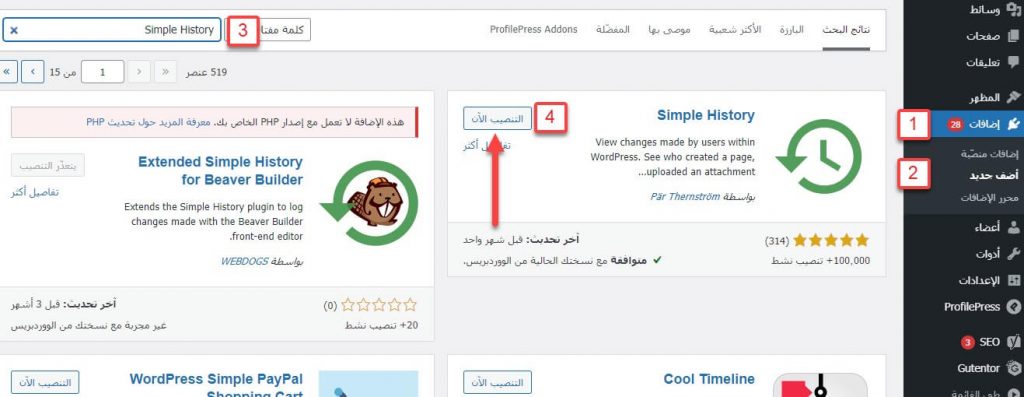
The plugin can be installed by going to your site's WordPress control panel and then going to: Add-ons< أضف جديد، ثم كتابة اسم الإضافة Simple History في مربع البحث ثم انقر على “ التنصيب الآن “ ثم سيظهر لك زر تفعيل بدلًا من زر التنصيب الآن. اضغط على زر تفعيل ، لتفعيل الإضافة على موقعك، ويمكنك معرفة المزيد عن كيفية تنصيب الإضافات على الوردبريس، من خلال قراءة الشرح الذي أعددناه عن كيفية تنصيب الإضافات على الووردبريس خطوة بخطوة.
In detail and with pictures, after installing the plugin, the plugin will appear for you in the WordPress control panel for your site in the Plugins section on the sidebar of the control panel, and you can start setting it up by clicking on the Setting option under the plugin name.
You can configure the extension settings by going to Settings<
Then choose Simple history. The Simple History add-on page contains several tabs, including the Settings tab.
To control the add-on settings as follows: Show History: Specify where activity records will appear (it can be displayed directly on your control panel or on a separate page) Number of items per page: Specify the number of items that will appear on each page. Number of items per page on the dashboard: Determine the number of items that will appear on each page within the control panel.
Clear History: You can from here
Clear the event log by clicking on the “Clear log now” button or the logs will be cleared automatically after 60 days.
Possibility to subscribe to RSS feeds and receive log updates. After modifying the settings with the values you want.
Click on
Save changes button. After that, you will find the Export tab, where through this tab you can export records and changes made by users, to save them on your local device within a file (JSON or CSV)
If you want to keep this data, you can work with this data in desktop applications like MS Excel or LibreOffice Calc. Finally, the Debug tab, which helps you obtain information related to database tables, where records of user activities are stored. You can also track regular actions and events, such as (installing add-ons, posting comments, etc.).
Try the plugin and see how it will track changes and see the results. To try the plugin and see how the records and changes that occur appear on the site, you can, for example, write a new article, install a plugin, delete an addition, write a comment, or any other activity. After that, from the WordPress control panel, you must go to the main page.<
Simple History will open for you a window containing all the records and activities that have been carried out on the site, and you will notice, for example, what you have done for 8 minutes or 13 minutes (the last 60 activities are kept as we mentioned previously). In the end, the process of monitoring the behavior of visitors on the site, and tracking the changes and events that occur on your site, helps you a lot.
As a site administrator, you need to know everything that happens within your site, especially if you have a lot of users. We also talked in this article about how to monitor user records using the Simple History add-on.
DROPIDEA
We hope this article has added real value to you. At DROPIDEA, we always strive to deliver high-quality content that helps you grow and evolve in the digital space. Follow us for more useful articles and guides.
Admin
DROPIDEA
Latest Articles

Nscale Acquires Anyscale for $1.65 Billion to Expand Its Dominance in AI Infrastructure

How Is AI Accelerating Meta's New App Launches?

Okta Acquires Security Firm Permiso for Around $200 Million

Microsoft Gains $3.2 Billion from Its Investment in Anthropic



