Desktop cleaning in Windows 10 - The easiest ways to arrange your desktop and make it more organized
 By Admin
The desktop is the best place to store files and program shortcuts to access them quickly, but over time it becomes cluttered and access becomes more difficult than you thought. So, here are some ways to help you clean your desktop and keep it organized. If your always-fast computer has slowed down noticeably, take a closer look at your desktop.
Do you find it chaotic? Is it littered with icons, pictures, files, and video clips? Let me tell you that each of these takes up a portion of your computer's RAM that could be better used for other tasks.
Therefore, it can be said that cleaning your desktop is a step to speed up your computer. In order for you to understand the matter, every time the computer is turned on, the Windows system during booting does what is called “memory paging” to display all the items on the desktop and determine their position as they were before the device was shut down. So if there are dozens of files on your desktop, they will use a lot of RAM.
In general, if your desktop is full of clutter. We have prepared this article specifically to help you get rid of them. These methods that we will review with you make the desktop more organized and thus you can find everything you are looking for quickly and at the same time speed up the computer. Read also: How to add smart tools to the desktop in Windows 10 The easiest 5 ways to help you clean the desktop Method 1: Make the desktop empty!
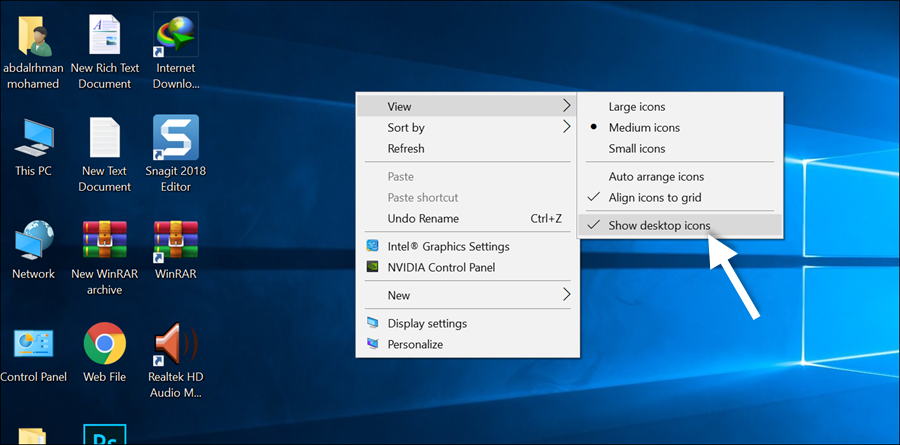
If you don't frequent your desktop often but programs you install automatically place shortcuts to it, a quick fix to this problem is to hide everything on your desktop and make it completely blank. You don't need to delete every shortcut or file individually to do this; All you have to do is right-click on any empty place on the desktop, then from the menu that will appear, direct the mouse cursor towards View, then remove the ✔ mark from the Show Desktop Icons option. Immediately all icons will disappear from the desktop.
At any time, if you want to access those shortcuts or files again, you will find them inside the Desktop folder after opening the File Explorer or Windows Explorer tool. Or check ✔ again on the Show Desktop Icons option. Of course, if you want to store files and program shortcuts on your desktop, this method won't help you because you don't want to hide them all.
The second method: Arrange icons according to… If you are looking for a quick organization of your desktop, then you can arrange the items according to specific criteria. You can do this easily by right-clicking in any empty space, then directing the mouse cursor towards Sort by, and from the drop-down menu, select “Name” to sort the items alphabetically, “Size” to sort the items according to size, “Item Type” to sort the items according to their type and format, or “Date modified” to sort them chronologically. This method will make it easier for you to find what you are looking for if your desktop is crowded with files and program shortcuts.
Method 3: Add each type of file inside a folder. This may be the best solution to get rid of desktop clutter. If you have a lot of files, you can put them inside separate folders and distinguish them according to file types, for example: the “Pictures” folder to save any image on the desktop, and the same is true for the “Documents” folder, and you can create a “Programs” folder to add program shortcuts inside it... so keep related files in their own folder.
This makes access a matter of a few clicks; But the files are still easy to find. Information: To create a new folder on the desktop, right-click on any empty space, then New, then Folder.
Fourth method: Place program shortcuts in the Start menu
Or the taskbar To reduce clutter on the desktop, you can use the Start menu or the taskbar to pin program shortcuts to it and access it even faster from the desktop. This will undoubtedly be the best solution if your desktop is full of shortcuts of installed programs. All you have to do is right-click on the program shortcut on the desktop, then choose from the list “Pin to Taskbar” if you want to add the shortcut to the taskbar, or choose “Pin to Start” to add the shortcut to the Start menu.
After that, delete the shortcut from the desktop. Tip 2: If you pin shortcuts to the Start menu, you can arrange them and make them more organized by creating groups. Information 3: If you have installed program shortcuts on the taskbar until the space is full, right-click on the taskbar and remove the ✔ mark from the Lock the taskbar option, then drag the taskbar up to obtain additional space.
Method 5: Using the Fences program If you store a lot of files and program shortcuts on your desktop, why not give the Fences program a try. This program is very special and helps you clean the desktop in an ideal way, as through it you can create rectangles or spaces fixed to the desktop, then give them any distinctive name and color, after that you can move files, folders and shortcuts within these spaces via drag and drop.
The program provides you with many settings that you must check to make the most of it. The Fences program costs you ten dollars, while there is a free trial version for 30 days where you can enjoy trying out all the features of the program. During this period, if you find the Fences program really useful, then purchase it. That's what desktop cleaning in Windows 10 is all about. If you always store your files and program shortcuts on your desktop, just make sure you keep it organized or you'll have trouble finding what you need and overuse RAM.
DROPIDEA
We hope this article has added real value to you. At DROPIDEA, we always strive to deliver high-quality content that helps you grow and evolve in the digital space. Follow us for more useful articles and guides.
Admin
DROPIDEA
Latest Articles

Nscale Acquires Anyscale for $1.65 Billion to Expand Its Dominance in AI Infrastructure

How Is AI Accelerating Meta's New App Launches?

Okta Acquires Security Firm Permiso for Around $200 Million

Microsoft Gains $3.2 Billion from Its Investment in Anthropic



