How to make a slide show without programs on Windows 10 and 11
 By Admin
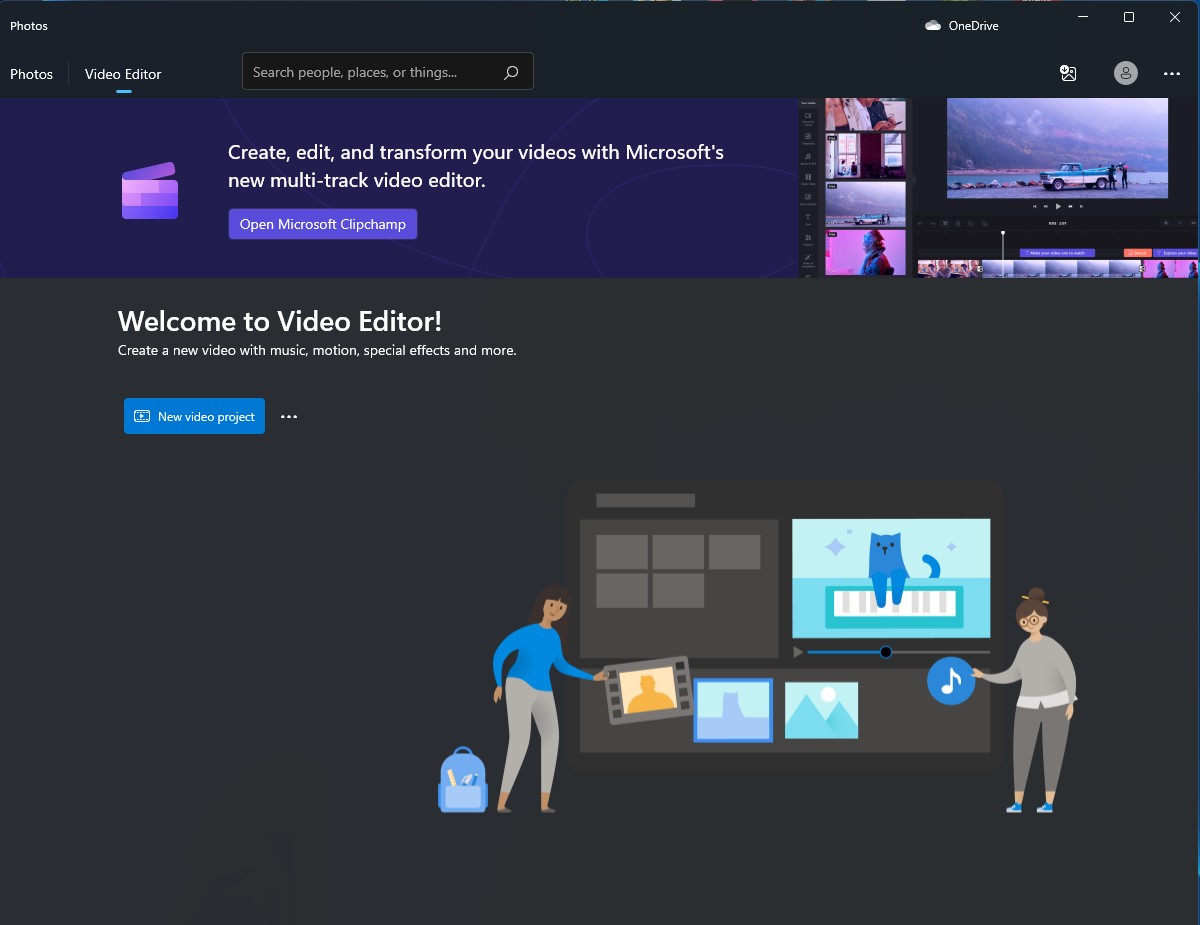
Microsoft applications on Windows come with many free features, which eliminate the need to download many programs, including paid ones. One of these programs is Photos, and through it you can make a slide show on Windows 10 and 11 without the need for programs. The program contains within it a video editing tool that allows you to create a video or slide show using a group of photos and files that you already have on your computer. With some additional features such as merging multiple video clips or adding motion effects, texts, and filters.
What is the slide? Slide Show is the ability to make a video consisting of a number of images and add sound, words, and effects to the video. You can make a slide show for free on Windows 11 and Windows 10 by using the available editing tools and adding the necessary effects to make an outstanding slide show.
How to create a slide show without programs on Windows
10 and 11 You start making a slide show by opening the “Photos” program for Windows 10 and Windows 11, then choosing “Video Editor” from the top and the section designated for creating a slide show will appear. Then you will click on the blue button called “New Video Project – Create a new video,” and then you will choose the name of the slide show that you want to create.
Adding images to the slide show and editing them will appear
A window containing the library called Project Library at the top, through which you can add images for the slide show from your computer. After adding the images from your computer, they will appear to you in the “Project Library” above. You will need to drag these images to the “StoryBoard” or what is called the work space, which allows you to modify the images and create a slide show.
Slide Show Features: Provides you with a free slide show
Windows 10 and Windows 11 have some various features, which I consider completely sufficient to create a distinctive slide show. We start with the duration of the slide show, which you can specify as openly as you want. You can specify the duration for one image or for several images and make each image differ in the duration of its appearance in the slide show. The second feature is filters, which provide you with templates ready to modify the colors of images in different styles to suit your use, and you can use them on one image or many images as well.
You can also add writing to images and specify the length of time you want it to appear on the slide show. The program provides you with many different appropriate fonts, and suggests some places for the writing to appear on images. You can choose from them or move the words to the appropriate place for you manually. 3 powerful features in the slide show. We move on to some of the animation features, and we start with moving images in a simple way with the “Motion” feature, which provides you with moving images in the slide show instead of being static. You can choose from some ready-made patterns for moving images and choose the appropriate one. You can add some 3D effects, which in turn allows you to customize the Slideshow in a greater and distinctive way. With the Effects feature, you can add many ready-made patterns to the images according to your need, such as some celebration or lighting shapes, explosion shapes, or important words. You can also choose from the 3D Library larger and more specialized patterns of animals, shapes, letters, and sports and natural shapes, and customize them. To suit your slide show.
Adding sound or music to the Slideshow Finally, with the feature of adding audio to the Slideshow, you can add sounds and music in two ways, the first is through “Background Music” which you find at the top, which gives you various music suggested by the program from which you can choose whatever you want, or through “Custom Audio” which you will also find at the top, which allows you to choose your own sound or music from your computer. Exporting the slide show in different qualities in Windows 10 and 11. We move on to extracting the slide show from the Photos program for Windows 11 and Windows 10. Extracting the slide show in mp4 format with three different qualities, the best of which is 1080p, then 720p, and then the lowest with a resolution of 540p. Summary: Now you can make a slide show without programs on Windows 10 or 11 using the built-in tool in the “Photos” application. Despite its simplicity and the lack of many animation effects, it remains the fastest way to design a slide show or a quick presentation on your computer without the need to search for a specialized program.
If you want more tools, you can check out the article The 10 Best Free Editing Programs for Windows to find many of these programs. Read also: Explain how to make a slide show on iPhone without applications
DROPIDEA
We hope this article has added real value to you. At DROPIDEA, we always strive to deliver high-quality content that helps you grow and evolve in the digital space. Follow us for more useful articles and guides.
Admin
DROPIDEA
Latest Articles

Nscale Acquires Anyscale for $1.65 Billion to Expand Its Dominance in AI Infrastructure

How Is AI Accelerating Meta's New App Launches?

Okta Acquires Security Firm Permiso for Around $200 Million

Microsoft Gains $3.2 Billion from Its Investment in Anthropic



