How to automatically scan the flash drive when it is connected to the computer via Microsoft Defender
 By Admin
Of course, the ability to automatically scan the flash drive through Microsoft Defender's Windows firewall is one of the safest doors that helps you permanently preserve your data and files from any sudden piracy or viruses that may be transferred when connected to the computer. Especially recently, Windows Defender has reached strong levels of protection, but until now there is no official possibility to automatically scan the flash drive when it is connected to the computer. Although this option existed for a period of time, Microsoft unjustifiably removed this feature from its Windows Defender firewall.
Therefore, we will mention to you a method to automatically scan the flash drive via Microsoft Defender when it is connected to the computer, but this method will depend on modifying some data related to Windows Defender. How to automatically scan the flash drive using Microsoft Defender. This task will be done through some modifications in the Windows Registry, which is considered a database for modifying some things in the Windows system directly, so be careful about the modifications you make, so as not to sabotage the device’s functions in any way. 1- Open Windows Registry, by typing the word Regedit in Windows search, and then choosing Registry Editor.
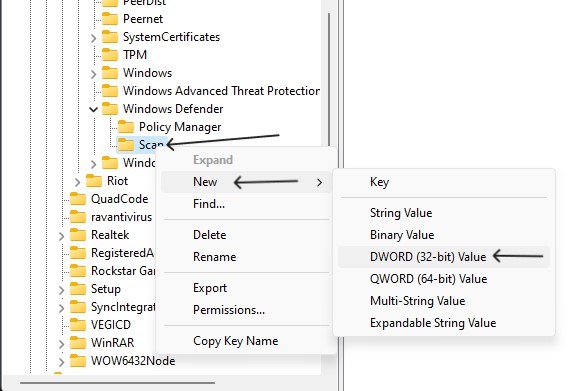
2- A window will open for you, and you will follow these steps to reach the desired section. Go to HKEY_LOCAL_MACHINE, then SOFTWARE, then Policies, after that we choose Microsoft, and finally we choose Windows Defender 3- Or you can take that path HKEY_LOCAL_MACHINESOFTWAREPoliciesMicrosoftWindows Defender, and put it in the top search bar in the Windows Registry. 4- The next step is to right-click in the opened window on the right in the empty area, and then choose NEW and then Key 5- After that, a new folder will appear on the left below the Windows Defender folder, name it with the word Scan. 6- We will right-click on the new Scan folder, then choose New, then choose DWORD 32bit Value 7- A new box will appear on the right called New Value, we will open it by double-clicking on it 8- In the Value Name box, we will write the following DisableRemovableDriveScanning, these words and letters must be written correctly as mentioned 9- As for the Value Data box, we will make sure that the value is 0, and then click Ok after These steps will automatically activate the flash drive scan by Microsoft Defender when it is connected to the computer, but make sure that you use Windows Defender as the main tool to protect your computer, and not another protection program, for this feature to work.
Be sure to follow these steps. You must ensure that you do not remove the flash drive from your computer until the scanning process is complete, so as not to damage any files or cause them to be lost forever. Make sure that you rely on Windows Defender as the primary program to protect the device, by going to the settings for the Windows Defender protection program, then Virus and threat protection, choosing Manage Settings, and activating the Real Time Protection option. Automatic flash drive scanning test using Microsoft Defender After following the previous steps to activate the scanning process, it will automatically search for any damaged or pirated files on the flash drive when it is connected to your computer.
But because we use an indirect method or one that is officially supported by Windows, the features available to facilitate the scanning process are limited. For example, you will not see notifications that a scan has begun for the flash drive, or a notification that the scan has finished, but the only notification will be when any pirated files or viruses are found, as is usual for Windows Defender notifications, showing you a window containing the pirated files, and giving you the available options if you want to erase them or allow them if you are sure of their source. Related article: The best antivirus programs in 2022 - comprehensive protection... A comprehensive guide to scanning your computer for viruses and permanently deleting them
DROPIDEA
We hope this article has added real value to you. At DROPIDEA, we always strive to deliver high-quality content that helps you grow and evolve in the digital space. Follow us for more useful articles and guides.
Admin
DROPIDEA
Latest Articles

Nscale Acquires Anyscale for $1.65 Billion to Expand Its Dominance in AI Infrastructure

How Is AI Accelerating Meta's New App Launches?

Okta Acquires Security Firm Permiso for Around $200 Million

Microsoft Gains $3.2 Billion from Its Investment in Anthropic



