How to find out which Wi-Fi users are connected to the network and block them
 By Admin
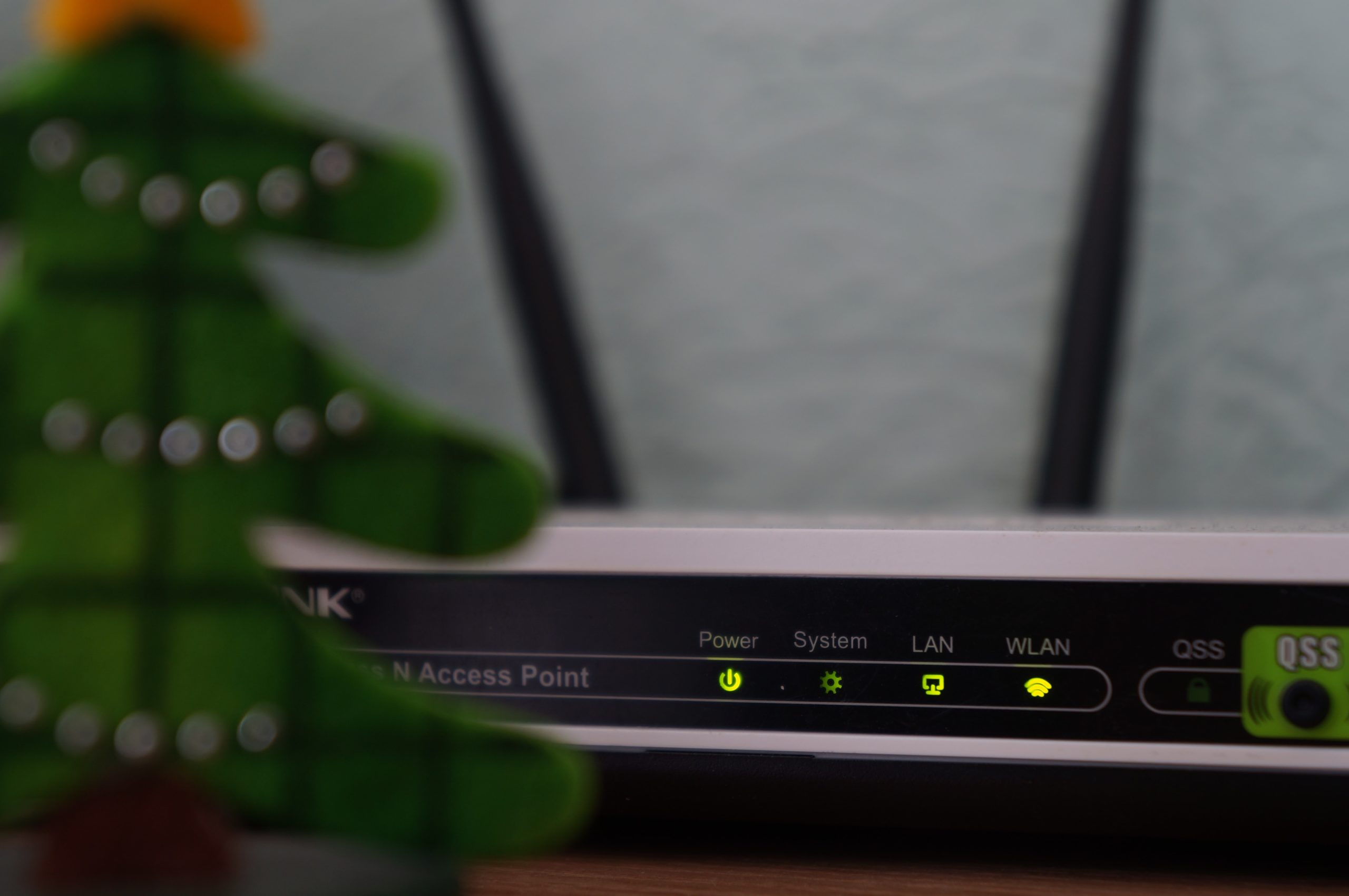
Every home now has home Internet, through different telecommunications companies. Home Internet is divided into two types: Wi-Fi, which is wireless Internet for devices, and Lan, which is the Internet connected by a wire to your computer. It is good to know Wi-Fi users and how to block them from the network. Especially when you notice problems with the Internet connection and then wonder what is causing slow Wi-Fi and why the connection is cut off most of the time. These problems increase and result in slow response, and this is due to many reasons: many devices connected to your network, or someone has hacked the network and is depleting your Internet, which affects you and your devices.
Most often, when operating the home Internet, many people do not pay attention to many of the settings that you must adjust on the telecommunications company’s router page. These settings increase the protection of your Internet and make you aware of all connected devices. So we will learn how to adjust the settings and identify and block Wi-Fi users. Open the router page and change the password. The first step you need is to access your router page. The back of the router provides you with all the required settings. Looking at the back, you will find the IP, Username, and Password, and you can change them easily by following the general steps for routers, provided by (Asus).
). The next step is to open the browser on your computer or phone, and then type the router’s IP in the search. You will be sent directly to the router’s page. You will be asked for a password and username, and all of this information is already on the back of the router. By arriving at the router page and entering it, we will begin the first step by changing the router’s password. It is a good idea to change the router’s password from time to time, in order to restore the security of your Wi-Fi network if it has been hacked or if multiple people who have your password are calling it and you do not want them on the network again. Changing the Wi-Fi password will expel everyone on the network, and they will need the new password from you.
The steps to change the Wi-Fi password differ from one telecommunications company to another, but the method is the same. After entering the router page, search for the word Wi-Fi network settings, and it falls under more than one name. It could be WLAN settings, Management and privacy, User Privacy, or WLAN SSID. When you access these settings, you will directly find your network name, in addition to the ability to change the password.
While changing the password, you can choose the Wi-Fi encryption type, under the Encryption Type box. Make sure to choose WPA/WPA2, to increase the protection of the Wi-Fi network. After changing the password, all devices will be removed from the network, and you will need to reconnect them to Wi-Fi again with the new password. Read also: How to hide the Wi-Fi network of any router to protect it from hacking. Knowing the devices connected to the Wi-Fi. The next step is to know the devices connected to the network. Most telecommunications companies provide this information directly on the home page. You will find it under one of the following names: WLAN Devices, Wireless Devices, Attached Devices, or DHCP.
After accessing these settings, you will find all the devices connected to your Wi-Fi network. In some modern routers, the name of the connected device is written directly, such as the iPhone 11 or Xiaomi Redmi 11, and so on... but in most cases the MAC address of each device is written instead of the name, or both.
The MAC consists of 12 distinct numbers and letters for each device connected to the router, and through it you can easily cut off the Internet from subscribers to the router.
The next step is to delete unwanted devices
From the network, some telecommunications companies provide you with the ability to easily delete devices from the same MAC Address settings. You will find the option to delete or Delete, while in some other devices you will need to manually block the MAC Address of each device from within the router settings. If you are not aware of the MAC Address of your devices, you can delete all devices from the network, change the password as we mentioned above, and then connect your devices again one by one, to find out their MAC Address from the router page as we mentioned, so that you are aware of your devices, and delete any unwanted devices from the Wi-Fi network.
How to delete devices connected to Wi-Fi if
The telecommunications company does not provide you with the ability to delete devices directly. You will need to search on the router page for one of the following names: MAC Filtering, Access Control List, or similar terms.
When you access these settings, you will have to add the MAC Address that you want to block from the network, or you can add all of your devices that are connected to the network, and any other device that tries to connect to the network will be blocked, so telecommunications companies provide you with one of two options. Additional information to adjust router settings and internet speed 1- If you cannot access one of the information mentioned above, you can search for it by the name of the router on YouTube, to show you the steps in the picture for your router model. 2- Make sure of the carrying capacity of your wires from the router under the Actual Rate and Attainable Rate box, and the download speed and current upload speed that the wires can handle will be clarified for you.
3- You can change your Internet wires if they have been worn out for a while, as speed is greatly affected by wires that have been neglected for long periods. 4- Make sure to activate the hard Wi-Fi speed on your router, by going to the WLAN settings, then WLAN Global Configuration, and make sure to choose Mixed (802.11b/g/n) to get the full speed. 5- You can also see a guide to the most important ways to strengthen the Wi-Fi signal at home - 5 tips
Which we presented earlier. Summary: You can rely on the methods mentioned in our article in order to know the Wi-Fi users connected to the network and block them, but before that, it is preferable to go to the network statistics from the router’s main page and find out the strange devices connected to the Wi-Fi network and then block them with one of the available solutions. Experts advise changing the Wi-Fi password every once in a while to avoid network password bypass programs that reveal the security of the home Internet network depending on the strength of the password. Therefore, it is preferable to change it with a strong password every period of time.
DROPIDEA
We hope this article has added real value to you. At DROPIDEA, we always strive to deliver high-quality content that helps you grow and evolve in the digital space. Follow us for more useful articles and guides.
Admin
DROPIDEA
Latest Articles

Pangram Raises $9 Million to Detect AI-Generated Content

Encore AI تجمع 30 مليون دولار لبناء وكلاء ذكاء اصطناعي يتعلمون من مكالمات العملاء

Hint: The AI-Powered Home Management Assistant with Martha Stewart's Touch

Startup Runlayer Accuses Rippling of Stealing Its MCP Product Idea