How to transfer WhatsApp messages from iPhone to Android using a cable
 By Admin
Here we will learn how to transfer WhatsApp messages from iPhone to Android or vice versa, which is extremely important given that each of us has his own version of WhatsApp conversations. When moving to a new phone with the Android system, you will need to transfer data, especially with the wide spread of the WhatsApp application for personal use or for business management as the most famous chat application on the scene so far. However, despite this, the feature of transferring messages from iPhone to Android or vice versa was greatly delayed by the company, which was announced. It was launched in mid-2021 to transfer conversations from iPhone to Android only and not vice versa, which was followed a full year later by the ability to transfer messages from Android to iPhone. Our talk today is about the possibility of transferring WhatsApp messages from iPhone to Android completely free of charge. 5 important steps before transferring WhatsApp messages: Your Android phone must be on Android version 12 or higher, or be one of the Samsung phones. Your iPhone must be on iOS version 15.5 or higher. Connect from Lighting to Type C to connect it between the two phones. You need to reformat your Android phone (factory reset) to do this process, if your phone is not already new.
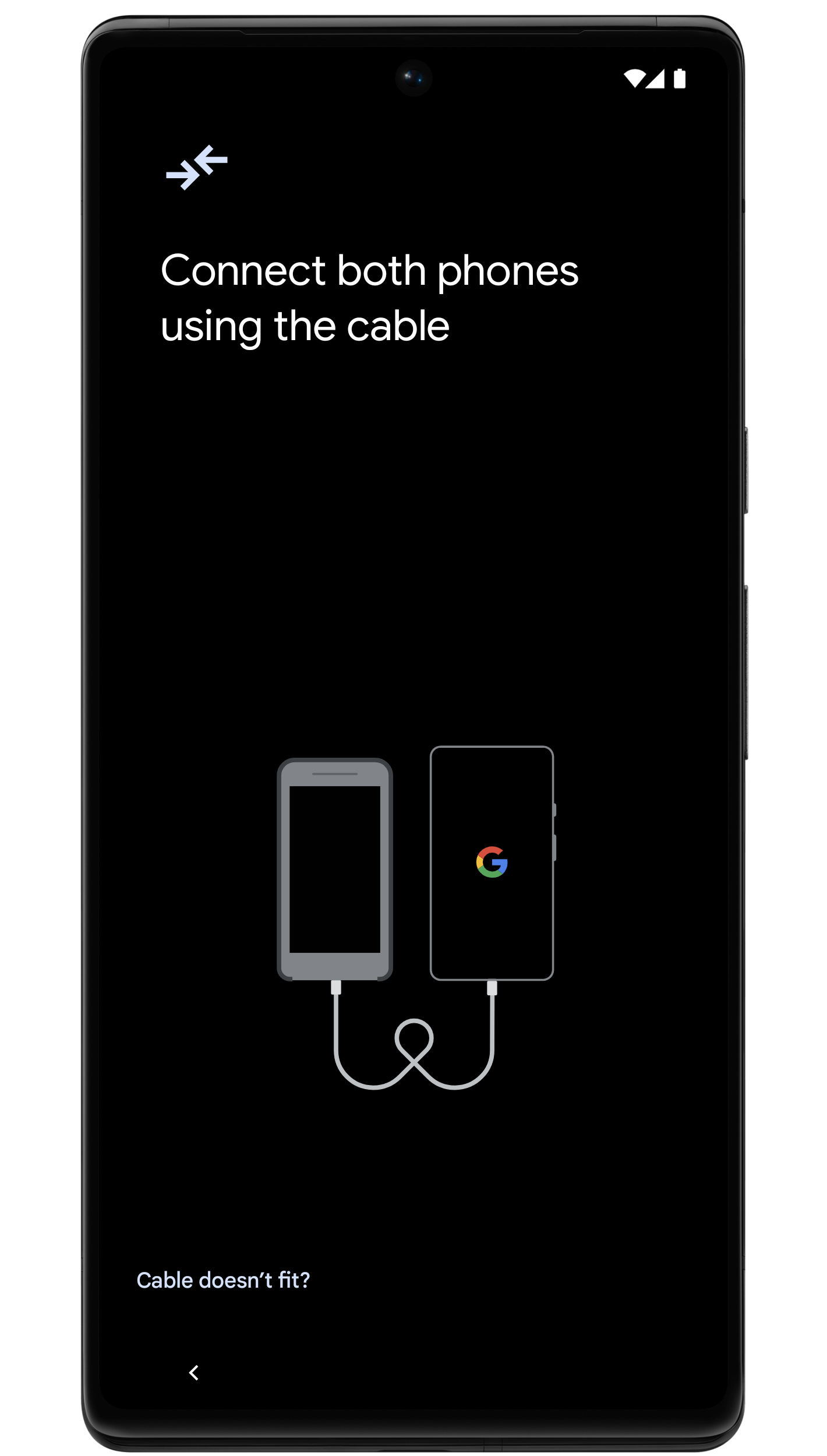
You must use the same phone number from your iPhone to your Android phone. Related article: How to run WhatsApp on two devices with the same number. Steps to transfer WhatsApp messages from iPhone to Android. You will begin to configure your Android phone as new, until you reach the Transfer Apps and Data screen, or Transfer Apps and Data. You will be required to connect both phones to the data transfer cable mentioned above, Lighting to Type C. After connecting both devices, your Android phone will begin collecting information about all applications and files from your iPhone.
You can transfer all files and applications if you want, but this article talks about WhatsApp messages only, so you will choose the WhatsApp application only, which will show you the size of the files and messages that will be transferred from your iPhone. After selecting the WhatsApp application to transfer it, a code will appear on the screen of your Android phone (QR Code). You will be required to scan this code on your iPhone, either by opening the Camera application and selecting the code, or by going directly to the WhatsApp application on your iPhone, then to Settings, then choosing the box to transfer conversations to your Android phone, which in turn will show you the same required page. The transfer process begins by clicking on the word “Start” that appears on the screen of your iPhone, then we wait for this process to complete.
After the process is completed successfully, you can complete the setup of your Android device and disconnect it from your iPhone. We will download the WhatsApp application on the Android device normally and log in with the same number, then a backup copy of the program’s messages will appear for you to restore. By clicking on Restore, the WhatsApp program will start downloading all of your messages and files on your Android phone completely. Transferring WhatsApp conversations from iPhone to Samsung, in particular, Samsung phones come in partnership with WhatsApp to facilitate the process of transferring conversations to its devices. Samsung devices do not need to be on Android 12 or higher like all other Android phones. Samsung also allows you the ability to transfer conversations after reformatting the phone (factory settings), and this is through the Smart Switch feature in Samsung phones, which works in the same previous way that we mentioned above.
Connect your Samsung phone to your iPhone with a data transfer cable. You will see on the screen of your Samsung phone some options for some applications to use with your iPhone, including the Smart Switch application. After choosing the Smart Switch application, a window will appear for you to transfer data and applications from your iPhone, from which we only need the WhatsApp program. A code will appear on the screen of your Samsung phone, which we will in turn select and scan with the iPhone, as we mentioned above, to complete the transfer process.
3 points you must know after transferring WhatsApp conversations to Android. The transferred conversations do not go as a backup copy directly to Googe Drive, but remain without a backup copy until you do so. The call history of the WhatsApp application is not transferred with conversations, files, and photos. All of your messages and files from the program will remain on your iPhone after transferring them to your Android phone, until you delete them manually if you want. Better late than never, that's what we see
With this very important and very late feature of transferring WhatsApp messages from iPhone to Android, which we talked about in this article, in addition to the possibility of transferring WhatsApp conversations from Android to iPhone as well, which we talked about in many other articles. This feature saves WhatsApp users from many unsecured or high-cost methods for applications dedicated to that. If you want the reverse step, you can see our article: A guide explaining transferring data from Android to a new iPhone via Move to iOS. Read also: How to transfer WhatsApp from Android or iPhone to a new iPhone with all data 2022
DROPIDEA
We hope this article has added real value to you. At DROPIDEA, we always strive to deliver high-quality content that helps you grow and evolve in the digital space. Follow us for more useful articles and guides.
Admin
DROPIDEA
Latest Articles

Nscale Acquires Anyscale for $1.65 Billion to Expand Its Dominance in AI Infrastructure

How Is AI Accelerating Meta's New App Launches?

Okta Acquires Security Firm Permiso for Around $200 Million

Microsoft Gains $3.2 Billion from Its Investment in Anthropic



