How to change a WordPress domain while maintaining SEO settings
 By Admin
Changing the WordPress domain is considered one of the rare procedures that a website owner may resort to, and one must be careful about doing this procedure and take all necessary safety measures and precautions so that the process can be completed safely and without problems. In this article, we provide all the information that you must do during the process of changing the domain of your WordPress site while maintaining SEO settings and working to reduce the negative impact on search results to the lowest possible percentage.
Why does the website owner resort to changing the domain?
There are many reasons that prompt the website owner to change the domain, and the following are the most prominent cases in which the website owner changes the domain: Choosing a new name for the business: Many website owners that represent commercial activities over the Internet change the name of the business in some cases, especially if there is a new partnership or a new manager within the business. Choosing a different domain extension: Some website owners change the domain to a new domain that is more relevant to the site’s activity, for example changing from the .com extension. To the extension org.
And vice versa... Choosing a highly relevant domain: After a period of launching the website online, the website owner may find a domain name that is more relevant than the current domain, which prompts him to change the old domain. Applying penalties to the old domain: Penalties may be applied by search engines to the domain name due to violating some policies, whether intentionally or not. In this case, changing the domain is one of the options that the site owner resorts to. Whatever the reason that prompts you now to change the WordPress domain, we will explain to you all the practical steps to change the domain in a safe way while maintaining the SEO settings and adjusting the site administrator tools correctly.
We will divide the article into three main parts in order to organize the explanation and make it easy to move from one part to another. If you have any additional questions after completing the article, share them with us in a comment below the article. Note: If changing the domain is not necessary, we do not recommend this procedure just because you want to change the domain, especially if your site appears strong and stable in search engines.
Contents of the article Procedures that must be performed before the operation
Changing the domain Take a backup copy of WordPress Check the structure of permanent links Steps to change the domain correctly 1. Maintain ownership of the old domain 2. Purchase and prepare the new domain and link it to WordPress Procedures that must be done after changing the domain successfully Configure the site’s permanent links to be in the same structure as the old domain Update internal links in all pages, articles and files of the site Make sure to activate the security lock on your site (SSL) Activate redirection from the old domain to the new Update the domain data in Webmaster Tools and Google Analytics
Send a sitemap with the link to the new domain. Procedures that must be taken before changing the domain. Here are some procedures that we advise you to do before changing the domain in order to make the matter happen with a high degree of security. Taking a backup copy of WordPress Before starting the procedure to change the current domain for your WordPress site, we advise you to take a complete backup of the site’s files as well as its databases, as the process of changing the domain is considered sensitive and may result in the site crashing or losing some data. As we explained in: Explanation of making a backup copy of a WordPress site, make the backup copy and save the copy in a safe place, in order to restore it again in the event of any sudden or unexpected malfunction.
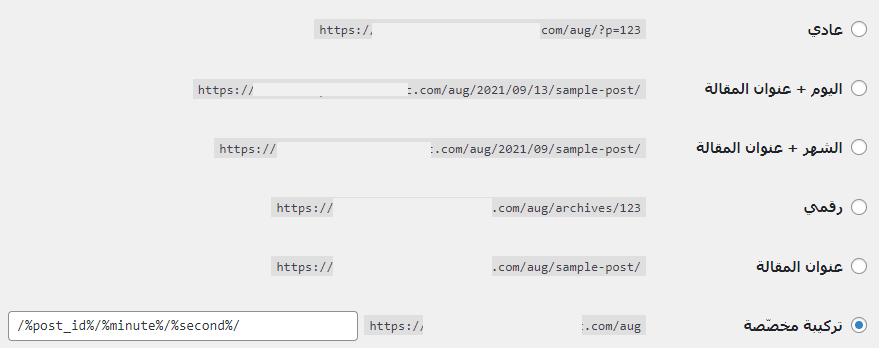
Check the structure of permanent links. The structure of permanent links determines the shape and appearance of links to pages, articles, and files of the site in general, so one of the useful things when changing a domain is to maintain the structure of permanent links that you used in the old domain. Maintaining the structure of permanent links in the new domain makes the site’s page links take the same form as before with the old domain. So, go to the WordPress control panel, then go to: Settings < الروابط الدائمة .
And see what the current structure of permanent links looks like on your site, because we will set the same structure after changing the domain. Steps to change the domain correctly After you have taken a backup copy of the site in anticipation of any unexpected malfunction, you can directly begin the procedure of changing the old domain to a new one, as we will explain in the following lines. 1. Maintaining ownership of the old domain. One of the very useful things when changing a domain is not giving up ownership of the old domain, as this domain was spreading across Internet sites and bringing you many visits that may reach very large numbers if the site enjoys high fame.
Perhaps you do not want this domain to appear again on your new website links, but what if this was an old domain that you published on social media sites and it began to bring you a lot of continuous visits! Are you prepared to lose those visits? Therefore, if you want to preserve the visits that come to you through the old domain, do not give up ownership of it because you will use it to redirect it to the new domain, so that anyone who clicks on the old domain will be directed directly to the new domain, and in order for this to be done correctly, you must be the owner of the old domain as well.
2. Purchasing and preparing the new domain and linking it to WordPress. The first step is to purchase the new domain that you want to replace with the old one. You can certainly purchase the domain from the same hosting company on which your site is currently located, or you can purchase it from another company. Note that if the domain is located on a company other than the hosting company for your current site, you must first confirm linking the domain to the hosting first by adding the nameservers data for the hosting with the domain host: Then after linking the domain to the hosting well, you can now go to the hosting control panel (Cpanel) for your site, then enter the Addon domains tool: The page for adding the new domain within the hosting control panel will open for you, which will ask you for the following data: Write the name of the new domain, such as NewDomain.com then name the subdomain name.
(A routine procedure, write any word inside it) Then in the last box you write the name of the folder that you want to create inside the file manager so that there is a file for the new domain inside the hosting file manager with the name that you choose, for example (newdomain). Now the new domain has been added, you can go to the file manager within the hosting control panel: You will notice within the file manager that a new folder appears with the name you wrote on the page for adding data for the new domain, which in this case is (newdomain): Now you can enter the folder for the new domain within the hosting file manager and upload the backup copy of WordPress inside it completely. After confirming that the full backup has been uploaded, log in to the WordPress control panel through the following link: newdomain.com/wp-admin, replacing newdomain.com with the link to your new domain.
Then change the website link through settings
DROPIDEA
We hope this article has added real value to you. At DROPIDEA, we always strive to deliver high-quality content that helps you grow and evolve in the digital space. Follow us for more useful articles and guides.
Admin
DROPIDEA
Latest Articles

Pangram Raises $9 Million to Detect AI-Generated Content

Encore AI تجمع 30 مليون دولار لبناء وكلاء ذكاء اصطناعي يتعلمون من مكالمات العملاء

Hint: The AI-Powered Home Management Assistant with Martha Stewart's Touch

Startup Runlayer Accuses Rippling of Stealing Its MCP Product Idea