How to change the path of installed programs and move them from C to another disk on Windows 10
 By Admin
The user can change the path of installed programs or even games to move them from one place to another, perhaps to save some space on Partition C or because the program folder takes up a large space on the internal hard disk, so you move it to the external hard drive. There are many reasons why you should do this, and here are the ways that will help you.
How to change the path of programs installed on Windows?
When you install a program or game on your computer for the first time, the first step is to determine the path to the files of this program or game on the hard disk. But suppose that you later wanted to change this path in order to move it to another partition or external hard drive, this is not easy to do because the program or game has already relied on this specific path and any change may lead to corruption of the operating files. The traditional solution is for the user to reinstall the program or game again so that he can select a different path, but fortunately there are third-party tools specifically designed to help you move installed programs from one place to another with ease, and here is an explanation of some of them below.
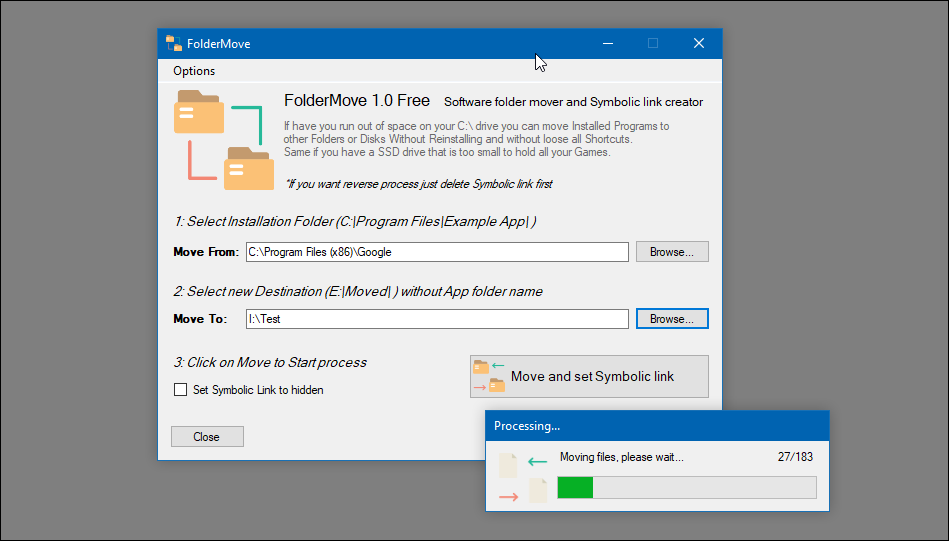
Also related: How to transfer installed games to another hard drive without downloading them again The first method: - Using the FolderMove program The FolderMove program is one of the new free computer programs, and the user can benefit from it to transfer installed programs and games from one place to another in simple clicks of a button without any negative effects that hinder operation. The size of the program is less than 1MB, in addition to being portable, meaning it does not need to be installed on the computer.
To use the program, all you have to do is download it and then run it with administrator powers by right-clicking on the run icon and clicking on the Run as Administrator option. After the program window appears, press the Browse button in front of Move From to specify the current main path (folder) for the game or program. Then you press the Browse button in front of Move To to select the new path.
Finally, you press a button
Move and set Symbolic Link to begin the process of transferring the program/game files to the new location and everything will work normally after that without problems. Download the program The second method: Use the Application Mover program. The Application Mover program is also a free program to move and change the location of programs and games installed on the computer in real time. The program has a very simple user interface, which means that it will be easy to use as well.
After running the program, select the path for the program or game from the Current Path field, then specify the new path or place to which you want to move the program or game from the New Path field. Finally, you will click OK to begin the transfer process from the current location to the new specified location. Note also that the Application Mover program will add a new option to the Context menu that appears after right-clicking on any folder. Through this option, you will be able to move the selected folder to any other place with ease without the need to call the program interface.
Download the program The third method: - Use the Steam Mover program. The Steam Mover program is considered the most famous and oldest program that performs this task. It is primarily designed to transfer Steam platform games from one place to another, but it can also be used to transfer installed programs. The program is light in size and does not require installation, but the method of using it is somewhat different from previous programs, so let me explain to you the steps to transfer a program from one place to another: Right-click on the SteamMover.exe file. From the menu choose Run as administrator.
After the program window appears, click on the three dots button below the Steam apps common folder. Specify the main folder that includes all programs or games.* If you want to transfer a program, by default the programs are stored in the Programs File folder in Partition C, so you will select it. The program will list a list of all programs or games stored within this main folder.
Click on the three dots button below “Alternative folder” to select the new location to which you want the program or game to be moved. Select the program or game from the list, then press the right arrow button directed to the right located at the bottom of the program window. The process of transferring the program files to the new location will then begin, and you can then run it without problems.
Download the program
DROPIDEA
We hope this article has added real value to you. At DROPIDEA, we always strive to deliver high-quality content that helps you grow and evolve in the digital space. Follow us for more useful articles and guides.
Admin
DROPIDEA
Latest Articles

Pangram Raises $9 Million to Detect AI-Generated Content

Encore AI تجمع 30 مليون دولار لبناء وكلاء ذكاء اصطناعي يتعلمون من مكالمات العملاء

Hint: The AI-Powered Home Management Assistant with Martha Stewart's Touch

Startup Runlayer Accuses Rippling of Stealing Its MCP Product Idea