Design a free logo using Canva without any design experience required
 By Admin
The Canva tool helps you design logos, paintings, presentations, CVs, design infographics, or create photos and graphics for Facebook, Instagram, or other graphic designs for free. Thus, using the tool, you can design a free logo for your website or business and publish it on various platforms.
Therefore, today, with the features, features, and options provided by Canva, you can dispense with working with Photoshop or other design programs, and you can design the logo for free through simple steps using ready-made templates that can be modified, such as changing texts, adding images, changing colors, etc., until you get your desired logo. Registering with Canva is the first step to designing a logo
You can get started with Canva by going to
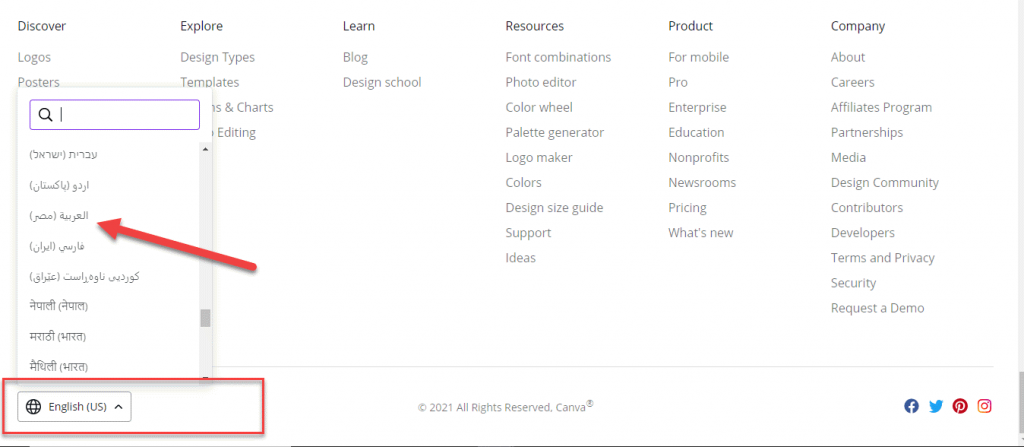
The official website, then go to the bottom of the page to change the language of your site to your preferred language. You will find that the site is available in many languages, including Arabic. You can choose the Arabic language in this way. You will find that the site interface has changed to the Arabic language, with all the options and settings that you use in a solid Arabic language that helps you understand the steps required in the beginning. You can create a new account on the site for free, by clicking on Register Now and registering through your Google or Facebook account. To start working, you can either create a new design, or choose a template or design from the existing ready-made options and start modifying it. To choose a ready-made template, you can from the main interface go to Templates
Then choose the appropriate template for your work and select it. After that, the graphics editor will open for you and begin modifying the template. In this case, we will search for a logo design. This will open the graphics editor for us, which contains many options. We will learn about them and begin designing our own logo and modify it. After that, the Canva graphics editor interface will open for us, where we can start working and designing, as in the following animation. You will also notice that there are many options that the tool provides us in order to control all the details related to the design and the logo that we want to design. Using the modification to the visual editor, you can finish the process of designing your logo, with simple steps. 1.
Choosing a template: First, you choose the template or logo image that we want, so that we can start modifying it according to our needs, by clicking on templates, where many free templates will appear ready to choose from. 2.
Modifying the logo After we choose the template that you will rely on, like this example in which we chose a sports template, you will find many options for modifying the design, where you can work and modify the colors, texts, background, add images, video clips, and many more. Through the Elements option, we can add different elements, as Canva contains a very large number of elements (shapes, graphs, icons, etc.).
After that, you can edit the item you added. You can modify the colors or you can change the size or location of the element, depending on what you want. After modifying the size, location and color of the element, you will find that the design has become as follows. After that, you can move on and modify the written text to suit your work or according to your business activity. Such as deleting the original text and adding a new text by going to the text.
Choose the type of text you want and modify it 3. Download the design After making the required modifications to the logo, you can download it by clicking on download from the left corner at the top. You can download the design with different extensions such as (png, jpg, pdf), but we advise you to select the PNG extension, as it is the recommended extension for downloading the image in high quality.
You can get a paid version of Canva to get higher features such as adjusting image dimensions, compressing image size, making the image background transparent, and some other professional icons, but the free version is enough for you at first.
Additional options in Canva The Canva editor contains many other options that you can use to modify the desired design, whether it is a logo design or any other design. There are some free images and elements that Canva offers you, to add an aesthetic touch to your design. Downloads Through downloads, you can upload an image from your computer to the Canva library so that you can use it in the design, and also in the image tab that follows you will find a huge library of images that you can add to your design and modify it, with the same idea as audio and video clips.
You can also add audio clips or videos to various designs. The background is a tab that takes you to a library of ready-made backgrounds that you can add to your design, in order to create a professional design. In the end, the Canva website is one of the easiest tools that help you make a custom design using ready-made, editable templates without the need for design experience. As we explained, you can design a free logo in simple steps.
DROPIDEA
We hope this article has added real value to you. At DROPIDEA, we always strive to deliver high-quality content that helps you grow and evolve in the digital space. Follow us for more useful articles and guides.
Admin
DROPIDEA
Latest Articles

Nscale Acquires Anyscale for $1.65 Billion to Expand Its Dominance in AI Infrastructure

How Is AI Accelerating Meta's New App Launches?

Okta Acquires Security Firm Permiso for Around $200 Million

Microsoft Gains $3.2 Billion from Its Investment in Anthropic



