An application that enables you to use the iPhone camera on the computer as a webcam
 By Admin
One of the most famous problems that both users of regular computers and Mac devices agree on is that most of the webcams available in the market are bad, except for the mercy of God. In order to find a good camera, you must search a lot until you find a good webcam, sometimes at a high price. But wait, why search and you may now have next to you the webcam you are looking for?!
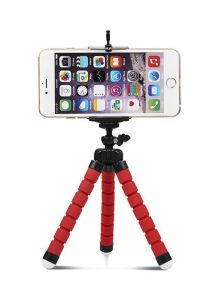
If you are using an iPhone, you can now use the iPhone camera on the computer instead of the webcam, and during this article we will show you how you can do that. Before you start using the iPhone camera on the computer, there are some notes that should be noted before starting the process of using the iPhone camera on the computer as your own webcam. The most important of these notes are the following: You must download a third-party application on both: the iPhone whose camera you will use as a webcam, and the computer, whether it is a device running the Windows operating system, or a Mac device. It is preferable to use a tripod for your iPhone in order to get the best pictures like the one shown in the picture. If you use a tripod for the iPhone, in that case you will need a microphone to record sound and speakers as well.
Make sure that the Windows operating system you are using is Windows 7 or later, and if you are using a Mac, make sure that the operating system is macOS 10.12 or later. Make sure that the iPhone operating system is iOS 13.0 or later. The iPhone and computer must be connected to the same Wi-Fi network.
How to use the iPhone camera on the computer as a webcam
There are many third-party applications that can be used to make the iPhone camera work as a webcam for computers, and one of the most famous of these applications is the EpocCam application in both its free and paid versions. It is the application that we will talk about in this article: Below are the steps for dealing with the EpocCam application in order to use the iPhone camera on the computer. Download the EpocCam application from the Apple App Store on your iPhone from here if you want the free application, or here if you want the paid application.
After you finish downloading the application on your iPhone, through your computer, go to the website kinoni.com. After going to this website, download the EpocCam program on your device. But make sure that you download the version designed for the operating system of the computer you are using. Install the EpocCam program you downloaded on your computer.
Now that the program has been installed on both iPhone and computer. As long as the two devices are connected to the same Wi-Fi network. You are now ready to use the iPhone camera on your computer as a Webcam.
Return to your iPhone. Make sure that the application is connected to the computer. If you see a black screen with an image of the phone and the computer and it is downloading, do not worry, it is looking for the computer to connect to.
Run any application that includes video playback, such as: Skype, Zoom, Times...etc. Go to the camera settings in the video player app you have running and choose EpocCam instead of the built-in camera. If you use these applications on the browser, for example, you run Zoom through your internet browser instead of the Zoom desktop program.
You must allow the browser to access the camera. You must also change your camera settings in order to use EpocCam, instead of the built-in camera.
What do I do if I don't see EpocCam listed as an option
Under camera settings? If you don't see EpocCam listed as an option under the camera settings of any app, you have to follow the below solutions one by one and check each time whether it appears or not: Reinstall the drivers.
Double check that your phone and computer are connected to the same Wi-Fi connection. If EpocCam doesn't appear as an option listed under Camera settings and only a black screen appears on your iPhone with a rotating loading icon, quit the app and open it again on both your computer and iPhone. Read also: How to share the phone screen with the computer The most important differences between the free and paid EpocCam Before you decide to get one of the two programs: You must know about the disadvantages of the free version, as well as the advantages of the paid version of the EpocCam application.
Disadvantages of the free EpocCam app: It comes with a video resolution of 640 x 480, and a frame rate of 30fps. It's relatively poor quality, but it's still better than some webcams. You must use built-in headphones with a microphone to be able to speak, as you cannot use the iPhone's microphone.
Features of the paid EpocCam application Enjoy the high quality of video provided by the iPhone camera. You can use the iPhone's microphone. Remove watermark in free version.
Supports the dual camera on the iPhone (if the phone is equipped with it). Summary https://www.elgato.com/sites/default/files/_epoc/201007_EpocCam_LoseTheCable_webcompressed.mp4 In the end, it should be noted that it is not only iPhones whose camera can be used on the computer as a webcam. You can also do this using other devices such as Android phones, which you can find a detailed article on how to use here.
Surveillance cameras can also be used instead of a webcam, and other devices as well.
DROPIDEA
We hope this article has added real value to you. At DROPIDEA, we always strive to deliver high-quality content that helps you grow and evolve in the digital space. Follow us for more useful articles and guides.
Admin
DROPIDEA
Latest Articles

Nscale Acquires Anyscale for $1.65 Billion to Expand Its Dominance in AI Infrastructure

How Is AI Accelerating Meta's New App Launches?

Okta Acquires Security Firm Permiso for Around $200 Million

Microsoft Gains $3.2 Billion from Its Investment in Anthropic



