4 easy ways to save a list of all the programs installed on your computer
 By Admin
Over time, and after a long period of using Windows or the computer, you will have a huge number of programs installed on the computer, which are naturally diverse and do not fall under one category. Therefore, and for several other reasons, you will need to save a list of the names of these programs so that you can use them if you reinstall a new Windows or move to a new computer. Here we will explain all the available methods to do this.
How to create a report on programs installed on the computer? You may need to create a list of all the programs installed on your computer for many reasons, such as when you reinstall or reset Windows. This list allows you to review the programs that were installed before you took this action so that you can easily reinstall them again. Or, for example, when you buy a new computer, you may need to install the same programs that you had on the old computer.
This list will also help you discover programs that you have not used for years and no longer need, so they can be eliminated to save space. Anyway, there we will cover 4 ways through which you can easily create a list of installed programs.
The first method: - Use PowerShell commands in the PowerShell tool
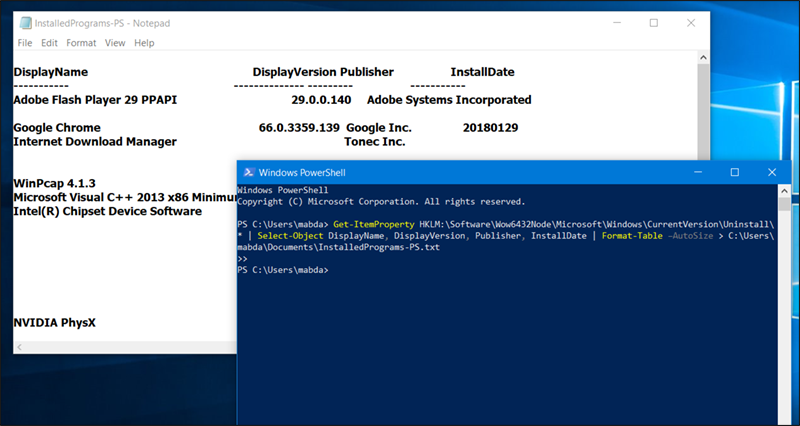
Windows has many commands - even professional ones, as they perform more difficult tasks than the Command Prompt commands. Among these PowerShell commands, you can create a text file (txt) that contains a list of the names of the programs installed on the computer. To do this, all you have to do is follow the steps below: Press the Windows key + the letter R together on the keyboard.
In the Run window, type the command “powershell” and click Ok. A PowerShell window will open where you can now enter the following command: Get-ItemProperty HKLM:SoftwareWow6432NodeMicrosoftWindowsCurrentVersionUninstall* | Select-Object DisplayName, DisplayVersion, Publisher, InstallDate | Format-Table –AutoSize > C:Users xxxx DocumentsInstalledPrograms-PS.txt But before executing this command, make a simple modification to it, which is to replace (xxxx) with your username on the Windows system. Now press Enter button.
Then go to the following path: C:UsersxxxxDocuments. In the Documents folder, you will find a text file called InstalledPrograms-PS. Open it to find a list that includes all the programs currently installed on the computer. The second method: Using CMD commands. Do you think that the first method is somewhat difficult? It's okay... because there is another way, but this time we will use the CMD commands that are easy compared to PowerShell.
If you want to create a list containing the programs installed on the computer through CMD commands, all you have to do is apply the following steps: Type Command Prompt in the search field after opening the Start menu. Right-click on the Command Prompt tool. Choose from the menu Run as Administrator to open the CMD tool with administrator privileges.
Type the first command in the CMD tool, which is “wmic,” then press Enter. Then enter the following command: /output:C:InstallList.txt product get name,version Now go to the operating system section (C:) and you will find a text file called InstallList, as this is the file that contains a list of all the programs installed on the computer at the present time. Read also: Get rid of temporary files in Windows in 3 ways that do not require programs - and why should you get rid of them?
The third method: - Use the CCleaner program. CCleaner is considered one of the most popular Windows system programs, which helps users clean the hard drive from unnecessary files to free up space, in addition to fixing many common errors.
CCleaner also provides a number of built-in tools that make it easier for the user to use the computer. Fortunately, you can use this program even if you want to create a report of the programs used on your device. All you have to do is open the program, then go to the Tools section, then on the Uninstall page at the bottom right, you will find a Save to text file button. When you click on it, it will ask you to specify where to save the file, and then you will get a text file that includes all the installed programs.
Fourth method: - Take a screenshot of the installed programs!
Do you not like any of the previous methods? Well, this simple method will work without any doubt. You can go to the Windows Control Panel, after opening the Start menu and then clicking on Control Panel. There you will click on Programs and Features to display a window that includes all the programs installed on your device, through which you can install any of these programs, but we are not here to do that, but rather take a Screenshot of this window! Yes... you can save this window as an image and move it anywhere you want so that you will always remember these programs.
Here you can use the Snipping Tool built into the Windows system to easily take a screenshot.
DROPIDEA
We hope this article has added real value to you. At DROPIDEA, we always strive to deliver high-quality content that helps you grow and evolve in the digital space. Follow us for more useful articles and guides.
Admin
DROPIDEA
Latest Articles

Microsoft Gains $3.2 Billion from Its Investment in Anthropic

Zuckerberg: Billions of People Will Have AI Assistants Within Five Years

Microsoft Enters Direct Competition Against OpenAI and Anthropic

Pangram Raises $9 Million to Detect AI-Generated Content



