7 things that can prevent router hacking and protect it - a guide to closing the most famous router vulnerabilities!
 By Admin
In this guide, we list for you a set of important steps that can prevent router hacking, achieve maximum possible protection from the most common router vulnerabilities, and also prevent hackers from stealing the Internet without your knowledge. How to prevent your router from being hacked and protect it from hackers These days, it has become very easy to hack a router and steal the Internet from users, as the Internet can be taken from an application on the phone without you knowing, and this is one of the reasons for your slow Internet, as there is another person using the router. Therefore, let me tell you in this article about the steps to protect your router from hacking.
Important notes: 1- All the following steps are done from the router settings page. 2- To enter the router settings page: Type 192.168.1.1 or 192.168.0.1 in the browser address bar. Press Enter.
Type the username and password admin. Click Login. 3- The settings page differs from one router to another, so the method of applying the steps will differ, but the names are the same.
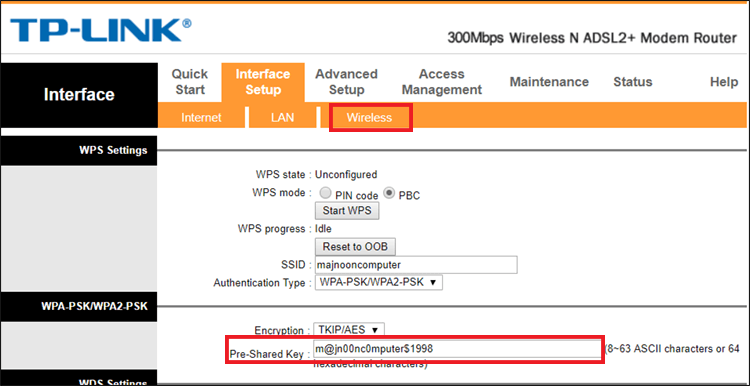
4- The steps were applied to the TP-Link TD-W8961ND router. Using a strong password is the quickest way a hacker can use to steal the Internet, which is to guess the Wi-Fi password, and to a large extent he succeeds in this because many people use a password that is easy to guess and know, such as repeating a specific number, using the same network name, or using numbers from 1 to 8. So, as the first step to protecting the router is to change the network password and use a stronger and difficult to guess password.
Open the router's settings page. Go to the Wireless section. Find the Password or Pre-Shared Key field.
Enter a strong password (it is recommended to use a combination of uppercase and lowercase letters, numbers, and symbols). Click Save to save the settings. Changing the type of wireless encryption to protect Wi-Fi is done by encrypting the network and preventing the effects of discovered vulnerabilities on it. This is done through multiple encryption levels that you will find within the network protection settings. Therefore, if you want to prevent your router from being hacked, you must use the highest level of encryption supported by the router.
If you are using a relatively modern router, the highest level will be WPA-2, which you should select. All you have to do is: Open the router settings page. Go to the Wireless Settings section.
Click on the Authentication Type menu. You'll find available encryption levels. Choose the highest level which is below.
Click Save. Read also: The two best ways to protect the router from hacking without software. Changing the router password. Changing the router password is also one of the important steps, especially if you have a number of people who share the Internet with you. Someone can open the router's page using the user name and the default password known to everyone, and then he can manipulate the settings without your knowledge.
To avoid this from happening, change the password so that only you have access to the router settings. Open the router's settings page. Go to the Administration section.
Type the password in the New Password field. Repeat the word again in the Confirm Password field. Click Save.
Later, whenever you want to open the router's settings page, you will use the same regular username, but the password is different. Disabling the WPS feature WPS protection is used to make devices close to the router able to connect to the Wi-Fi network without requiring a password. If you do not benefit from this service or do not use the feature and always connect to the Wi-Fi network by entering the password, it is recommended to disable it. There are two ways to do this, either by pressing and holding the WPS button located behind the router to turn off the feature, or through the settings.
Open the router settings page. Go to the Wireless section. Look for the Use WPS or Enable WPS option.
Disable it by enabling No or selecting Disable. Click Save to save the settings. Knowing the devices connected to the router Sometimes the reason for your slow Internet is the presence of more than one device connected to the same network and it detracts from the speed of the Internet. If you have more than one person sharing the Internet with you, you must check the number of devices connected to the router so that you know whether there is an unknown device stealing the Internet without your knowledge.
The Wireless Network Watcher tool can help you with that. Once you download it, run it to display a list of all the devices connected to you on the same router.
Check the device names and addresses. If you see an unknown device, block it using the following method. Prevent hackers from Wi-Fi. If you find in the previous method that there is an unreliable or unknown device that is stealing the Internet from you and sharing the router without your knowledge, you can block it and prevent it from continuing to do so.
This is done by using the MAC Address Filter feature, so that certain devices are prevented from connecting to Wi-Fi even if they have the password. All you need is to know the MAC address of this device, which was explained to you by the previous Wireless Network Watcher tool. Open the router's settings page.
Go to the Wireless section. Scroll down to find Wireless MAC Address Filter. Select Activated to activate the feature.
Then select Deny Association from the list. Then in the following fields, you write the MAC address of the device you want to block. Click Save, and this device will not be able to connect to Wi-Fi again.
Hide the Wi-Fi network If you have done the previous steps and you still feel that the router is vulnerable to hacking, you have the opportunity to erase this idea from your mind by hiding the router, as it prevents devices from discovering your Wi-Fi network and therefore they will not find it and try to hack it. Only the router owner can connect to the network via his trusted devices. To apply this step, do the following: Open the router settings page.
Go to the Wireless section. Scroll down to Multiple SSIDs Settings. There you will disable the Broadcast SSID option by selecting No.
Now click Save to save the settings. You will then find that the Wi-Fi network has disappeared from the devices. For example, in Windows 10, when the device detects nearby Wi-Fi networks, you will find it named Hidden Network, or a hidden network. If you try to connect to it, you will be asked to write the network name and then the password. I believe this is a safe and strong way to prevent router hacking.
DROPIDEA
We hope this article has added real value to you. At DROPIDEA, we always strive to deliver high-quality content that helps you grow and evolve in the digital space. Follow us for more useful articles and guides.
Admin
DROPIDEA
Latest Articles

Microsoft Gains $3.2 Billion from Its Investment in Anthropic

Zuckerberg: Billions of People Will Have AI Assistants Within Five Years

Microsoft Enters Direct Competition Against OpenAI and Anthropic

Pangram Raises $9 Million to Detect AI-Generated Content



