9 effective tips that contribute to extending the life of your laptop battery
 By Admin
A typical laptop can last for several hours on a single charge before it needs to be recharged, and manufacturers will provide you with an estimate of how long the battery should last. However, actual use may sometimes result in longer or shorter battery life than advertised. Intensive tasks like gaming and video editing consume more battery power.
The higher the brightness level, the more applications continue to run in the background, and the longer the Wi-Fi or Bluetooth network runs, the more your laptop battery consumes, hence the need to know the solutions required in order to extend the life of your laptop battery. Tips to Extend Your Laptop Battery Life Our practical guide below will provide effective tips and proven methods on how to improve the health of your laptop battery and extend its lifespan. It involves how you use your device and what you do on your device.
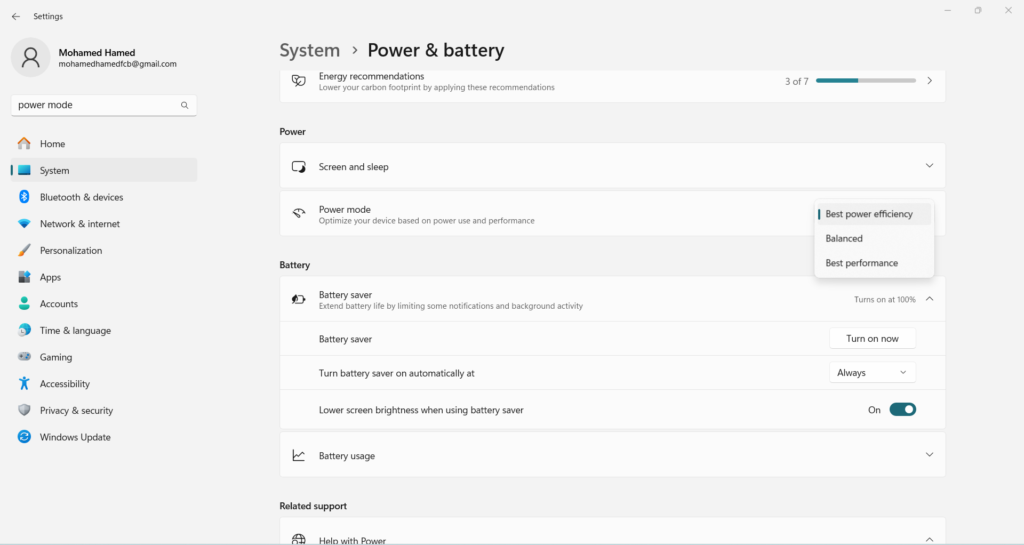
So carefully read all the lines below and try to apply all of these methods so that your laptop battery lasts as long as possible without forcing you to change it. Changing the power mode Changing the power mode is one of the best tips to extend the battery life of your laptop. If you want to conserve battery life, we recommend that you set your power mode settings to a more efficient battery mode.
Click on the battery icon in the taskbar, then drag the slider and choose Power Mode. You will get several options ranging from saving battery power, getting the best performance regardless of power, or choosing the middle option of providing a balanced performance between battery saving and performance. If the device is plugged into a charger, you'll get the same options, except for the battery saver. Check your screen and sleep settings You can improve battery health by reducing the screen and sleep timeout.
The shorter the times, the longer the battery life. Open Settings Click System Click Power & Sleep in the left pane Next, use the drop-down menus in the right pane to shorten screen time and sleep when running on battery power. Use Battery Saver Mode to Extend Your Laptop's Battery Life Setting your laptop to battery saver mode will also improve its health and extend its lifespan.
Battery Saver mode is automatically turned on when the charge is less than 20%, which basically disables notifications, background apps, email sync, etc. You can raise the activation limit for this mode so that it works when the battery percentage becomes more than 20%, or you can make it always on regardless of the battery percentage, which is what I personally have been doing on my device for a long time. Also, this is what Dell recommends in its guide here.
Open Settings Click System Click Battery in the right pane Next, turn on Battery Saver or raise the limit to the percentage level you want. Extend your laptop's battery life by reducing the screen brightness You can easily extend your laptop's battery life by reducing the screen brightness. The brighter your screen, the more power it consumes.
We therefore highly recommend lowering your screen brightness to an acceptable level, to extend your battery life as much as possible. Click on the notifications icon on the taskbar. Then use the brightness slider to reduce the screen brightness to the lowest level where you will not be disturbed by the brightness level.
Turning off the keyboard backlight The keyboard backlight also uses battery power and consumes it voraciously. You should turn them off when they are not needed to increase your laptop's battery life. Press Fn+Space or Fn+Esc to turn on the keyboard backlight.
Repeat the shortcut to change the brightness or turn off the keyboard backlight. You can also control the keyboard backlight using Lenovo Vantage software, if you own a Lenovo device like me but in any case the above two steps will do the job on all devices of different brands. Disable applications running in the background You must disable the number of applications running in the background to extend the battery life of your laptop, and you can do this through the following steps: Open Settings Click on Privacy Scroll down in the right pane and click “Background Apps.”
Then, in the right pane, turn off the “Allow apps to run in the background” option. You can also turn off specific apps if you want to allow some of them to run in the background. Close power-consuming applications to extend your laptop's battery life Applications that consume a lot of power affect the performance of your laptop and drain your battery life.
You can increase the battery health on your laptop by checking and closing heavy apps. Open Settings Click on System Click on Battery in the left pane Scroll down to check the power consumption history for the past week or 24 hours. Find the guilty app and click on it.
Next, turn off the switch for “Let Windows Decide” and select “Never” to restrict the app from running in the background. Turn off Bluetooth and Wi-Fi Wi-Fi and Bluetooth wireless technologies consume a lot of battery power. When not in use, we recommend turning it off to conserve power and increase your laptop's battery life.
You can also use wired connections, such as Ethernet cables and a mouse and keyboard. Open notifications on the taskbar and turn on Airplane mode to turn them off. Or disable Wi-Fi or Bluetooth separately from the notification icon. Sync less data Constantly syncing email, calendars, and contacts often consumes a lot of battery power.
Reducing email sync is a good tip to improve battery health. Open Settings Click Accounts Then click Email Accounts & Apps in the left pane In the right pane, select an email account and click Manage. Then select “Change mailbox sync settings” and choose a longer sync schedule.
You can also turn off automatic sync for most Microsoft apps if you want, following Microsoft's guide. Note: Heat causes the battery to drain faster and deteriorate. Overheating also slows down your laptop in an attempt to reduce operating temperatures.
You should always pay attention to your device overheating to avoid causing battery damage. In conclusion, these are all the tips and methods that have been tried and tested effectively in order to extend the life of your laptop battery and increase its lifespan. Note that all of these methods are easy to apply and implement and only require a few steps to do in just a few seconds.
So do not hesitate to try it out and really rely on it so that one day you do not have to replace it and buy an expensive new or used one. In any case, do not forget to calibrate the laptop battery from time to time to know the validity and remaining battery life. Related articles: The laptop battery does not charge - How to solve the problem of the laptop charger not working. Charging the laptop without a charger in five different and safe ways
DROPIDEA
We hope this article has added real value to you. At DROPIDEA, we always strive to deliver high-quality content that helps you grow and evolve in the digital space. Follow us for more useful articles and guides.
Admin
DROPIDEA
Latest Articles

Microsoft Gains $3.2 Billion from Its Investment in Anthropic

Zuckerberg: Billions of People Will Have AI Assistants Within Five Years

Microsoft Enters Direct Competition Against OpenAI and Anthropic

Pangram Raises $9 Million to Detect AI-Generated Content



