Adding global and local payment gateways to electronic stores or educational platforms Comprehensive guide
 By Admin
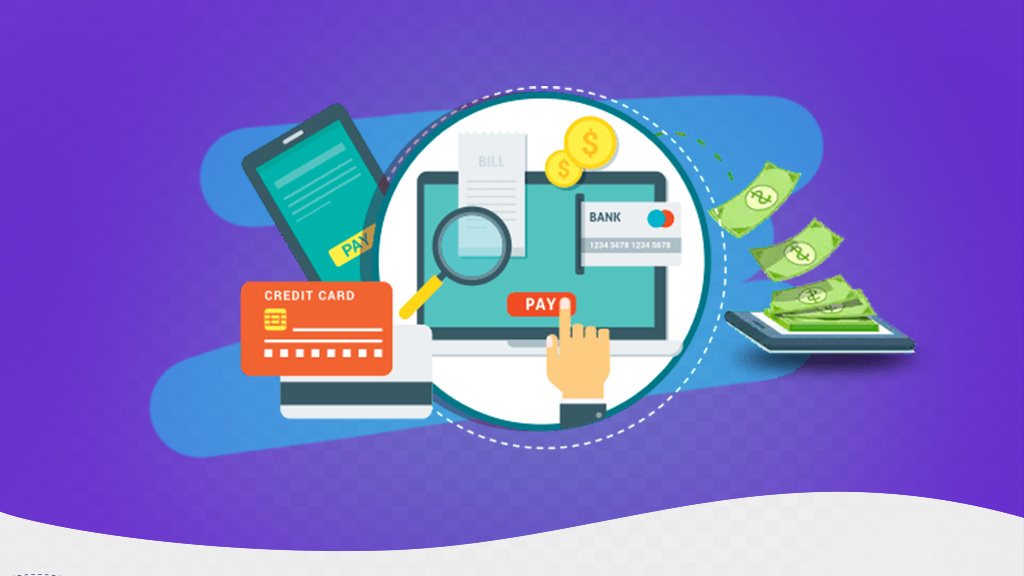
Adding multiple payment gateways for customers is one of the basic steps to complete the preparation of educational platforms and electronic stores. If a customer enters your educational platform and wants to purchase a specific training course, but cannot find a secure payment method that suits him, so he leaves the platform and searches for an alternative, then you will have lost all your efforts in preparing the educational platform and preparing content and marketing for him in order to get the customer, and then you lose the customer within seconds. Therefore, it is necessary to add a variety of payment methods that suit most users, whether international payment gateways, for example, PayPal, Visa, or MasterCard, or local payment gateways that suit the country you are targeting, for example, Vodafone Cash in Egypt, or Mada in Saudi Arabia, and so on. During today's article, we will explain to you how to add most payment gateways in detail, but first let us explain the meaning of payment gateways and their working mechanism so that you become fully aware, so continue reading the article with us.
What are payment gateways? You will find that we mentioned the word payment gateways repeatedly in the introduction to the article, and you may not understand its meaning well. Payment gateways are an intermediary that connects the customer with the educational platforms, where he receives money from the customer in a way that suits him, and then delivers it to the educational platform in exchange for opening access to the educational course. Payment gateways work with the following mechanism: First, the customer opens the educational platform, chooses a specific training course, and requests the purchase of that course. The business will be shown a group of payment gateways and choose the one that suits you.
The payment gateway withdraws the product data, including value, quantity, and final price, and sends it to its main servers, and the customer is transferred to the payment page to pay the financial intermediary. After completing the payment process, a notification is sent to the educational platform that the payment process has been completed and the trainee is given permission to enter the training course. After that, the owner of the educational platform can receive funds on his personal accounts from the payment gateways.
All the previous steps are completed in just seconds and securely through the broker’s private and fully secured servers. Payment gateways are not only compatible with educational platforms, but are also compatible with online stores, service sites, and all commercial sites that need to receive payments via the Internet. After we learned the meaning of payment gateways and their mechanism of operation, let us explain to you the method of adding them in detail to educational platforms.
Adding global and local payment gateways as we explained in
Introduction: Payment gateways are multiple and vary depending on the local targeting of your WooCommerce store or educational platform. There are payment gateways designated for your local customers and basic global payment gateways for all clients and educational platforms, for example the PayPal payment gateway or payment by credit card using Visa or MasterCard. Payment gateways are not suitable for all platforms either, as some payment methods require a commercial register, others do not require a commercial register, some impose specific restrictions on platforms that do not have a commercial register, and some require a commercial register in a European country. We will explain all of these gateways and the most appropriate alternatives for each payment gateway in all cases of commercial registration.
Add PayPal: Paypal payment gateway
PayPal is the primary gateway to all educational platforms and the most popular and used payment method around the world. PayPal charges a fee for each payment transaction that is in the range of 2.9% of the amount paid + $0.30, and this percentage varies depending on your account and the customer’s country. You will find that the PayPal portal is automatically integrated with educational platforms or electronic stores and only needs to be activated, but if you do not find it, you can enter the main WordPress panel and then click on Add-ons and choose Add New from it, as in the following image: Then you go to the search box and type WooCommerce PayPal Payments to find the add-on developed by Woocommerce appears in the search results. You click on (Install Now) and then (Activate Now), as in the following image: And now you need to activate the PayPal payment gateway on your site, so you By choosing WooCommerce from the side menu, you choose the settings as in the following image: After that, you choose the Payments tab from the top menu on the page, and you will find a new payment option that has become available, which is the Paypal payment option. You activate this option by clicking on the button next to it, as in the following image: Then you click on the PayPal option until you link a PayPal account to your WordPress site, and then you click on the Toggle to manual credential input option to show you a new list with data that you need to enter manually from your PayPal account. PayPal, as in the following picture: Then you will log in to your PayPal account, and it must be a commercial account, not a personal one. You can easily transfer from a personal account to a commercial account if it is not a commercial account. After logging in to your PayPal account, you click on your name in the PayPal account and then click on Account Settings as in the following image: After that, you choose the business information from the side account settings menu. Then you will find the PayPal merchant ID code, so you copy this code and keep it until we obtain all the required data, as shown in the following image: After that, you return to the main interface and choose Developer Mode to move to your PayPal business account settings as in the following image: After that, you will find that the name area has moved to the right, click on it and then choose Dashboard as in the following image: Then you activate the Live option instead of Sandbox until the real account is activated in PayPal. Then you click on App & Credentials and after that you choose Create App as in the following image: You write the name of your business and then click on Create App as in the following image: Now the rest of the information required to link with the PayPal payment gateway will appear to you, which are PayPal Account and Client ID data as well as Secret Key, but you must click on the word Show in front of it because this secret number is very important and if anyone gets it, anyone can access your account payments on PayPal.
In this way, you have obtained the following: PayPal Account Client ID Secret Key 4. Merchant ID Then you return to the PayPal page on your site and enter the previous data and then click on Save Changes as in the following image: After that you will find all the settings for the WooCommerce PayPal Payments add-on appear to you, so you go up to the top and then activate the Enable The PayPal Gateway option as in the following image: In this way, you have activated the PayPal payment gateway correctly on your site. The second step is to link the financial information between the PayPal bank and your own store. When the trainee pays the cost of the course on PayPal, PayPal sends a confirmation to the educational platform, which then opens the course automatically. You can do this by returning to your business account on PayPal again and entering the account settings as in the following image: After that, you choose Website Payments from the side menu of account settings as in the following image: After that, you scroll down and choose Instant Payment Notifications and then click on the word Update next to it as in the following image: After that, the IPN Instant Payment Notification page will appear for you. You click on Choose IPN Settings as in the following image: Now you enter the link to the website of your educational platform on which you want to send notifications and it will be in the following format: https://your-domain.com/?wc-api=WC_Gateway_Paypal. After entering the address of the electronic platform, you click Save as in the following image: The last point is to control the return page of the PayPal payment gateway, where when the customer completes the payment, he returns to the payment completion page and does not remain in PayPal.
You can do this by going back to Account Settings, then choosing Website Payments again, then choosing Website Preferences from the side menu and clicking on the word Update next to it, as in the following image: Then you scroll down to the point of the automatic return feature for website payments, then you click Run, and then you write the payment completion page, which differs from one template to another, but in most cases it is in the following format: https://your-domain.com/checkout/order-received/, and then you scroll down and then click Save, and this is how it looks like. You have linked your PayPal account completely and correctly on your electronic platform, and the next step is to activate the credit card payment feature with Visa or MasterCard during the following paragraph, so continue reading with us. Payment by credit card on the educational platform: Payment by credit card is considered one of the main payment methods that is suitable for most users around the world. There are a variety of ways that enable you to activate this method on your educational platform, and we will explain to you the most important of these methods during the following paragraphs, so continue reading with us. Payment by credit card using PayPal Bank: You can include the option to pay by credit card in your educational platform by relying on PayPal Bank as well. This is a continuation of the previous step, where you prepare and link your commercial account on PayPal as in the previous point in full, and then you enter the PayPal payment gateway settings page on the educational platform.
Then you go down to the settings until you reach the Enable PayPal Credit Messages option, and then you activate this option as in the following image: Now you go down to the Button Settings option and control the shape of the credit card payment button, for example, the color of the button, the shape of the button, the sentence written on the button, and so on. After that, you will find the option to Enable PayPal Checkout on the cart page, and this option helps the quick payment option with PayPal appear within the payment details page. You can also activate this option, as in the following image: And in this way when the customer If you wish to purchase a training course, you will see the option to pay by PayPal or to pay by Visa or MasterCard supported by PayPal as well, as in the following image: But most people may suffer from PayPal business account problems, for example the inability to activate the account or the unwillingness to use one platform for all payment operations to secure payment options. If a malfunction or problem occurs in one of them, the other will be effective, so we will show you the other options available to activate the credit card payment gateway on the educational platform. Stripe payment gateway: Stripe payment gateway is the most popular alternative to paying via Visa or MasterCard and you can find it in most major electronic stores. It is an American payment gateway that was established in 2011 AD. It limits its services to most European countries only and supports a very small number of Arab countries, for example the Emirates. Most other countries cannot open an account on the Stripe payment gateway because it requires the following points: A tax registration number in the United States of America.
USA phone number. A bank account in the United States of America. Passport translated into English.
Only passport points are available to most users, while the tax registration number, phone number, and bank account from the United States of America are difficult to obtain to complete registration with Stripe Bank. Therefore, an intermediary is used to prepare all these requirements for you officially in the United States of America, namely Stripe Atlas, which prepares for you an American tax registration number and an American bank account, at an additional cost of 500 US dollars, paid once, with 100 US dollars paid annually. You also need a US phone number and this is done through a Sonetel broker at an additional cost of US$60 per year.
Therefore, I see that the Stripe payment gateway is not suitable for emerging or medium-sized projects, and you can rely on it if you get a return from the educational platform that covers that cost, but on the other hand, there are other alternatives that provide you with these requirements, and we will show them to you in the following paragraphs, so continue reading with us. Myfatoorah Payment Gateway: Myfatoorah Payment Gateway is a Kuwaiti payment gateway that was established in 2014. What distinguishes it is that it has branches throughout the Arab countries, for example, Egypt, Saudi Arabia, the Emirates, etc. It has telephone support and representatives in the local areas with local contact numbers, so setting up, activating, and solving all the problems of your educational platform will be very simple with that gateway. The Myfatoorah payment gateway supports many international and local payment methods, the most important of which are the following: Visa and MasterCard.
Mada (Saudi Arabia). STC Pay (Saudi Arabia) Debit payment cards (UAE). Debit payment cards (Qatar).
Oman Net (Oman). Visa Advantage (Egypt), local digital wallets, for example, Vodafone Cash (Egypt), Apple Pay, and many other payment methods. You will find that if you add the Myfatoorah payment gateway, you can add most of the local payment methods in most Arab countries, such as Saudi Arabia, Egypt, Oman, Qatar, and the Emirates, as well as accepting payment by Visa or MasterCard from all over the world. What is distinctive is that the Myfatoorah portal provides you with an application through which you can fully track and control all your financial transactions.
However, the Myfatoorah payment gateway requires that you have a commercial register registered for the educational platform, and the steps to register in the payment gateway and link it to the educational platform are very simple. First, you enter the official Myfatoorah website and then click Join as in the following image: After that, you will be asked to select the country of registration and you will find that it supports most Arab countries, so you select the appropriate country for you. For example, we choose Egypt as in the following image: After that, you will be transferred to the registration form in the Myfatoorah payment gateway, so you write the name of your business in Arabic. And the English one, as in the commercial register, as well as the primary phone number for the business, the email, and the classification of the business, as in the following image: After that, you will be asked to enter your bank account data, so you enter all the data correctly because you will receive your profits as a bank transfer to this account. After that, you will be asked to specify the specialty of your business, whether it is licensed with a commercial registry or not, as in the following image: This option will only affect one point, as if you do not have a commercial registry, the physical transactions will be recorded on the Visa or MasterCard locally only, and you will not be able to receive any payment through them internationally, but you can use all payment methods normally because they are considered local payment methods within the country for each country. If I have a commercial registry, it will solve that problem for you, and you will be able to receive payments on the Visa or MasterCard from all over the world, and it will be a good alternative to Stripe Bank. Previous. After that, you enter your account page within the MyFatoorah platform and choose Integration Settings from the side menu and choose API Key from it. Then you click on Create and the API code for your account on the platform will appear. You copy the code as in the following image: You currently save the code until you install the MyFatoorah add-on on your educational platform. You enter the main WordPress panel and choose Add-ons from it, then Add New. After that, you search for the MyFatoorah – WooCommerce add-on and install the add-on as in the picture. Next: After that, you choose WooCommerce from the side menu and choose Settings from it. After that, you go to Payments and you will find the My Fatawa option appears within the payment options.
You activate this option by clicking on the button next to it until it turns green, then entering the payment gateway to control it, as in the following image: First of all, make sure that the option to activate My Fatawa is activated, and then you enter the address and description that is required to appear in the payment option, as well as the country, then you put the API integration code that you obtained in the previous steps, as in the following image: After that, you enter the link to the payment success page, which is most likely as follows: https://your-domain.com/checkout/order-received/ Then you can modify the The logo that appears on the invoice is from the link option for the payment invoice. After that, you control the option to display one portal. This option makes all the payment methods offered by the payment gateway into one option. When selected, it moves them to choosing the required payment method in a submenu and does not display all the options on the payment page. I do not prefer to activate this option and then scroll down and click on Save Changes after completing all the settings. In this way, you have completed linking the My Fatawa payment portal with your educational platform, and the payment portal will appear to you as follows: As we explained, this portal needs a commercial registry in order to accept Visa or MasterCard payments from all over the world, but if you do not have a commercial registry for your educational platform, you will not be able to receive local payments only. The solution is that you can rely on another payment gateway, which is Paysky, as it offers the feature of paying with Visa and MasterCard without a commercial registry until you complete the payment methods on your electronic platform, and we will explain it to you in detail in The following paragraphs, so continue reading with us. Paysky Payment Gateway: Paysky Payment Gateway is an electronic payment gateway supported by the Egyptian Post, as the Paysky team is responsible for developing and programming all phone applications for the Egyptian Post, including the Paysky application.
What is distinctive is that the Paysky payment gateway allows receiving payments on your electronic platform by Visa or MasterCard from all over the world, whether with a commercial register or without a commercial register, and the differences between them are not large in terms of powers. It also provides you with an electronic application through which you can follow up and control all physical transactions, and provides you with the ability to prepare electronic invoices to send to your customers. The commission mechanism within Paysky is divided into two basic packages, which are as follows: the basic package, which costs $49.99 per month, and no commissions are deducted on all financial transactions during the month, and this package is for projects that have financial transactions of less than $2,000 per month.
The advanced package has no monthly cost, but a discount of 2.85% + 0.28 US dollars is charged on each financial transaction. This package is for projects that have financial transactions greater than 2000 US dollars per month. You choose the package that best suits you, then click on Get Started and the registration table will appear. You write your personal name, business name, phone number, email, and some basic information about your business, as in the following image: After that, one of the technical support representatives will contact you by phone within 24-48 hours, other than Fridays and Saturdays. It will explain in detail the mechanism and fees for the payment gateway, and you can inquire about all the points you need through it, and technical support representatives will be there for you throughout your subscription to the payment gateway.
After completing the call with the technical support representatives, an email will be sent to you containing the API data for your Paysky account. Attached to the email will be the Paysky add-on file for WordPress, as shown in the following image: You copy your account data and download the add-on. After that, you enter the WordPress control panel and choose add-ons from it, then add a new one. After that, you click on Upload add-on and specify the location for downloading the Paysky add-on on your device as in the following image: After that, you click on Install Now and the add-on will be downloaded and installed on your electronic platform as In the following image: After you have completed uploading the plugin, decompressing it and installing it successfully, you now click on activate the plugin as in the following image: Now you return to the main WordPress panel from which you choose the settings and then choose the payments tab. You will find the Paysky payment gateway option has become available, so you click on the activation button in front of it and then the setting as in the following image: Now you enter your account data on the Paysky payment gateway that was previously sent to your email and then click on Save changes as in the following image: In this way you have linked a gateway Paysky payment on your electronic platform and it will appear to customers as in the following image: In this way, you can receive and send payments on your electronic platform via Visa or MasterCard without the need for a commercial register. Now you may need a specific payment method, but that method was not explained in today’s article or there is no special add-on or payment gateway that supports it, so you must add that method manually, and this is what we will explain in the next paragraph, so continue reading with us. Activating a special payment gateway in the educational platform: The last point in today’s article is so that you have been able to add all the payment options that you need in your educational platform, which are the special payment gateways. If you want to set up a specific payment gateway and cannot find an automatic addition to it, you can allocate its own payment box within the payment options.
However, in this case, the activation of the accounts on the educational platform will be done manually, where you will verify that the financial transaction has been completed and then convert the account status from under review to paid. Firstly, you enter the main WordPress panel and choose plugins from it, then add a new one. After that, you search for the Custom Payment Gateways For WooCommerce plugin, and then you install the plugin as in the following image: After that, you return to the WordPress panel and choose the settings from it, and then the Payments page tab, and you will find the Custom Gateway option, so you activate this option and then click on the settings as in the following image: Now you write the full details of the payment gateway, where you write the name of the payment gateway, then a description of the payment gateway, then the instructions that will appear to the customer after completion. Payment process, for example: “The transfer receipt must be sent to customer service to activate the account.” You upload the payment gateway icon, for example the Vodafone Cash icon, and link the payment gateway to specific shipping methods and then determine the account status after completing the payment. Here you must wait for the review until you review the payment process and then activate the account manually as in the following picture: After completing all the payment gateway settings, you click Save and the payment gateway will appear within the customer’s payment options as in the following picture.
If you want to activate more than one local payment gateway on your electronic platform, you go to the payment settings, then choose the Custom Payment Gateways tab, and then go down to the Number of gateways option and write the number of local payment gateways that you need, but this option is in the paid version of the add-on, as in the following image: In this way, you can add a large number of local payment options, and what distinguishes them is that they do not have any commission at all, but on the other hand, they are manual in terms of activating the accounts. Conclusion: Through today's article, you will find a wide range of options that you can rely on to add global and local payment gateways to your electronic platform. You will find solutions to most of the problems faced by owners of educational platforms, such as the lack of a commercial register or otherwise.
In this way, we have reached the conclusion of the article. If you have a special question or inquiry that has not been answered in today’s article, do not hesitate to comment below the article or upload a post on the Arab WordPress forums, and you will be answered by specialists as soon as possible, God willing.
DROPIDEA
We hope this article has added real value to you. At DROPIDEA, we always strive to deliver high-quality content that helps you grow and evolve in the digital space. Follow us for more useful articles and guides.
Admin
DROPIDEA
Latest Articles

Nscale Acquires Anyscale for $1.65 Billion to Expand Its Dominance in AI Infrastructure

How Is AI Accelerating Meta's New App Launches?

Okta Acquires Security Firm Permiso for Around $200 Million

Microsoft Gains $3.2 Billion from Its Investment in Anthropic