The best ways to increase iPhone space: applications, settings, and tips
 By Admin
Lack of storage space is a reality for many iPhone owners: whether it's apps, music, messages, or (most commonly) photos and videos, most of us have run out of space at a crucial moment. Maybe while you are trying to update the operating system, or while you are trying to take pictures of an important occasion, thus knowing how to increase iPhone space is a popular requirement for almost all users. Unfortunately, you can't upgrade your iPhone's internal storage space.
But don't worry: help is at hand. In this article we share with you our best tips for managing and maximizing your iPhone's space, making the most of every last megabyte and freeing up space for new apps and photos. By the way, please note that although you cannot upgrade the internal storage, you can supplement your iPhone's capacity with external storage accessories and you can use iCloud storage to expand your capacity up to 2TB but with a monthly fee of course.
Reasons why your iPhone's internal storage space is full There are many reasons why your iPhone's internal storage space may fill up quickly, even if you have a device with a large storage capacity. Here are some common reasons: 1. Photos and videos: High quality: High-resolution photos and videos take up particularly large storage space.
Duplication: You may store the same image or video in more than one copy. Applications: Some applications, such as Instagram and Snapchat, automatically save photos and videos. 2.
Applications: Updates: Applications require periodic updates which may increase their size. Temporary data: Applications save temporary data such as cache (cache files), which may accumulate over time. 3.
Messages: Attachments: Messages that contain images, videos, or audio files take up a lot of space. Long conversations: Long conversations with many participants can take up a lot of space. 4.
Music: Downloaded songs: If you are downloading songs to your device, they take up storage space. Podcast: Long episode podcasts can take up a lot of space. 5.
Other Files: Applications Documents: Such as Microsoft Office and Google Drive, can store large files. Downloads: Files you download, such as e-books and apps. 6.
Backups: iCloud Backups: If you enable iCloud automatic backup, it will use your iCloud storage space. The danger of full internal iPhone storage capacity: Full internal iPhone storage capacity is not just a minor inconvenience, but can lead to a group of problems that affect the device’s performance and user experience. Here are some of the risks you may face: Slow performance: When storage gets full, the device has to work harder to access data, resulting in slow response time and lag in opening apps.
App crashes: Some apps may stop working properly or cause the device to crash if there is not enough space to run them. Difficulty installing apps: You will not be able to install new apps or update existing ones if the space is full. Battery life affected: Full storage may increase battery consumption, reducing its overall life.
Data loss: In some cases, full storage may lead to unexpected loss of Internet data on the iPhone, especially if the device is running an old operating system. How to increase iPhone space: Full iPhone storage space is a common problem that many people face. Fortunately, there are several solutions you can try in order to increase the space on your iPhone: Know what is taking up space and delete what is taking up the most space: The first thing you should do is to know what is taking up space on your iPhone.
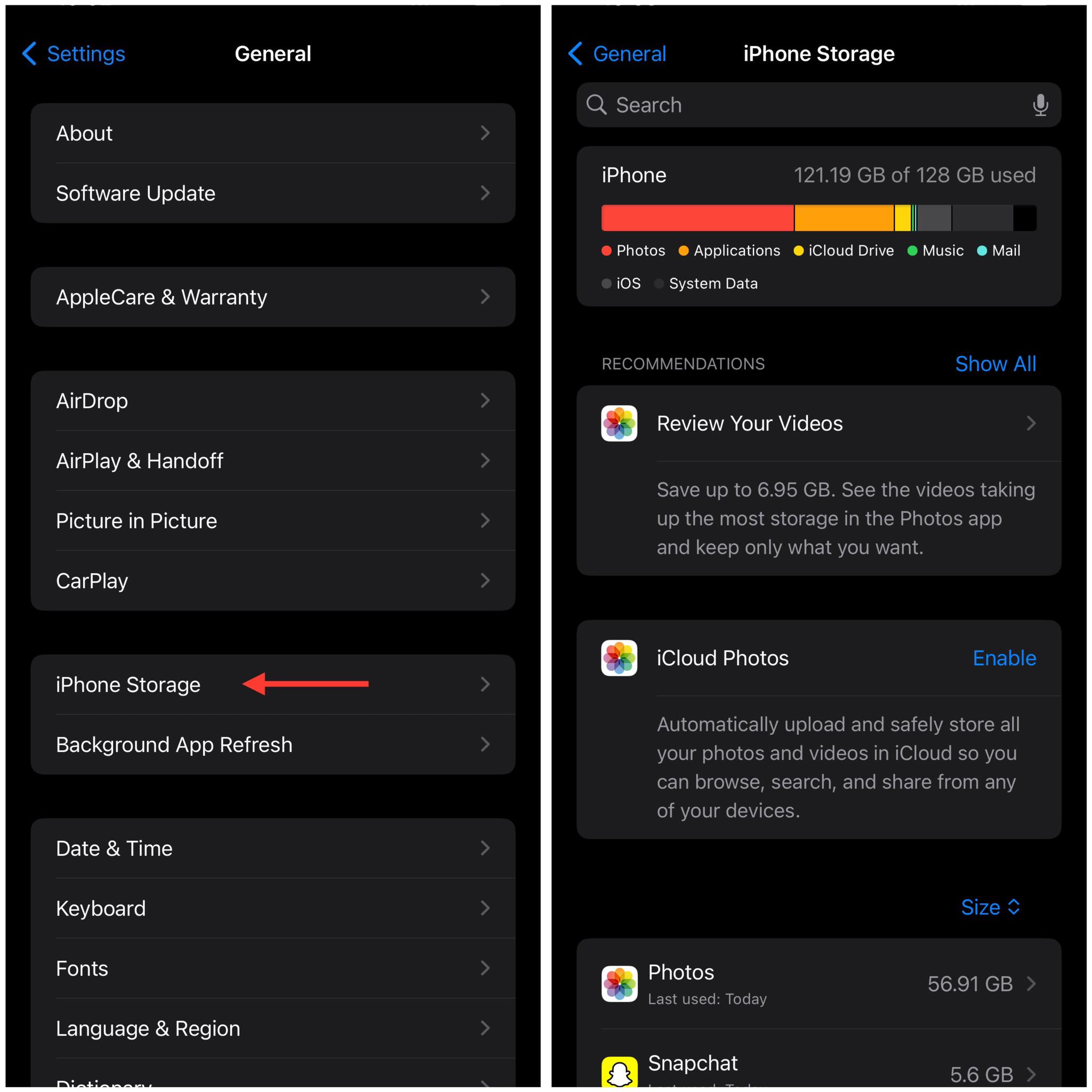
Fortunately, there's a simple way to do this: open Settings. Go to General. Click iPhone Storage.
This will take you to a screen where you can see what's taking up space on your iPhone. You'll need to be patient while calculating how much storage to use and in what way.
At the end, you'll see a bar chart broken down into images
Apps, messages, iOS, system data, and other types of files. System Data (which was called Other in older versions of iOS) often amounts to tens of gigabytes of storage, making many wonder how to delete other data or increase iPhone space in general. There are different storage management options that we'll come back to, but if you scroll down, you'll see which apps are taking up the most space.
If you scroll through the different apps taking up space (they are sorted so that the largest apps are at the top), you'll be able to quickly identify which ones are worth removing. The numbers include any media stored in the app, so expect the Photos, Music, and Messaging apps to be near the top. This view also shows when you last used the app, so you can confidently delete the app you probably won't be using soon.
Don't worry – once you buy something, it's linked to your Apple ID so the company knows you own it and you'll be able to download it again. Scroll through the list and feel free to make critical decisions. If an app you rarely use is taking up 300MB of space, delete it – you can always download it again for free if you want, and here are the steps: Find the app you want to delete.
Swipe from right to left on it. Choose Delete application. Alternatively, you can choose to undownload the app, which will delete the app but will keep any documents and data so you can access the data in it if you download it again.
There is another way to delete apps that we will discuss later. Once you delete an app, you'll see it in this list with a download icon next to it, meaning you can download it again anytime you want. Deleting apps from the home screen As we explained above, it's easy to identify apps that are taking up a lot of space by going to the iPhone Storage section in Settings > General and then working through the list of apps there, which are sorted by size and also show the date you last used them.
Once you find an application that you want to delete on this screen, you can swipe from right to left on it and then choose to delete the application, which will contribute to significantly increasing the iPhone’s space. There's another way to delete apps that might be a little faster if you just want to free up some space in a hurry. You can delete an application from the home screen.
How this feature works depends on the version of iOS you're using. In newer versions of iOS, press and hold an icon until the menu appears. Then click “Remove Application”.
You will then see a pop-up window to confirm that you want to delete the app. Choose “Delete App” to remove it from your iPhone. In older versions of iOS, you can press and hold its icon and wait for it (and other icons as well) to start wiggling — meaning you're in edit mode.
Then click the X in the left corner to delete the application. Take advantage of Apple's recommendations When you enter Settings > General > iPhone Storage, you'll see some recommendations for optimizing storage space (above the Apps list). You'll likely see two default options, as well as a “Show All” option so you can see more recommendations, and it will be useful to you if you follow Apple's advice and put the various storage management suggestions into practice.
One of the options you'll see here (if you haven't set it up already) is to use iCloud Photo Library. This will store your photos and videos in the cloud. iCloud Photo Library is a great solution if you want to access all your photos on all your devices — just make sure Apple stores enhanced versions of photos on your device, rather than full-resolution versions.
Likewise, the Review Large Attachments feature lets you delete photos, videos, and other media shared in attachments to increase your iPhone's space. So if you have a habit of sharing photos via Messages, expect to find a lot of photos here that you can delete if you know you have them in your Photos app. You can also choose to review downloaded videos in order to increase iPhone space.
If this is an option for you, click the arrow next to it and delete any downloads you see here that you don't need to keep. You may also see the option to offload unused apps in order to increase iPhone space. Here Apple volunteers to automatically offload apps you rarely use when you start running out of storage space.
“Dumping apps” deletes the app itself — which is easy to replace by re-downloading, after all — but keeps the documents and data, which are likely irreplaceable. You can also find the option to dump unused apps under Settings > App Store. Make sure to uncheck Automatic app downloads here as well so that apps will download automatically when you add them to other devices.
Delete app data and cache files Apple offers the ability to remove an app while preserving the data, but it may be the data you want to delete. Maybe you have old videos and books that you no longer plan to watch taking up space in an app that you still want to use. Some apps will have a lot of data associated with them that you can delete without having to remove the app itself.
To take a deeper look at how much storage space apps are taking up, go back to Settings > General > iPhone Storage and tap the arrow next to an app listed there. This way, you can see how much data the application itself is using, and how much additional space is being used by documents and data. To delete data in order to increase space on the iPhone, you will need to go to the application itself, and then choose Offload App, which means deleting the cache files, while keeping the application as it is.
Beware of iCloud Photos Signing up for iCloud Photos can save you a lot of space if you have a large number of gigabytes of photos, reducing the space they take up on your iPhone to something less greedy, so it's definitely worth turning this on. However, many people have a misunderstanding of what iCloud Photos will do for them. It's a useful service that lets you automatically upload and store your entire photo library in iCloud so you can access your photos and videos on all your devices.
iCloud Photos isn't a way to back up photos on your iPhone so you can delete them from your phone. If you're looking for a way to back up your photos so you can delete them, iCloud Photos is not what you imagine. You cannot delete photos from your iPhone once they are in iCloud because deleting any photo will delete it from all your devices. If you're using iCloud Photos, you also need to make sure the Optimise iPhone Storage option is enabled to ensure that if space is short, your iPhone will keep only small copies of photos on the device, thus saving space.
Alternatively, you can select the Download and Keep Originals option, but this will take up a lot of space just for science! Record video at a lower resolution Newer iPhones give you the option to reduce the quality of the videos you record, which in turn will contribute to increasing the iPhone's space. As the image above shows, one minute of video can take up 400MB of space on your iPhone if you record in 4K, so you probably won't want to do that.
Video recording on your phone should default to 1080p HD at 60fps, but you can save even more money by recording in 720p HD at 30fps: just 40MB per minute, instead of 90MB. You can change the settings in Settings > Camera > Video Recording, which will significantly contribute to increasing the iPhone’s space. You can also see Apple’s comprehensive guide. Increase iPhone space by deleting duplicate photos. Photos and videos are among the largest consumers of storage space on iPhone devices, especially with the development of camera quality and the multiplicity of applications that automatically save photos.
Therefore, the presence of duplicate images places a significant burden on the available storage capacity. The accumulation of these images takes up a lot of space unnecessarily, which negatively affects the device's performance and makes it slower. Additionally, it may make the device unable to install new apps or store other important files.
Therefore, the process of deleting duplicate photos is an essential step in increasing iPhone space, ensuring a smooth and fast user experience. It also contributes to organizing your photo library better and facilitating the process of searching for the required photos. You can see our comprehensive guide on how to delete duplicate iPhone photos to complete the process in detail. Here are the steps below in any case in order to ultimately increase the iPhone’s space: Run the Photos application on your iPhone. Tap Albums at the bottom of the screen.
Scroll to the bottom of the page and tap the Duplicates album, which arranges duplicate photos and videos side by side. Press the Merge button in the upper-right corner for any group of duplicates. Click Merge to confirm the number of photos to be merged.
In conclusion, after we reviewed a group of practical and effective solutions in order to increase the iPhone’s space, we can say that maintaining sufficient storage space is crucial to maintaining the device’s optimal performance and avoiding problems that may result from full storage. By following the tips and tricks we've provided, you can easily free up enough storage space for your iPhone and avoid getting frustrated with your device being slow or unable to install new apps. Read also: A comprehensive guide to solving the problem of the iPhone stuck on the Apple logo (the apple) How to know the warranty status of the iPhone, iPad, MacBook, Apple Watch, and AirPods Solution to the problem of unable to activate the iPhone: A comprehensive step guide How to remove the image background of the iPhone and delete items easily
DROPIDEA
We hope this article has added real value to you. At DROPIDEA, we always strive to deliver high-quality content that helps you grow and evolve in the digital space. Follow us for more useful articles and guides.
Admin
DROPIDEA
Latest Articles

Microsoft Gains $3.2 Billion from Its Investment in Anthropic

Zuckerberg: Billions of People Will Have AI Assistants Within Five Years

Microsoft Enters Direct Competition Against OpenAI and Anthropic

Pangram Raises $9 Million to Detect AI-Generated Content



