The flash drive is write-protected - a solution to the problem (disk is write protected). The flash drive does not accept copying
 By Admin
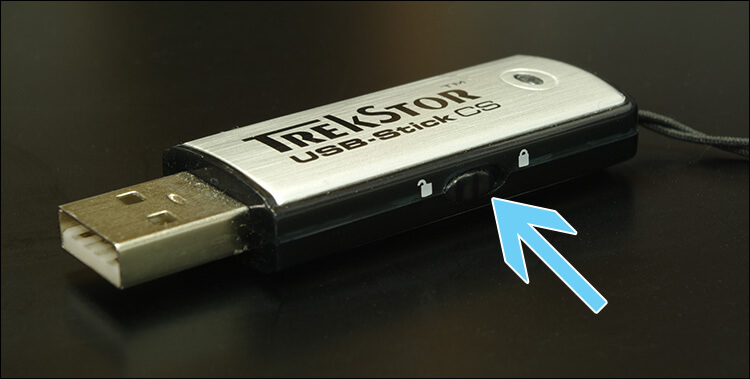
Suddenly, it may happen that you format the memory, copy a file from another place on it, or create a new folder, and the message “This disk is write protected” appears, which means that the flash drive is write-protected, and therefore you will not be able to use it normally, but only browse the data on it. It is definitely annoying, especially since it happens without warning. Perhaps the flash drive was working fine yesterday and today it encountered this problem. Fortunately, you can get rid of this protection and make the flash drive accept writing or copying again. Just try the solutions below: Disable the write-protection feature in the flash drive. Some types of flash drives, and even the SD Card adapter, have a small button on one side that is responsible for setting the memory whether it is write-protected or not.
Look for this button on your flash drive and set it to Unlock mode until the lock is unlocked and the protection on the flash is disabled, then reinsert the memory into the computer again and try not to touch the button. Copies and writing on them should be accepted as normal. If you do not find this button in your memory, you can try the following solutions.
Unlock the copy protection on the flash drive for the second attempt, by making some modifications to the Windows registry. Perhaps something went wrong with this register while connecting the flash drive to the device, resulting in the flash drive being switched to read-only mode instead of reading and writing. The solution is to modify the value allocated to control this matter within the register. This is done after performing the following steps to open the Windows registry: Press the Windows button + the letter R simultaneously on the keyboard.
From the Run window, type “regedit.” Press Enter or OK. After the Registry Editor window appears, navigate to the path attached below: HKEY_LOCAL_MACHINESYSTEMCurrentControlSetControlStorageDevicePolicies Then on the right side of the StorageDevicePolicies folder, double-click the WriteProtect key (if you do not find this key, right-click in any empty place, then choose New, then DWORD (32-bit) and make the file name WriteProtect ) then change the Value data field from 1 to 0 and click the OK button.
The flash memory should then accept the writing and copying process without the flash message appearing as write-protected, but be sure to close the history window after completion so that the new changes are saved. Read also: Solving the problem of reducing the size of the flash drive to 1GB - and recovering the original space of the flash drive or SD Card. Solving the problem of the flash drive being write-protected with CMD. If the previous methods fail, do not despair, we still have an opportunity and another way to try to solve the problem. This method will be using CMD commands, so you must be careful to enter the commands correctly, as we will explain now.
First, launch the command prompt by: pressing the Windows key + the letter R simultaneously on the keyboard. From the Run window, type “CMD”. Press Enter or OK.
Now we start giving written commands inside the window until the problem is solved, so do the following: Type the command “diskpart” and then press Enter. Type the command “list disk” to display the disks connected to the device, whether hard disks or removable disks. Type the command “select disk
Type the command “attributes disk clear readonly” to disable the read-only feature of the disk, thus making it readable and writable. Type the command “exit” and press Enter to exit the command prompt. Now move to the flash memory or SD card, and after this attempt it should succeed and work properly.
If not, you will have to install software for the flash drive to get rid of the problem of the flash drive being write-protected.
DROPIDEA
We hope this article has added real value to you. At DROPIDEA, we always strive to deliver high-quality content that helps you grow and evolve in the digital space. Follow us for more useful articles and guides.
Admin
DROPIDEA
Latest Articles

Microsoft Gains $3.2 Billion from Its Investment in Anthropic

Zuckerberg: Billions of People Will Have AI Assistants Within Five Years

Microsoft Enters Direct Competition Against OpenAI and Anthropic

Pangram Raises $9 Million to Detect AI-Generated Content



