Android factory reset: when you need it and how to do it easily and safely
 By Admin
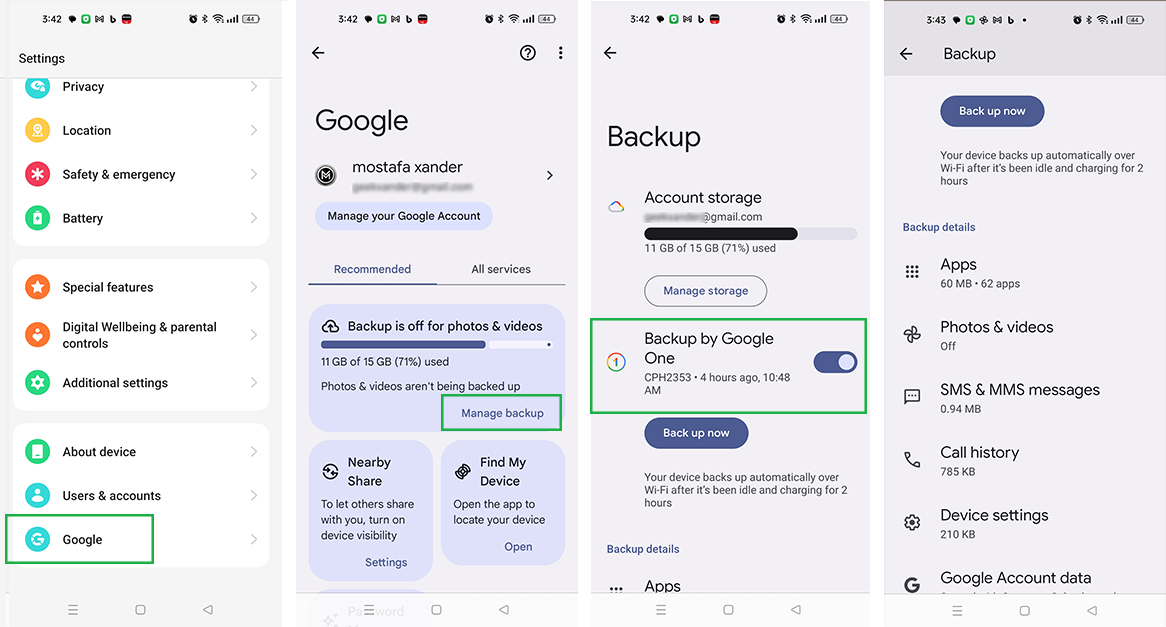
Backup, backup, backup! When selling or disposing of the phone: When facing intractable technical problems: When suspecting the presence of viruses or malware: When wanting a fresh start: But remember: The difference between a reboot and a reset: Prepare before factory reset: Don’t regret what you missed! Backup: Be smart and save your memories Back up all your important data Google Drive: Computer: SD card: We reviewed the steps in detail in a previous article explaining: Android Backup: A comprehensive guide to saving all files.
Follow this guide to back up your data to a Google account or storage card. Charge the battery: Don't let your phone let you down halfway Remove Google and other accounts: Protect your privacy Remove SIM card and external memory card: Take precaution Performing a factory reset through Settings is the most common and easiest way, as you can access all the necessary options through the Settings menu of your phone. Here are the general steps that apply to most Android devices, with some notes about minor differences between some popular brands: General steps: Open Settings: Find the “Settings” app on your phone, its icon is usually in the shape of a gear.
Go to the “System” or “About Phone” option: The name of this option may vary slightly depending on the Android version and the brand of your phone. Look for the “Reset” option: You may find it under the “Advanced Options,” “General Management,” or “About Device” section on some devices. Choose “Erase All Data” or “Factory data reset/Erase All Data”: This is the option that will do the factory reset. Confirm operation: The phone will ask you to confirm that you want to perform a factory reset.
You may need to enter your PIN, password, or pattern. Wait for the setup to complete: The phone will begin the factory reset process, which may take a few minutes. Do not turn off the phone or interrupt the process in any way. Notes on some brands: Pixel and Oppo phones: You may find the factory reset option under “Settings” > “System” > “Advanced/Additional Settings” > “Reset Options” > “Erase All Data (Factory Reset)”.
Samsung phones: You may find the factory reset option under “Settings” > “General Management” > “Reset” > “Factory data reset.” Xiaomi phones: You may find the factory reset option under “Settings” > “About phone” > “Backup and reset” > “Factory data reset.” Huawei phones: You may find the factory reset option under “Settings” > “System & settings” > “Reset” > “Factory data reset.”
Important note: These steps may vary slightly depending on the Android version and brand of your phone. If you cannot find the factory reset option, you can use the search feature in settings or refer to your phone's user manual. Once the factory reset process is complete, your phone will reboot and be ready to set up like new.
2. Factory reset through Recovery Mode: You may encounter some exceptional situations that prevent you from accessing your phone settings to perform a factory reset in the traditional way. For example, your phone may be locked with a PIN or pattern that you forgot, or the operating system may be corrupted and you cannot operate the phone normally.
In these cases, Recovery Mode comes to your rescue. Recovery Mode: It is a special mode in the Android system that allows you to access some basic functions, including factory reset, even if the operating system is not working properly.
Steps to enter recovery mode and perform factory reset
The buttons to enter recovery mode vary slightly between different devices, but the general steps are as follows: Turn off your phone: Make sure your phone is completely turned off. Press and hold a specific button combination: This combination varies depending on your device, but it's usually one of these options: Volume Up + Power Button Volume Down + Power Button Volume Up + Volume Down + Power Button Volume Up + Home Button + Power Button (on some older devices) Hold down until the Android logo or recovery menu appears: This may take a few seconds. Use the Volume buttons to navigate and the Power button to confirm: In the Recovery menu, use the Volume buttons to navigate up and down, and the Power button to select the desired option.
Choose “Wipe data/factory reset/Format”: This is the option that will do the factory reset. Confirm operation: The phone will ask you to confirm that you want to perform a factory reset. Choose “Yes” or similar option to confirm.
Wait for the setup to complete: The phone will start the factory reset process, which may take a few minutes. Do not turn off the phone or interrupt the process. Restart the phone: After the process is complete, choose “Reboot system now” to restart the phone.
Important Notes: Make sure you know the correct button combination for your device: You can search online for “How to enter recovery mode in [name of your device]” to find out the correct button combination. Be careful when using Recovery Mode: Making incorrect changes in Recovery Mode may damage the operating system. Follow the instructions carefully and make sure you understand what you are doing.
Remember: Factory reset will erase all data on your phone, so make sure to make a backup before starting the process. Factory reset a lost Android device: Remote protection Did you know that Google's Find My Device feature allows you to find a lost Android device and also wipe your Android phone data remotely? If you are worried that your phone could be hacked if it is lost, this feature will be very useful.
You can factory reset your device even if you haven't set up Find My Device before. Here's how to reset your lost Android phone or tablet: Download the “Google Find My Device” app from the Play Store or go to your Google account via web browser from the official Find My Device page. Select the device you lost.
Choose “Erase device” and tap to confirm. We explained more about this step in our article (Formatting the phone remotely: the correct way for Android devices and lost iPhones). Note: Your device must be connected to the Internet in order to be able to use this feature. Once the device is erased, you will no longer be able to locate it or access its data.
After Factory Reset: Restart Your Phone Congratulations! You have successfully restored your Android phone to its original state. Now, it's time to revitalize it and customize it to suit your needs.
You'll be presented with the initial welcome screen, which will guide you through the basic setup process. Steps to reset the phone: Choose the language: You will first be asked to choose the language you prefer to use on your phone. Choose the language that suits you and click “Next”. Android language selection screen Connect to the Internet: Next, you will need to connect your phone to a Wi-Fi or mobile data network.
This is necessary to download updates and sign in to your Google account. Sign in to your Google Account: If you have a Google Account, you can sign in to it now. This will allow you to access various Google services, such as Gmail, YouTube and the Play Store, as well as sync contacts, calendar and other data with the cloud.
Restore data from backup (optional): If you backed up your data before factory reset, you can now restore it. The phone will ask you to choose which backup you want to restore, and then it will start restoring your data. Additional settings: Your phone may ask you to set up some additional settings, such as location services, Google Assistant, and security options.
You can customize these settings according to your preferences. Note: If you plan to sell or dispose of your phone, do not sign in to your Google Account or restore any personal data. Once the setup process is complete, your phone will be ready to use like new.
Now you can start installing the apps you need and customize your phone the way you want. Tips to improve phone performance after factory reset: Now that you have restored your phone to its original state, it is time to start a new journey with it. But this time, let's make sure that your phone will maintain its smooth and efficient performance for as long as possible.
Here are some tips to achieve this: Install only necessary apps: Don't get carried away by wanting to download every app that interests you! Only install apps that you use regularly. The fewer applications installed, the less pressure on system resources, which means better performance.
Update your operating system and apps regularly: Updates aren't just about adding new features, they often include bug fixes and performance improvements. So, be sure to update your operating system and apps regularly to get the best possible experience. Avoid downloading applications from untrusted sources: Google Play Store is the safe place to download applications.
Avoid downloading applications from unknown sources, as they may contain malware or viruses that may affect the performance of your phone and the security of your data. You can see our article on (How to delete system and third-party applications on Android) to solve problems that may be caused by malicious applications. Use antivirus software: Although Android has good protection against viruses, using additional security software can provide you with an additional layer of security.
There are many free and paid security programs available, choose one that suits your needs. Manage storage intelligently: Don't let your phone choke with unnecessary files. Delete photos, videos, and apps you no longer use.
You can also use an external memory card to store large files. Control applications running in the background: Some applications continue to run in the background even when you are not using them, which consumes system resources and affects performance. Go to battery settings and restrict apps that don't need to run in the background.
By following these simple tips, you can ensure that your Android phone will maintain its smooth and efficient performance after factory reset, and will give you an enjoyable and trouble-free user experience. Frequently Asked Questions: Demystifying Factory Reset Factory reset may raise some questions, especially for new users. Here are answers to some common questions you might have in mind: Is it possible to recover data after factory reset?
Unfortunately, data erased after factory reset cannot be restored unless you have made a backup copy previously. For this reason, we always emphasize the importance of backup before embarking on this process.
Does factory reset affect the SIM card?
No, factory reset does not affect the SIM card or its data. You can remove it before the adjustment process and reinsert it after completion without any problems.
Can I factory reset without password?
If you don't remember your password or pattern, you may need to use Recovery Mode to perform a factory reset. Remember, this process will erase all data on your phone.
How long does the factory reset process take?
The length of time for a factory reset varies depending on your device and the amount of data stored on it, but it usually takes between 5 and 15 minutes. What should I do if factory reset doesn't work? If you encounter any problems during or after the factory reset process, it is best to contact your phone manufacturer's technical support for assistance.
Will I lose all my apps after factory reset? Yes, you will lose all the apps you downloaded from Play Store or other sources. However, you can easily reinstall it after factory reset.
Will system updates be deleted after factory reset? No, core operating system updates will not be deleted. Your phone will revert to the version of Android it was when purchased, but you can update it again after a factory reset.
Will I need to re-enter all my settings after factory reset? Yes, you will need to re-enter all your personal settings, such as language and network settings and display options. However, if you have backed up your settings to your Google account, you can easily restore them.
In conclusion, factory reset is a powerful tool to restore your Android phone to its original state, whether you want to solve stubborn technical problems, improve performance, or simply start over. However, you should always remember that this process will erase all your personal data, so make sure to make a backup copy before proceeding with the factory reset. By following the steps we've explained in this guide, you can perform a factory reset easily and safely, whether through Settings or using Recovery Mode.
After the process is complete, you can re-set up your phone and install the apps you need, making sure to follow the tips we provided to improve performance and keep your device secure. Remember, factory reset is not a panacea for all problems, but it can be an effective tool in many cases. So, if you are having problems with your Android phone, feel free to try factory reset after taking necessary precautions.
Updated August 2024: The article has been reviewed and rewritten, and pictures of our devices have been added to become a comprehensive step-by-step guide. You may also be interested in: How to enter or disable Safe Mode on Android
DROPIDEA
We hope this article has added real value to you. At DROPIDEA, we always strive to deliver high-quality content that helps you grow and evolve in the digital space. Follow us for more useful articles and guides.
Admin
DROPIDEA
Latest Articles

Microsoft Gains $3.2 Billion from Its Investment in Anthropic

Zuckerberg: Billions of People Will Have AI Assistants Within Five Years

Microsoft Enters Direct Competition Against OpenAI and Anthropic

Pangram Raises $9 Million to Detect AI-Generated Content



