Guide to checking the GPU graphics card for errors and how do you know if it is dying?
 By Admin
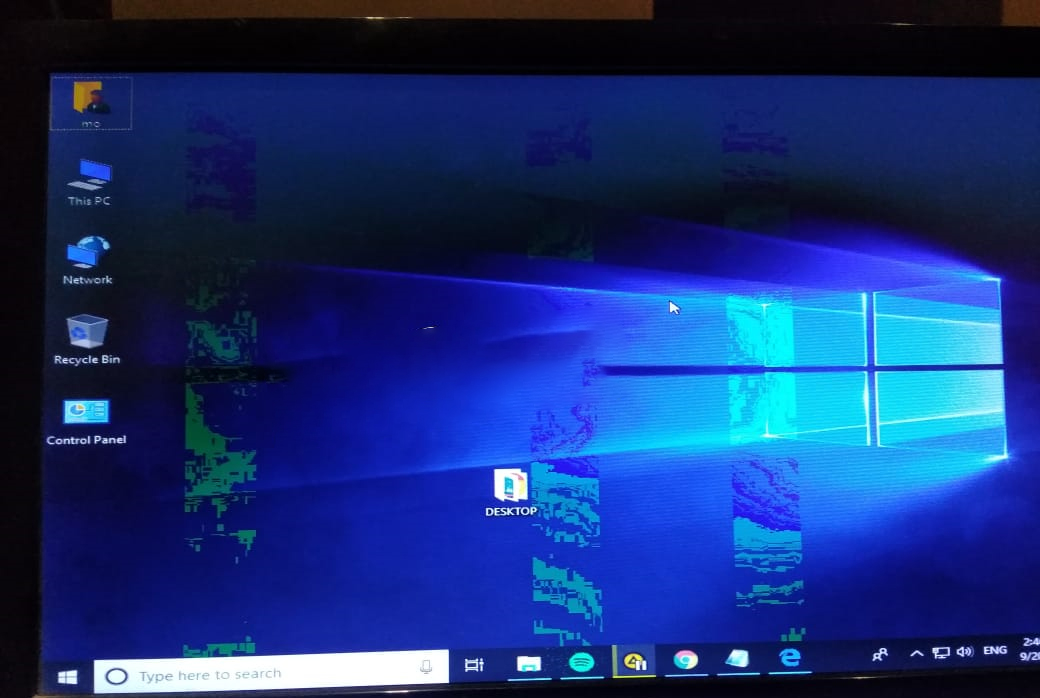
The GPU is an important part of the computer, as it controls the processing and display of images, video, and games on the screen. However, the graphics card may become damaged or fail over time, affecting computer performance and graphics quality. In this article, we will learn about signs that indicate that the graphics card is dying and needs repair or replacement.
We will also learn some ways through which we can check the graphics card, diagnose the problem and solve it. Signs of problems with the graphics card (GPU). The problem of screen vibration in Windows may be due to the cable, dust, or an internal error in the graphics card. Blue or black screen: strange sounds or beeps, appearance of green lines or red spots: In the previous cases, what we will usually do is try another cable, change the definition of the graphics card, or run a bench mark program to test the capabilities of the processor and graphics card to put pressure on the computer’s resources, such as a program, as we will review in one of the steps of this article.
What causes graphics card failure? If you have performed a mistaken operation to overclock and increase the frequency of the graphics card or processor via Overclocking tools to increase the speed of the graphics card, it may cause the card to fail and you must undo it immediately!
How to check the graphics card externally Read also: How to check the temperature of the laptop and solve the problem of computer overheating in the summer Checking the graphics card internally Here are some other ways to evaluate the graphics card’s endurance depending on the software. Watch a video showing some problems on a damaged graphics card from here. You can delete your graphics card definition from the Windows Control Panel, then Programs & Apps, then delete the definition, whether it is for Nvidia, AMD, or Intel cards. You can permanently delete the graphics card driver using the Display Driver Uninstaller (DDU) tool, which is a tool that automatically detects the graphics card and deletes it permanently via safe mode.
You can download the latest graphics card definition compatible with your graphic card from Windows Updates or from the official website: to define the Nvidia graphics card from here. To identify the AMD graphics card, click here.
Here are other tools to test the stress on computer resources, and we reviewed them in the best bench mark program to test the capabilities of the processor, graphics card, and computer performance earlier. You may also be interested in: The best hard drive repair programs to address the problem of black or red spots appearing on the screen - and the difference between Dead Pixels and Stuck Pixels
DROPIDEA
We hope this article has added real value to you. At DROPIDEA, we always strive to deliver high-quality content that helps you grow and evolve in the digital space. Follow us for more useful articles and guides.
Admin
DROPIDEA
Latest Articles

Nscale Acquires Anyscale for $1.65 Billion to Expand Its Dominance in AI Infrastructure

How Is AI Accelerating Meta's New App Launches?

Okta Acquires Security Firm Permiso for Around $200 Million

Microsoft Gains $3.2 Billion from Its Investment in Anthropic