Your comprehensive guide to improving mobile sound: enhancing the speaker and microphone
 By Admin
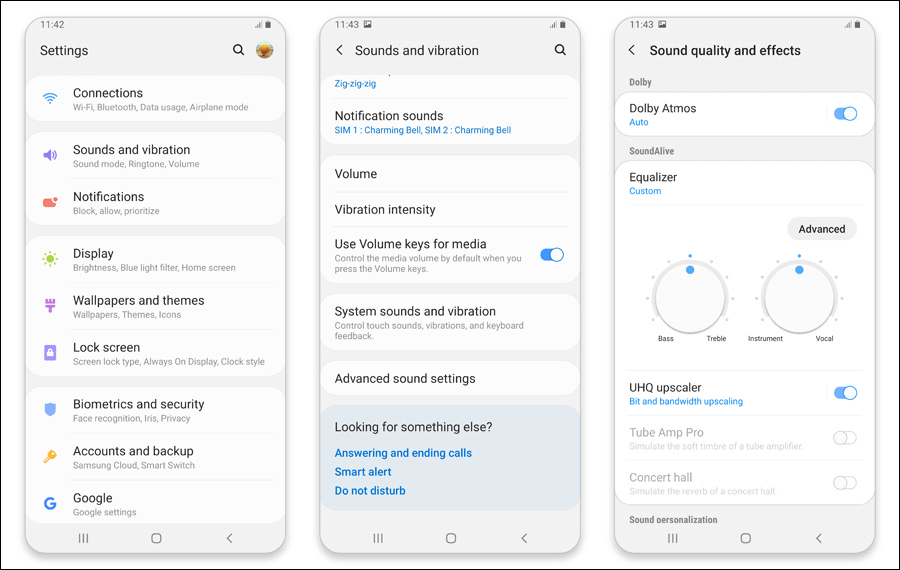
Most Android device manufacturers already include options in the settings that help you improve the sound quality of their phones and solve the low sound problem that users may be experiencing. For example, Samsung, Huawei, LG, Nokia, Oppo and many other companies support their phones with Dolby Atmos technology to significantly enhance and raise the sound level, in addition to sound balance options for a unique and distinctive listening experience. You will usually find all of these options in the sound settings section, but the way to access them varies due to the differences in Android destinations between phones.
For example, if you are using a Samsung phone, go to Settings, then Sounds and vibration, then Sound quality and effects. There you will see a series of options to improve your audio experience. You can play audio content and start modifying it until you reach the best satisfactory result for better listening. Access your audio settings: Volume control options: Media volume: Ringtone volume: Notification volume: Built-in audio enhancement options: Equalizer: Sound Enhancement mode: Safe mode and volume reduction: Additional Android audio optimization tips: Use volume optimization tools: Check Do Not Disturb settings: Uncheck the option to lower the volume when using headphones: Check for operating system updates: Check that your phone doesn't automatically lower the volume when sending alerts: 2. Improve sound via iOS system settings: iOS is the operating system for Apple devices, such as the iPhone and iPad.
This system features a simple and easy-to-use user interface, and also includes a set of options to control sound settings. But, contrary to popular belief, iOS audio customization options go beyond just controlling the volume. Accessing sound settings: To access sound settings in iOS, you can follow these steps: Open the Settings app on your device.
Find the “Sounds” or “Sounds & Haptics” option and tap on it. However, advanced control options are hidden elsewhere. Volume control options: Once you get into the “Sounds” settings, you will find basic volume control options, such as media volume, ringtones, and alerts.
“Silent Mode” and “Disabled Mode” Options: iOS has two options for greater volume control: Silent Mode: mutes all sounds, except alarms. You can activate silent mode by sliding the button on the side of the device. Do Not Disturb: mutes all sounds, including alarms, and you can customize its settings to only receive alerts from certain contacts.
Advanced Options to Improve iOS Audio: iOS hides some powerful options for audio customization. Here are some of them: EQ: You can access it through Settings > Music > EQ. Here, you will find preset options such as “Audio”, “Electronic”, “Voice Booster”, “Bass Reducer”, etc.
These options allow you to adjust the audio frequencies to suit your taste. Customize headphone sound: To access, go to Settings > Accessibility > Sound & visuals > Sound > Customize headphone sound. This powerful feature allows you to select the frequencies you want to boost (midrange, high range, or all).
You can choose between “Balanced Tone” for all frequencies, “Voice Range” for mid frequencies, and “Brightness” for high frequencies. Make sure to activate the “Media” option to apply this effect to the music. You can also adjust the level of soft sounds to boost them slightly, moderately, or strongly.
Additional tips to improve iOS audio: Check Do Not Disturb settings: Make sure Do Not Disturb settings are off if you want to hear all sounds. Verify that the phone does not automatically lower the volume when sending alerts: Some phones automatically lower the media volume when sending alerts. You can cancel this option in the sound settings.
With these tips, especially the headphone sound customization options, you can significantly improve your iOS device's sound quality and enjoy a better listening experience. Audio enhancement apps or audio amplification apps as they call themselves are software tools designed to improve or boost the sound quality of smart devices. These apps promise to provide a better listening experience by processing sound in different ways, such as adjusting frequencies, extending the sound range, and reducing noise.
A quick review of the top 5 audio enhancement apps: Android: Equalizer & Bass Booster: A comprehensive app that combines a 5-band equalizer, subwoofer, bass booster, and 3D sound simulation. This app allows you to manually adjust audio frequencies or choose from a range of presets designed to suit different music genres. You can also boost the bass to achieve a deeper sound effect, or activate 3D sound simulation for an immersive listening experience.
The app is easy to use, offers an attractive user interface, and includes many additional features, such as a sleep timer and the ability to save your custom settings. Poweramp Equalizer: A professional application designed for users looking for precise control over sound quality. This application provides a ten-band equalizer, giving you the ability to adjust frequencies with great precision.
It also includes a stereo audio processor that improves audio channel separation, and advanced frequency control options, such as adjusting the bandwidth and cutoff frequency. Poweramp Equalizer integrates perfectly with the Poweramp music player, but also works with other music playing apps. Neutron Music Player: is an advanced music player that focuses on providing the highest possible sound quality.
It includes a 32-bit equalizer, ensuring superior audio processing accuracy. It also includes a high-resolution audio processor that supports a wide range of audio formats, including FLAC and DSD. This app is known for its complex user interface and advanced options, but it is an ideal choice for users who value sound quality and want to get the most out of their smartphones.
iOS: Equalizer Fx: A simple, easy-to-use app that offers a five-band equalizer, bass booster, and virtual audio processor. Despite its simplicity, this app provides sufficient control over the fundamental audio frequencies, and includes some useful presets. You can also boost the bass and improve overall sound clarity.
Equalizer Fx is a good choice for users who are looking for an easy-to-use application and do not want complexity. You can download it from here. Boom: Bass Booster & Equalizer: A powerful app that combines an equalizer, bass booster, and surround sound simulation.
This app offers an immersive listening experience by simulating the surround sound effect. It also includes advanced customization options, such as the ability to create custom presets and share your settings with other users. Boom is an excellent choice for users who want high-quality sound and a personalized listening experience.
You can download it from here. How do these apps work? Frequency Adjustment: Audio Range Expansion: Noise Reduction: Do these apps offer real improvements?
IMPORTANT WARNINGS: Damage to the speakers: Distortion of sound quality: Incompatibility: Expert advice: Use of external speakers: Bluetooth headphones: These headphones are easy to use and wireless. You can take it with you anywhere and enjoy high-quality sound. See the article (Best Wireless Earbuds) for more options.
Wired headphones: Using subwoofers: Updating the operating system: Checking for device problems: Fixing microphone problems: Avoid exposing the phone to extreme temperatures: Keeping the phone clean: Use a protective case: Avoid turning up the volume excessively: The effect of music streaming apps on sound quality: The importance of choosing high-quality audio files: Additional tips: Use high-quality headphones: Use a good music streaming app: Listen to music in uncompressed formats: Conclusion
DROPIDEA
We hope this article has added real value to you. At DROPIDEA, we always strive to deliver high-quality content that helps you grow and evolve in the digital space. Follow us for more useful articles and guides.
Admin
DROPIDEA
Latest Articles

Microsoft Gains $3.2 Billion from Its Investment in Anthropic

Zuckerberg: Billions of People Will Have AI Assistants Within Five Years

Microsoft Enters Direct Competition Against OpenAI and Anthropic

Pangram Raises $9 Million to Detect AI-Generated Content



