Solution to the problem of the flash drive not working - the message “Please insert disk” appears when opening the flash drive
 By Admin
We review several steps to solve the problem of the flash drive not working when connected. A message, Please Insert disk, may suddenly appear when you try to open the flash drive after connecting it to the computer. This means that the device does not recognize that there is a flash drive connected at all, and therefore you will not be able to browse its content and use it. This problem occurs due to many reasons, and the solution is not easy. There are a lot of tools online claiming to fix and resolve this error, but most of them don't work and fail.
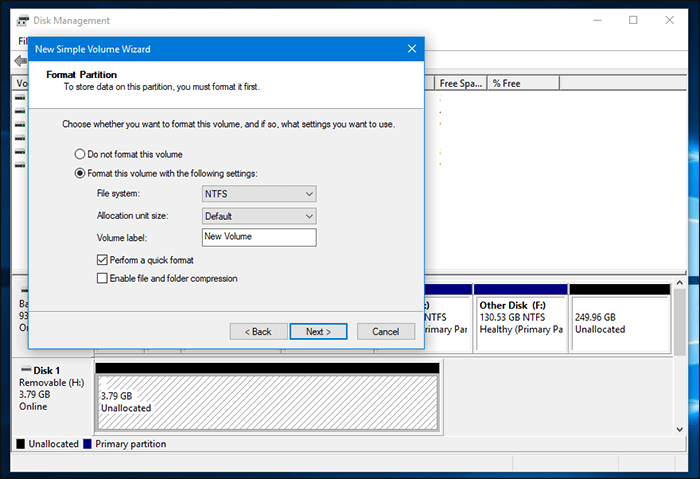
In general, the solution will lead to the loss of data stored on the flash drive, but you can use any of the programs to recover deleted files, after trying the following methods in order to solve the problem of the flash drive not working. Formatting the memory and solving the problem of the flash drive not working. The first and most effective solution for some of those who faced this problem is to rebuild and format the memory. Sometimes the message “Please Insert Disk” appears because the flash memory is not formatted, and this is what makes the system believe that the flash drive does not contain storage memory. Then you must take the following steps in order to be able to solve the problem of the flash drive not working: Connect the flash drive to the computer.
Press the Windows key + the letter R together on the keyboard. Type the command “diskmgmt.msc” in the Run window, then press Enter. Right-click on the black shaded area of the flash drive.
Choose from the menu New Simple Volume. From the window that appears, continue pressing the Next button until Finish. Thus, the flash memory has been reformatted, and it should appear normally on File Explorer and you can store files on it without any problems.
Changing the letter or symbol of a USB flash memory Sometimes, a conflict occurs between the letter of the flash drive and the letter of another disk or section of the hard disk, and this leads to the appearance of this Please Insert Disk error, which prevents you from accessing the content of the disk. So the solution here is to change the letter or symbol assigned to the flash drive and replace it with another letter, and it should work again if the similarity of the letters is causing the problem. Connect the flash drive to the computer.
Press the Windows key + the letter R together on the keyboard. Type the command “diskmgmt.msc” in the Run window, then press Enter. Right-click on the flash drive partition.
Choose from the menu Change driver letter and path. From the window that appears, select the disk and press Change. Select a different letter from the Assign the following drive letter list.
Click Ok. Thus, the letter or symbol of the flash drive was changed, if the problem was not solved in this way. All that remains is to do the third method, which is to force-format the flash.
Read also: Solving the problem of reducing the size of the flash drive to 1GB - and recovering the original space of the flash drive or SD Card. Forced formatting of the flash drive. When you encounter the Please Insert Disk message and try to format it using the tool built into Windows, another error message will appear stating that the system is unable to format the flash drive. In this case, you will have to force-format the flash drive to solve the problem. We can use the distinctive SD Memory Card Formatter program to do this process simply and easily.
Download and install the SD Memory Card Formatter program. Connect the flash drive to the device. After running the program, select the flash drive from the Select Card list.
Click the Format button, and wait until the memory formatting is completed. It may take some time depending on the size of the flash drive, but once completed, you will be able to use it normally without problems.
DROPIDEA
We hope this article has added real value to you. At DROPIDEA, we always strive to deliver high-quality content that helps you grow and evolve in the digital space. Follow us for more useful articles and guides.
Admin
DROPIDEA
Latest Articles

Microsoft Gains $3.2 Billion from Its Investment in Anthropic

Zuckerberg: Billions of People Will Have AI Assistants Within Five Years

Microsoft Enters Direct Competition Against OpenAI and Anthropic

Pangram Raises $9 Million to Detect AI-Generated Content



