Solve the problem of error 503 (Service Unavailable Error)
 By Admin
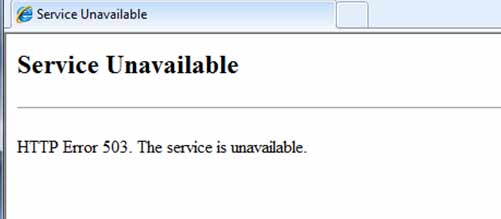
How does the 503 error appear in the browser? The 503 (Service Unavailable Error) problem is one of the common problems that website owners face in WordPress. It means that the server is unable to process the user’s request at the present time, which leads to preventing him from accessing the site, and this causes the loss of a large number of visitors if this problem continues. Therefore, you should solve it as quickly as possible to preserve your site and your visitors. For this reason, we have prepared this article in which we will introduce you to the 503 (Service Unavailable Error) problem and its most important causes. We will also provide you with solutions that will enable you to solve this problem yourself.
What is 503 (Service Unavailable Error)?
The HTTP 503 Service Unavailable response code indicates that there is an error in the site's web server, and this error prevents the user from accessing the site, because the server is unable to process his request at the present time, even though it is working normally and as usual, but it cannot be accessed at the present time. The reason for the 503 error is often that the server is down due to maintenance or is heavily loaded and the resources allocated in the hosting plan cannot handle this load. This causes the browser to display the 503 error message, which may cause the loss of a large number of visitors if the problem persists. One of the most common forms in which the 503 error appears in the browser is: 503 Service Unavailable HTTP Server Error 503 503 Service Temporarily Unavailable HTTP Error 503 Causes of the 503 error problem (Service Unavailable Error) There are many reasons that could cause the 503 error problem, and below we will mention to you the most important of them: Incompatibility of plugins or templates: This means that the site’s templates and plugins cannot work with each other properly as a result of a conflict in Its codes.
Lack of hosting resources: The 503 error problem can occur when hosting resources are few and cannot handle a lot of pressure on the server (such as a very large and unexpected number of visitors). Server-related problems often appear when your site is on shared hosting because it provides limited resources. Server malfunction or problem: Any malfunction or technical problem in the server may lead to the occurrence of the 503 error problem, and then you can contact the hosting technical support in order to solve the problem, because the malfunction is in the server and not on the site. Server maintenance: Error 503 can occur when hosting companies perform server maintenance and you are notified in advance of this, and the problem ends when the maintenance process is completed.
A problem with the content delivery network (CDN): A content delivery network is a network of servers spread around the world, which sometimes processes user requests instead of the server, and therefore any problem that occurs in it can lead to the occurrence of error 503. The server is exposed to DDOS attacks: The server is exposed to DDOS attacks can cause the problem of error 503 because DDOS attacks send a large number of requests to the server, which leads to the exhaustion of all server resources and thus the error occurs.
Ways to solve the 503 (Service Unavailable Error) problem
In WordPress, we will now talk about effective solutions that can be used to solve the 503 (Service Unavailable Error) problem through practical steps. You can watch the methods for applying the solutions in the following video, or continue reading the article if you would like to review the solutions in written form: Solution 1: Reload the page. You can try this method whether you are the owner of the site or an Internet user. If you want to access a site that you do not own and the problem of error 503 appears, try reloading the page several times and try logging in from more than one browser because this may solve the problem and enable you to enter the site. However, if the 503 error problem appears on your site, you can also try that before moving on to more complex solutions. If you reload the page and the problem is solved, there is no need to worry because it may be a temporary problem that has ended, but if the 503 error problem continues to appear, you must apply other solutions.
Solution 2: Check for add-ons. If the problem is due to a conflict between one of the add-ons and other site software, such as templates or other add-ons, you must first try deactivating all add-ons installed on your site. You can follow the following steps to do this: Steps to deactivate: First, connect to your site through the File Transfer Protocol (FTP), or use the file manager in the control panel if it provides this tool, then go to the wp-content folder. Inside you will find many folders. Find a folder called (plugins) and change its name to (plugins-old).
How to rename plugins folder using FTP post
So, create a new folder and name it (plugins). Thus, you will have two folders (plugins-old+plugin), and thus you will have deactivated all active plugins on your site. Now you must try logging into the site. If you are able to do so and the problem disappears, the cause of the problem is a conflict with one of the plugins installed on the site. To find out which of these plugins is the cause, follow these steps: Steps to identify the conflicting plugin: First you must make all plugins available on WordPress. To do this, you must return to the FTP or file manager and go to wp-content, then delete the new folder that we created called (plugins).
How to delete the new plugins folder next you should
You have to rename the folder (plugins-old) to (plugins), so all the plugins are now available on WordPress, but they are still disabled. To find out which add-on is causing the problem, go to your site’s WordPress control panel, then go to (Add-ons) and reactivate the add-ons one by one. Each time you activate an add-on, try logging into the site, as the problem appears when the last add-on that was activated is the cause. Now delete or replace it to solve the problem.
How to reactivate the WordPress plugin Solution 3: Check the themes In this step, we will return to the default template for your site, and this will deactivate your current WordPress theme. You need to connect to your site via FTP and go to the wp-content folder, then themes. After that, you have to choose the currently active WordPress theme, rename it, and WordPress will activate one of the default templates on the site.
How to delete the template folder that has been activated on the site yet
So, try logging into the site and make sure that the problem is gone. If it disappears, this means that the template is not compatible with the site’s software and you must either use another template or seek help from a WordPress developer to find out exactly where the problem is and fix it. Solution 4: Check server resources Running out of server resources is one of the main causes of the 503 (Service Unavailable Error) problem. In order to check server resources and confirm whether they are the cause of the problem, go to the hosting control panel and make sure that resource consumption is within the maximum limit. If you find that the site's consumption rate has exceeded or reached the maximum amount of server resources, this means that the server's resources have run out and this is what causes the 503 error problem. To solve it, you must work to increase the server's resources by changing or expanding the hosting plan in order to suit your site's requirements.
If the server resources are greater than the site’s consumption rate, this means that there is another reason for the problem. Solution 5: Temporarily disable the content delivery network (CDN). As we mentioned previously, the 503 error problem may occur due to a defect in the CDN or Cloudflare or due to an error in the firewall. Therefore, you must check the firewall and make sure that it does not prevent visitors from accessing the site or temporarily disable the CDN or Cloudflare and then try accessing the site. If the issue is resolved, you should focus on fixing the glitch in your firewall or CDN settings. If the issue is not resolved, re-enable the CDN and move to the next step.
Solution 6: Reduce consumption of the WordPress Heartbeat feature. The WordPress Heartbeat feature is responsible for automatic operations on your WordPress site, such as automatically saving content. When this feature is running at a high frequency, it uses a lot of server resources and thus causes the 503 (Service Unavailable Error) error to appear. In order to check whether the problem is caused by the WordPress Heartbeat feature, the easiest way is to disable it and try logging into the site. In order to disable this feature, log in to your site through the File Transfer Protocol (FTP), then find the functions.php file for the template installed on your site inside the themes folder and open it, then add the following code at the end: add_action( 'init', 'stop_heartbeat', 1 ); function stop_heartbeat() { wp_deregister_script('heartbeat'); Then click Save and try accessing your site again.
If you can access the site and the problem disappears, this means that the WordPress Heartbeat feature is the cause and its frequency must be lowered in order to reduce its consumption of server resources and solve the problem. After confirming that the WordPress Heartbeat feature is the cause of the problem, reactivate it by removing the previous code, then lower its frequency by installing the Heartbeat Control add-on, then go to the Heartbeat Control settings page located under the Settings tab, then reduce the frequencies to the lowest possible.
Steps to reduce the frequency of the WordPress Heartbeat feature Solution 7
Enable WP_DEBUG Debug Mode in WordPress is a set of tools that help to find out the details and causes of website problems, but using it requires technical expertise. You can follow the following steps in order to activate debug mode: First, log into the hosting control panel, then go to the File Manager or use an FTP connection to access the file (wp-config.php) and open it in order to edit it, then search inside it for the line (That’s all, stop editing! Happy publishing) and add the following code immediately before it: define( 'WP_DEBUG', true ); define( 'WP_DEBUG_LOG', true ); define( 'WP_DEBUG_DISPLAY', false ); Where to put the code to activate debug mode, save the file, and thus you have activated debug mode in WordPress.
After that, enter the site again, and you will see the problem of error 503, but this time the debugging mode will search for the cause of the problem. To know more information about the problems that were found, go back to the site files, and then enter the wp-content folder, and search inside it for a file called debug.log and open it. Inside it, you will find all the problems found in your site. If you have the necessary technical experience, you will be able to understand these problems, know their causes, and solve them, including the cause of the 503 error problem. However, if you do not have the experience or sufficient time to do so, you can use one of the services for fixing WordPress problems on the Khamsat website. You can also employ one of the specialists on the site to help you solve the problem from the beginning without trying these solutions. Thus, dear reader, we have introduced you to the problem of error 503 (Service Unavailable Error), its most important causes, and the methods that can be followed to solve it. In conclusion, we must point out the necessity of monitoring your site and solving problems that appear on it immediately in order to avoid losing your visitors and customers.
Read also: The most common WordPress problems, and ways to solve them
DROPIDEA
We hope this article has added real value to you. At DROPIDEA, we always strive to deliver high-quality content that helps you grow and evolve in the digital space. Follow us for more useful articles and guides.
Admin
DROPIDEA
Latest Articles

Microsoft Gains $3.2 Billion from Its Investment in Anthropic

Zuckerberg: Billions of People Will Have AI Assistants Within Five Years

Microsoft Enters Direct Competition Against OpenAI and Anthropic

Pangram Raises $9 Million to Detect AI-Generated Content



