Solve the Wi-Fi problem on the MacBook 3 common reasons for MAC network outage and the easiest solution
 By Admin
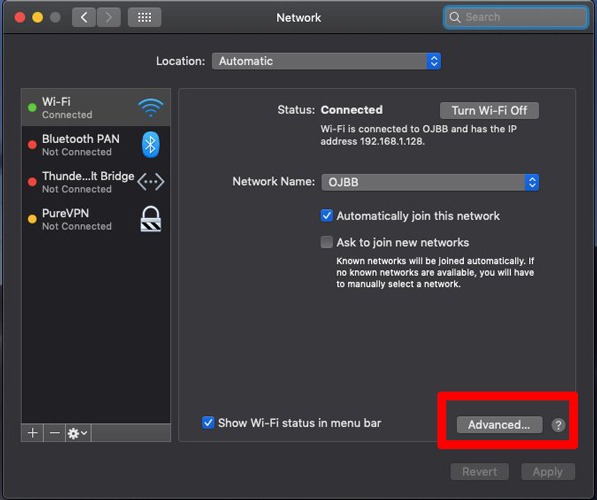
The Wi-Fi problem in the MacBook causes inconvenience to most users, especially those who bought a new MacBook computer and are surprised by the difficulty of connecting to the Wi-Fi network on the Mac or authenticating a network. There are more than 3 common problems that prevent Wi-Fi connection in MacBook and remain a headache for many users, as well as frequent disconnection in these devices.
But what are the reasons?
What is the final solution to connect Wi-Fi to MacBook at the highest speed? Solutions to WiFi network problems on Mac devices. In this article, we will learn together the simple and easy steps that will completely solve the Wi-Fi problem on the computer, and put you in the picture of all the appropriate solutions for all problems, and completely get rid of this problem that is disturbing to many of you.
Closing Wi-Fi due to sleep mode. This problem is considered one of the common problems among many Mac users, as once the device is turned on after it was in sleep mode, we notice that the Internet connection has been cut off, but the solution will be as follows: First we need to go to the network menu by following the following path “Apple menu > System Preferences > Network.” In the menu located on the left of the screen we click on the Wi-Fi option, then on the right side we click on the Advanced option. Another screen will appear where we must select all available Internet networks from Through the command Command + A, then we delete them all by clicking on the “-” button on the keyboard. We return to the main screen of the network. Then we click on the Location menu and a drop-down list will appear. We press the “+” icon where we must add a new location name of our choice, and then we click on the Done command to save.
The new settings we made. In the end, we reconnect our network at home, and the Wi-Fi interruption problem will be solved successfully through this method if the reason was entering sleep mode. Read also: Knowing the Wi-Fi password for the Mac - How to view the Wi-Fi password saved on the Mac Conflict between the USB connections connected to the device and the Internet. One of the problems that can cause an Internet outage in Mac devices and loss of connection to the network is the connection of some USB devices.
In the computer, as there may be a conflict between these connections and our device. The solution to this lies in disconnecting the USB connections connected to the device one by one until we reach the connection causing the Wi-Fi shutdown. Here we must completely remove it from the device and ensure its safety on our Mac and not cause an Internet outage again.
Problems with the device’s memory, NVRAM or PRAM. One of the main pieces that every Mac includes is the volatile random access memory (NVRAM) and the random access memory (PRAM), as these pieces are an essential component without which the device does not work. It is possible that there are some problems with these pieces of hardware that cause the Wi-Fi to not connect. The basic solution to these problems is to reset these parts of the device, and then the problem will be solved and the connection to the network will be restored. In order to reset both the NVRAM and PRAM memory, we perform the following steps: We shut down the Mac completely by clicking on the power button on the device and wait until the sound coming from the hard disk stops and the screen has become dark. We restart the device directly when we hear the start-up sound. We press each of the following buttons on the keyboard together. Command+ Option + P + R We continue pressing the previous buttons until we hear the startup sound again and the Apple logo appears. We now lift our fingers from the previous buttons and thus both NVRAM and PRAM will have been reset. Resetting the System Management Controller (SMC) The System Management Controller (SMC) is the thinking brain of the device, as many problems can be solved by resetting this unit, and among these problems you may be able to solve a problem Wi-Fi in Mac, which is our topic for today.
In order to reset the SMC, we must do the following simple steps, which are divided into several aspects: We first need to go to the “System Preferences” menu or system properties, where we click on the “Network” icon in order to make some settings in this menu related to the Internet network. The first axis / reconfigure the DNS. The DNS is considered one of the basic components of the Internet through which Internet network addresses are dealt with and connected to. There is a defect that may affect the work of the DNS and lead to After connecting to the Wi-Fi network, for this we must re-create this server and it is as follows: We go to the “Network” menu and then to the Advanced option. We choose the “DNS” menu and then click on the “+” sign in the displayed menu. In order to add effective DNS servers, we type 8.8.8 or
8.8.4.4, which are DNS servers belonging to Google. We click on the “OK” option in order to save the settings that have been entered and apply them completely. We are now trying to access the Internet and we will find that the network problem has been solved. The second axis / adjusting the packet size for the Internet. There are some pages that load well in the browser and some other pages that the browser fails to load. This is due to a defect in the packet size. Therefore, the packet size must be adjusted in order for all Internet pages to work without any defect. The packet size can be adjusted through Next steps: From the “Network” menu we click on the “Advanced” option. A new pop-up menu will appear where we choose the Hardware command. We now change the setting for “Configure” from Automatic.
To Manually
Then we change the “MTU” option from “Standard (1500) to “Custom” in the value box. We add the next value, which is “1453”, and then we give the command “OK” to save the options. We now go to the browser to perform the search and we will notice that this problem has been solved. Read also: How to change the Mac ID in Windows 10 in a safe way, and why might you need to do that? Another solution / change the location of the device and rename the DHCP Sometimes the automatic location that is determined by your Mac can incorrectly affect the network settings, so it must be set manually in order to overcome this problem. We also find that the DHCP protocol is responsible for regulating the IP addresses on the Mac, and therefore it must be set correctly. This will be done through the following steps: From the same Network Settings menu, we click on the “Edit Locations” option, where we will find it has been set to the Automatic option.
In order to change the address, we click on the “+” sign to add a new address, where we name it with the name we want, and then we click on the “Done” option. We will notice the phrase “No Ip Address” has appeared below the word Wi-Fi in the list on the left of the screen. We now go to the “Advanced” option and then the TCP/IP option from the menu bar. In order to set a new IP address, we now go to the “Renew DHCP Lease” option and click on it, and thus a new IP address will be added. Click on the box. Enter “OK” in order to confirm the settings. Now the problem of interruption in the Internet connection and the Wi-Fi problem on the Mac has been completely resolved, and we will notice that browsing has become faster and not interrupted. Read also: The most important ways to strengthen the Wi-Fi signal at home - 5 tips to get a strong router signal. Summary of the topic: There are many reasons for network outages in the Mac, and among these reasons is the loss of identification of the Wi-Fi network in the device. Also, if we reboot the router device that distributes the Internet, the other devices that operate on a system other than the Mac will work, while the device with the Mac system will lose connection completely.
Another reason that leads to Wi-Fi not connecting on the Mac is entering sleep mode in the device, which is a very common problem that causes network disconnection. Also, one of the reasons related to losing connection to the network is the presence of a conflict between the Mac device and the USB devices connected to the device. Read also: The most important Mac programs to install when buying a new MacBook. You can choose the appropriate solution for you from the list of previous solutions that were explained in this article, and you will notice that you have gotten rid of the problem of disconnecting the Wi-Fi connection. Share with us your opinions on this topic, and if one of these methods worked for you in solving the problem on your Mac, through the comments.
DROPIDEA
We hope this article has added real value to you. At DROPIDEA, we always strive to deliver high-quality content that helps you grow and evolve in the digital space. Follow us for more useful articles and guides.
Admin
DROPIDEA
Latest Articles

Microsoft Gains $3.2 Billion from Its Investment in Anthropic

Zuckerberg: Billions of People Will Have AI Assistants Within Five Years

Microsoft Enters Direct Competition Against OpenAI and Anthropic

Pangram Raises $9 Million to Detect AI-Generated Content



