How to send a link from mobile to computer with ease via Windows 10 and Android
 By Admin
Starting with version 1709 of Windows 10, the user can simply connect the Android smartphone or iPhone to the computer and benefit from that in many things, most notably the Continue on PC feature, which helps you send a link from the mobile phone to the computer in less than a second. In this topic, here is a detailed explanation of how to activate and use it. In some cases, you are browsing a site on your phone and then want to continue browsing this site on your computer for some reason. Perhaps it is a long article that you find easy to read on the computer screen, or a form full of fields that is difficult to fill out using the touch keyboard and the small phone screen, or a site that is not eligible for display on phone screens... Whatever the reason, the
# Windows 10 allows you to do this after the Fall Creators Update or version 1709, as there is a Continue on PC feature that makes it easy to send a link from mobile to computer in just a few clicks of a button. On the other hand, there is an advantage and a disadvantage to this property.
The advantage is that it is easy to send links from any mobile browser, whether you are using Google Chrome, Samsung Browser, Firefox, or even Microsoft Edge for Android and iOS. The drawback is that these links will only open in the Microsoft Edge browser on the computer to which the link is sent, meaning if you are using Google Chrome or Firefox, the web page will still appear on Microsoft Edge. If you don't like using Edge, simply copy and paste the link into your favorite browser.
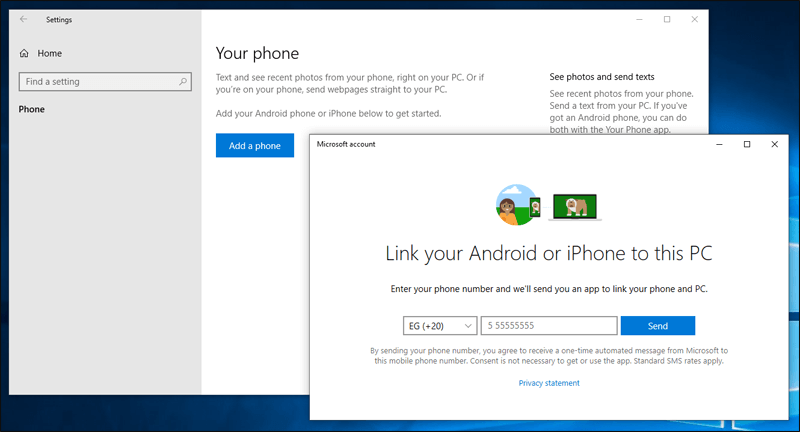
Let us now move on to review the steps to activate this feature and explain how to use it. Steps to send a link from your mobile phone to your computer First of all, you will need to connect your smartphone to your computer that is running Windows 10. To do that, go to Settings (press the Windows key + the letter E key together) and then go to the Phone section (if you do not find a section with this name, make sure to
Windows 10 Update). On the right side, press the Add a phone button, then follow the instructions to enter your phone number and press the Send button. A few moments after entering your phone number and clicking the Send button, you will receive a short text message (SMS) from Microsoft containing a URL link. Click on it to open the App Store on iPhone devices or Google Play on Android devices to the Your Phone Companion application page to install on your mobile phone. It is the application that works as a link between the phone and the computer and provides many benefits such as
Sending text messages from the computer. Note: If you do not receive a message from Microsoft, go to this link aka.ms/yourphonecompanion After installing the application on the phone and running it, press the “Sign in” button and then proceed with writing the email and password for your Microsoft account, keeping in mind that this account must be the same one associated with the computer.
After successfully logging in, press the Continue button and allow the application to access some permissions such as messages and storage (they are used to sync your data and access it via the computer). You should then see the phrase Your phone and PC are linked. Thus, both Android and the computer are connected together and you can take advantage of the available features such as Continue on PC, which we will review how to use below. Start transferring links between your phone and computer yet
Connect your phone and computer together successfully. As we explained in the previous steps, you can open the web page that you want to send to your computer within any Internet browser on your phone, then press the menu button in the upper right part in most browsers to display the main options list, through which I press the Share button to open the sharing box that contains the means of sharing the web page, including Continue on PC. Click on this method until the Send to a PC window appears, which contains the names of the Windows 10 devices that have been connected, in addition to the Continue later option, which once you click on it, the same list of names will appear to you, but instead of opening the page directly on the computer, you will get a pending notification on the Action Center. When the notification is opened, the web page opens immediately.
If you do not like using the Continue later option, click on the computer name from the Send to a PC window until a link is sent from the mobile phone to the computer and the web page opens on the Microsoft Edge browser.
DROPIDEA
We hope this article has added real value to you. At DROPIDEA, we always strive to deliver high-quality content that helps you grow and evolve in the digital space. Follow us for more useful articles and guides.
Admin
DROPIDEA
Latest Articles

Microsoft Gains $3.2 Billion from Its Investment in Anthropic

Zuckerberg: Billions of People Will Have AI Assistants Within Five Years

Microsoft Enters Direct Competition Against OpenAI and Anthropic

Pangram Raises $9 Million to Detect AI-Generated Content



