How to recover deleted applications from the App Store on iPhone
 By Admin
Imagine that you are in the middle of an important business trip, and you need to access a specific application to book a hotel or order a taxi. Or perhaps you are preparing for a leisure trip, and rely on a specific application to plan your trip and book flight tickets. Suddenly, you discover that the application you need has disappeared from your phone!
Don't worry, you may have accidentally deleted it, but that doesn't mean you've lost all the data associated with it or that you'll have to start from scratch. Fortunately, the App Store provides the ability to recover deleted applications on iPhone with ease without losing any data.
How to Find Deleted Apps: To recover your lost apps
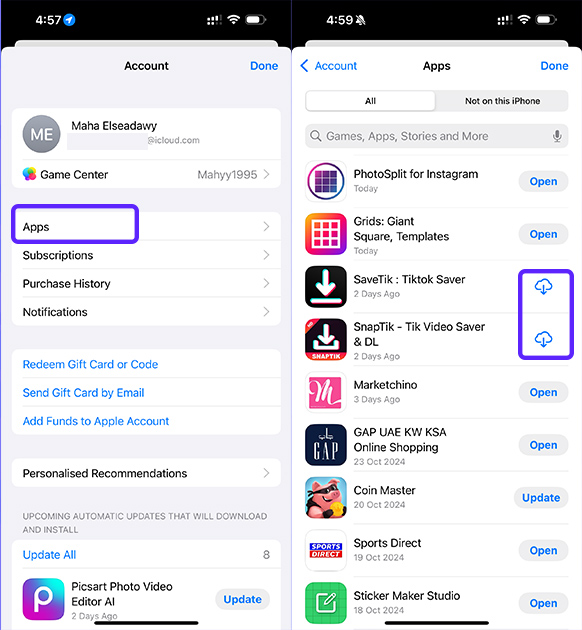
Follow these simple steps: Open the App Store: Start the journey of searching for your missing app from the App Store, the source of all your apps on your iPhone. Access your profile: Click on your profile picture in the upper left corner of the screen. Open the list of purchases: From the list that will appear to you, choose “Purchases” to access the history of all applications that you obtained from the App Store.
In the Purchased list, you'll find all the apps you previously downloaded using your Apple ID, whether they're still installed on your device or even ones you've deleted! Recover your deleted apps: After accessing the “Purchased” list and finding the app you are looking for, you will notice a cloud icon next to it. This icon indicates that the app is not currently installed on your device, but you can easily re-download it.
To restore the app, simply follow these steps: Click on the cloud icon: The App Store will start downloading the app again on your device. Wait for the download to finish: This may take some time depending on the size of the app and the speed of your internet connection. Open the app: Once the download is complete, click “Open” to enjoy the app again.
You will find that all your data and information associated with the app is still there, as if you never deleted it! The app does not appear on the home screen? Here's the solution: You might think that the app will automatically appear on the home screen after re-downloading it, but that's not always the case.
It may be hiding somewhere else on your device, known as the App Library. Don't worry, finding your app in the App Library is very easy. All you have to do is: Swipe left: Swipe your finger on the home screen towards the left continuously, and you will find that the home screen pages scroll past you one after the other.
Access the App Library: Keep scrolling until you reach a different page with automatically arranged folders. This is the App Library. Search for an app: You can manually browse folders to find your app, or simply use the search bar at the top of the App Library and type the name of the app you're looking for. Once you find the app, you can drag and drop it to your home screen if you want to easily access it in the future.
How to Recover Deleted Hidden Apps on iPhone: Did you know that you can hide apps on your iPhone? This feature is a smart way to organize your home screen and keep apps you don't use frequently out of sight, without having to delete them permanently.
But what if you want to restore a hidden application?
Don't worry, showing hidden apps is easy too. Follow these steps to uncover your hidden apps: Return to the App Store: Once again, we will start our journey from the App Store. Access your profile: Click on your profile picture in the upper-right corner.
Open the purchases list: Choose “Purchases” from the list that will appear. View apps that aren't on your device: You'll find an option labeled “Not Found on This iPhone.” Click on it to see a list of all the apps you've previously downloaded using your Apple ID but aren't currently installed on your device, including hidden apps. Find hidden app: Find the app you want to unhide in this list.
Re-download the app: Click the cloud icon next to the app to re-download it to your device. The app will reappear in your App Library, and you can add it to your Home screen if you wish.
Golden tips to preserve your apps and data: Restore apps
Deleting is easy, but what if you lose or damage your iPhone? Here the importance of backup is highlighted in preserving your applications and precious data. Apple offers two main ways to create backups of your iPhone: iCloud: iCloud lets you safely store your data in Apple's cloud, including apps, photos, contacts, and more.
Backups occur automatically when your device is connected to a Wi-Fi network and plugged into a power source. iTunes: You can also create backups of your iPhone to your computer using iTunes. You may be interested in checking out our article: The comprehensive guide to backing up your iPhone. To restore your apps from a backup, simply follow these steps: Reset your iPhone: Whether you use a backup from iCloud or iTunes, you will first need to reset your iPhone to its factory settings.
Choose a backup: During the setup process, you'll be asked to choose a backup to restore. Choose the version that contains the applications you want. Wait for the restore to finish: Your iPhone will start downloading data from the backup, including apps.
This may take some time depending on the volume of data and the speed of your internet connection. Once the restore is complete, you will find all your apps and data as they were before the device was erased or lost.
Conclusion
In conclusion, you no longer have to worry about accidentally deleting apps from your iPhone. You can now restore them easily through simple steps in the App Store, without losing any previous data or settings. Always remember the importance of organizing your apps and hiding unused apps to free up space on your device and keep it in best condition.
And never forget the importance of creating backups to keep your apps and data safe. Additional source: Apple support for retrieving applications,
DROPIDEA
We hope this article has added real value to you. At DROPIDEA, we always strive to deliver high-quality content that helps you grow and evolve in the digital space. Follow us for more useful articles and guides.
Admin
DROPIDEA
Latest Articles

Microsoft Gains $3.2 Billion from Its Investment in Anthropic

Zuckerberg: Billions of People Will Have AI Assistants Within Five Years

Microsoft Enters Direct Competition Against OpenAI and Anthropic

Pangram Raises $9 Million to Detect AI-Generated Content



