How to save Google Maps path? A feature that will make your journey faster and easier within the city
 By Admin
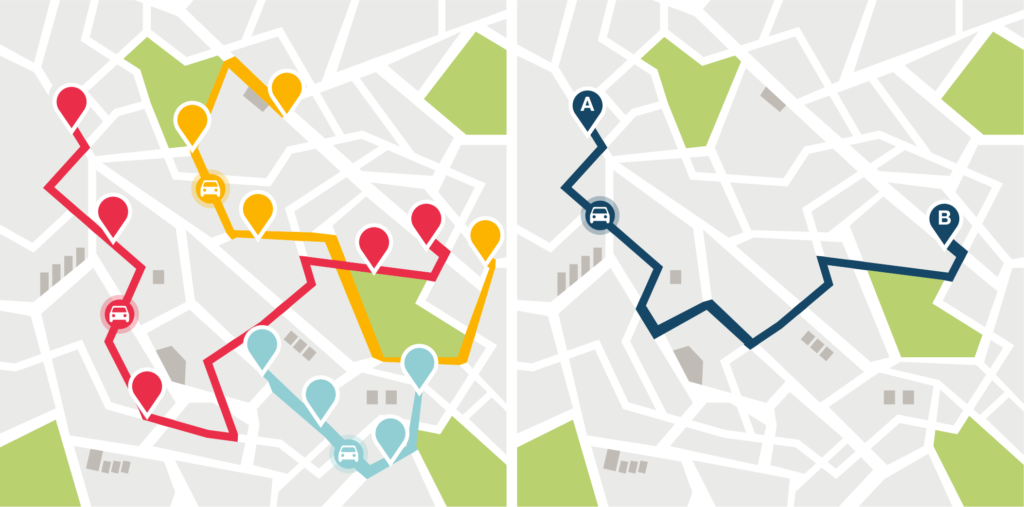
Are you tired of repeatedly choosing your route every day when going to work? Don't worry, Google Maps has the solution for you, as it offers you the option to save a Google Maps route to choose it quickly without entering the details every time. In this guide, we will show you the method in detail. Controlling the Google Maps route also through the search along route feature and setting it before heading out on delivery trips is a more than wonderful idea if you will be doing more than one delivery of orders or if you intend to go to more than one area within your governorate, as you can divide the Google Maps route into successive points A, B, C and arrange the areas according to the closest one, while displaying the expected duration of the trip time.
This will reduce the journey time and provide you with a fast route. What do we mean by Google Maps path? A Google Maps Route is a path from point A to point B. The route provides directions for you to get to the place you want quickly based on road congestion and estimated time of arrival. Google Maps Route is usually saved for daily trips such as your trip from home to your workplace or from home to the shopping store.
It should be noted here that this feature is only available on mobile devices. Save a Google Maps route (Android and iOS) To get started, go to the Google Maps app and tap the directions icon in the bottom corner (in blue). This will take you to a new window where you enter your starting point and destination point. You can select a point on the map manually by clicking on “Choose on map” or clicking on “Your Location” to choose your current location, or enter the location manually by typing it.
You will notice that you are transferred to the map again once you enter the starting and arriving points. You can navigate between the best paths for driving, public transportation, walking, or others by choosing them from the list. Now click on “Pin” (pin icon) and now your path will be saved. You can review the path whenever you want by clicking on the “Go” tab, and you can also install more than one path.
Unpinning a track You can unpin a track simply by following similar steps, by going to the “Go” page, choosing the track you want to unpin, and then clicking again on “Pinned Pinned” to unpin the track. Adding a route shortcut on the home page For quick access to the route (especially if it is a frequent route, such as a route to work), go to the route you installed previously and click “Other trip options” at the top. Then click on More in the upper corner (the three dots) and choose “Add route to Home screen” and you can add the preferred route to your trips every time.
Now go to the home page of your phone and you will notice the addition of an icon (similar to the one in the image below) that will take you directly to the route directions once you click on it. Sharing a Pinned Route You can share this route with whoever you want (a friend, for example, to specify a meeting point), and this will share a link containing directions to the access point based on the location of the party receiving the route (not your location). To share the path, go to the More Settings menu (the same menu in the previous paragraph) and choose “Share directions,” and then choose the method for sharing and sending the link.
You may also be interested in: How to rotate Google Maps and modify the path to appear correctly 6 hidden tricks in using Google Maps You will definitely be amazed How to use Google Maps on the iPhone without the Internet
DROPIDEA
We hope this article has added real value to you. At DROPIDEA, we always strive to deliver high-quality content that helps you grow and evolve in the digital space. Follow us for more useful articles and guides.
Admin
DROPIDEA
Latest Articles

Microsoft Gains $3.2 Billion from Its Investment in Anthropic

Zuckerberg: Billions of People Will Have AI Assistants Within Five Years

Microsoft Enters Direct Competition Against OpenAI and Anthropic

Pangram Raises $9 Million to Detect AI-Generated Content