How to share phone screen (Android or iPhone) with computer/TV/other phone
 By Admin
It may not be every day but there are times when you need to share your smartphone screen with someone else and taking a screenshot is perhaps the most commonly used method for those who want to do so. But screenshots lack liveliness as they lack common user scenarios like troubleshooting problems, creating a how-to guide, or collaborating with friends remotely. It's just an image, after all. Applications that allow you to share the phone screen Android & iOS Here the role of real-time phone screen sharing is highlighted as it allows you to easily broadcast the screen to another person as if they were holding your phone.
This is useful in many cases, for example if you want to explain something to your coworkers or students, or you want to share something with your friends, or show them your playing skills while playing PUBG. If you are interested in this method, here are the best screen sharing apps for Android and iPhone. The first application: Skype. The Skype video calling platform from Microsoft allows you to share the screen of your computer or phone while making a video call, regardless of the operating system, and therefore it works on the Android and iOS operating systems without problems. It doesn't matter whether the other party is using a phone or a computer, you can still use it to share your phone's screen content in real time whether in one-on-one sessions or in group video calls.
You do not need to set up anything in the Skype application to be able to take advantage of this feature; All you need is a Microsoft account, download the Skype application on your phone, launch it, and log in. If you haven't already, add your friend or significant other (with whom you want to share the screen) to your contacts list by searching for their Skype ID from the search bar at the top. Now, make a video call with that person by clicking on the “Video Camera” icon at the top right of the chat page.
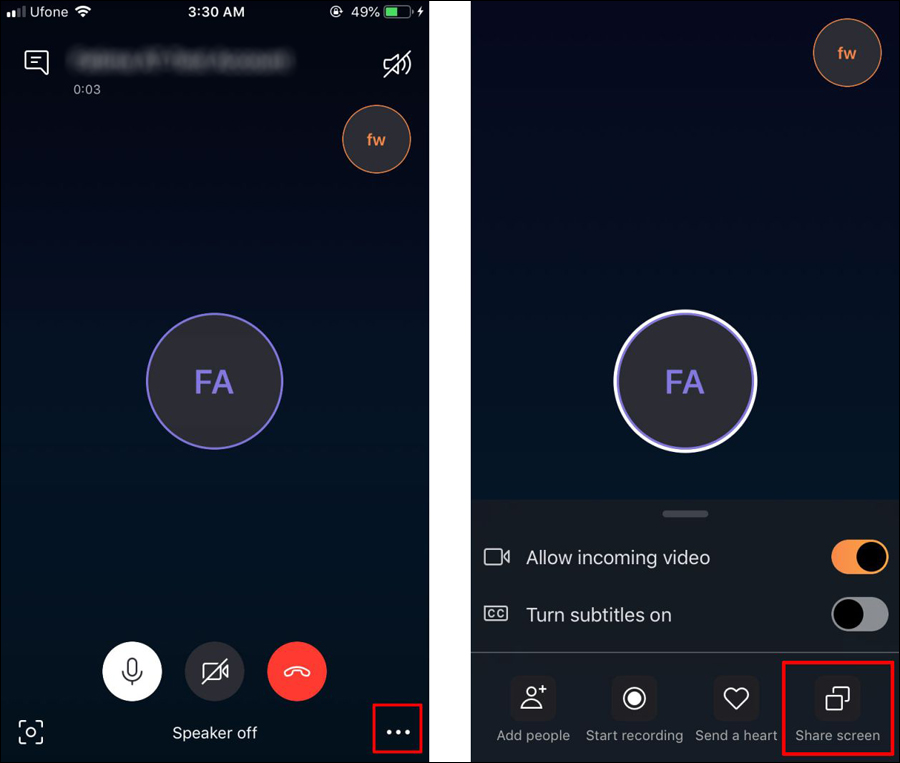
When you accept the call, click on the menu button at the bottom right of the call interface, then press “Share screen.” If a confirmation window appears, press Start Now. Once finished, your screen and anything you do will be visible on your friend's phone or computer screen. To end screen sharing, click the blue “Stop sharing” button.
Download SKYPE for Android Download SKYPE for iPhone Skype may do the trick, but it is not perfect; If you do not have a Microsoft account, the process of creating an account may delay you. So if you find Skype lacking some important features or want to remotely control other devices, here are some effective alternatives. The second application: TeamViewer TeamViewer is a more advanced solution when it comes to sharing the mobile phone screen, but it was originally designed for the purposes of diagnosing and fixing errors or problems.
And if you are going to use it on Android phones, apart from sharing the screen in real time, it also allows you to enable the other party to control it remotely. But unlike Skype, TeamViewer is not a traditional video calling app. This means that you cannot talk to the other party through voice and video.
Moreover, some may find it difficult to use compared to the Skype application, as it requires you to download side applications to perform additional functions. However, to share your Android or iPhone screen in this way you will need both the TeamViewer app and the TeamViewer QuickSupport app. The latter allows you to instantly create a unique ID number for your device and share your screen without creating an account.
All you have to do is install TeamViewer QuickSupport on the phone whose screen you want to share and control remotely, and after running it, click “Send My ID” to share the ID number with the other person via any messaging application or by email. As for the controlling phone, it must contain the main TeamViewer application. After running it, write the ID number that you sent. Once the sender confirms the connection, you will be able to view the shared screen.
Download TEAMVIEWER for Android Download TEAMVIEWER for iPhone Download TEAMVIEWER QUICKSUPPORT for Android Download TEAMVIEWER QUICKSUPPORT for iPhone The third application: Squad Squad is a screen sharing application that tends to be more social if compared to the previous options, as you can make a video call with up to nine people and share the screen of your Android or iPhone phone in real time with them. You can also meet with your friends to shop online or watch a YouTube video...etc. Instead of sharing the entire screen, the application allows you to focus on one application, which aims to consume less internet and is very useful when you are talking to more than one friend in the same call.
However, this feature is only available for Android users. In addition to the above, there is an option that allows you to create groups to quickly conduct video chats with all members. Along with this, Squad works as an instant messaging service and provides the ability to send regular texts and photos. The app is free to download, but when you launch it it will ask you to enter your phone number to create a new account.
Download SQUAD for Android Download SQUAD for iPhone Fourth application: Lightbeam Lightbeam provides features that are largely similar to the Squad mentioned above, except that it highlights its unique ability to share the phone’s screen. You can still make a video call and broadcast your screen at the same time. But Lightbeam has also integrated live comments within the screen sharing window.
Therefore, instead of gathering your friends to talk about the content of the screen, they can leave a text comment that will appear at the top of the chat. This is ideal when you're planning to pack some items for your trip, for example, and want to get suggestions on symptoms they might be considering. However, Lightbeam only supports a maximum of four participants in a single call.
As of this writing, you can use the application on Android without problems, but it is still under development on iOS and is not available to general users. Download LIGHTBEAM for Android The fifth application: Mimicr Mimicr is also another screen sharing service that Android smartphone users can try as it has the ability to share content with the lowest possible response rate and thus the movement is more flexible and smooth. Mimicr can transfer screen content to a second phone either through the application itself, or via a URL link.
The last method allows you to view the screen content on any phone (or even a computer) just by opening the link in a web browser. Moreover, the Mimicr app has a voice chat option so that you can talk to the other party while sharing the screen and can also interact with emojis. The app is available for free and exclusively for Android, at least for now.
Download MIMICR for Android, the sixth application, Vani Meetings, download Vani Meetings for Android, the seventh application, Join.me, download the eighth application, AnyDesk, download the application for Android, download the AnyDesk application for iPhone, the ninth application, Whereby Download the Whereby application for Android, download the Whereby application for Android Read more: Explain how to share the screen in Messenger on Android and iPhone How to display the mobile screen on a Windows laptop without programs Learn about the wireless screen sharing application LetsView for all devices Note: The article was updated on July 2023 to add new and distinctive applications that allow sharing the phone with other systems.
DROPIDEA
We hope this article has added real value to you. At DROPIDEA, we always strive to deliver high-quality content that helps you grow and evolve in the digital space. Follow us for more useful articles and guides.
Admin
DROPIDEA
Latest Articles

Microsoft Gains $3.2 Billion from Its Investment in Anthropic

Zuckerberg: Billions of People Will Have AI Assistants Within Five Years

Microsoft Enters Direct Competition Against OpenAI and Anthropic

Pangram Raises $9 Million to Detect AI-Generated Content



