How to embed a Google map into your WordPress website to make it easier for customers to reach you
 By Admin
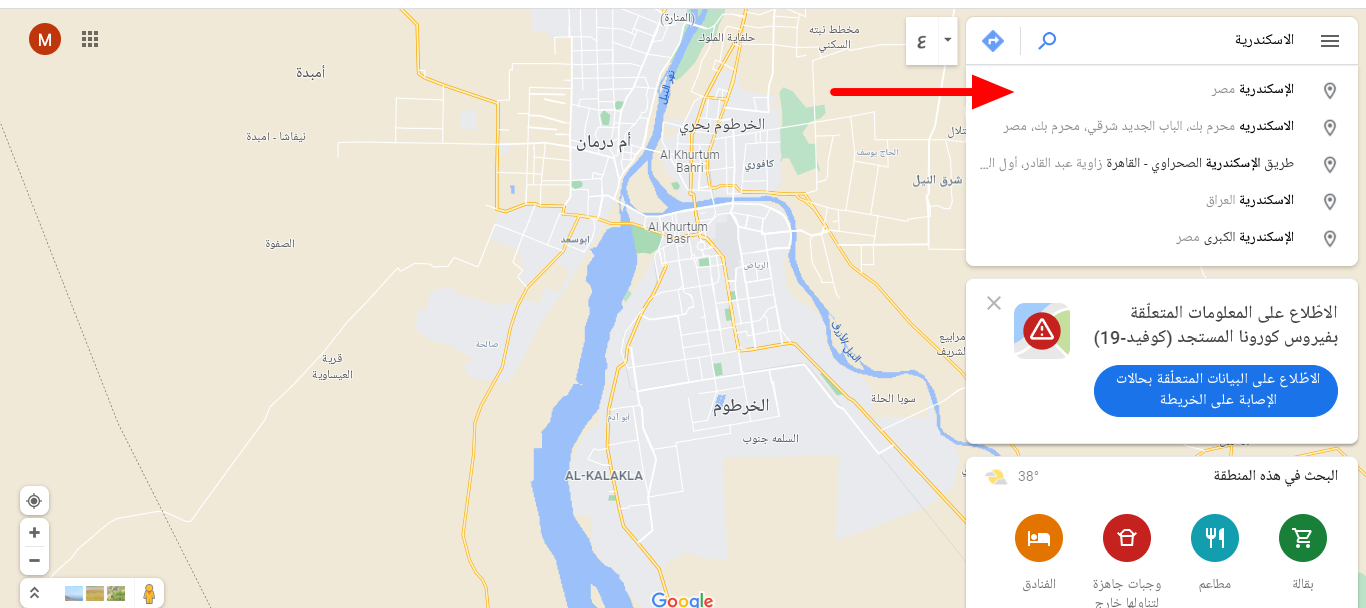
Including a map of your business on your site will allow users to know the exact location of your store or office in your city, and this in turn will increase customer confidence in the site or company. Google Maps is easy to use and one of the most popular maps, ensuring a good user experience. Today we will learn how to embed a map in your WordPress site on any page of your site through easy and simple steps.
How to embed a map into your WordPress site so you can...
In order to include a site map, you must first precisely determine the site you want to add to the site, whether it is your own site or any other site. In fact, there are two ways that enable you to do this: adding the map through the manual method. Use an add-on.
Now let's learn about both methods. Embed a map into your WordPress site manually. In this method, you will be able to embed your site through Google Maps directly by accessing the Google Maps page, then selecting the place you want to show on the map by using the search bar located on the right side of the screen. Make sure that the selected location is the correct location for your business, then click on the Share option and a pop-up window will appear in which you click on the Embed Map option and then copy the code shown.
This is done by clicking on the option (Copy HTML content), with the ability to customize the size of the map from the option next to the code. After that, go back again, to your site’s control panel, and create by going to the page where you want to include your sitemap, whether it is a published page or a new page. You will add a new component in the component editor, by clicking on the (+) sign and then choosing the HTML option
Custom Then paste the code for the map that you copied from Google Maps, into the specified component. If you are using the traditional WordPress editor, in this case click on the Text option and then paste the code where you want.
After that, the map will be added to the page or article. It will look like this: Thus, you have included the Google map on your site in an easy way without the need for external add-ons. Embed a map on your WordPress site using plugins. You can use plugins to include the map on your site, as they give you more customization and flexibility in adding the map in any part of the site and controlling its size. You will also not need to exit the site's control panel and then go to Google Maps and copy the code and paste it again on the site.
We will rely on the MapPress Maps add-on by installing the add-on on the site first by going to the add-ons tab.
DROPIDEA
We hope this article has added real value to you. At DROPIDEA, we always strive to deliver high-quality content that helps you grow and evolve in the digital space. Follow us for more useful articles and guides.
Admin
DROPIDEA
Latest Articles

Microsoft Gains $3.2 Billion from Its Investment in Anthropic

Zuckerberg: Billions of People Will Have AI Assistants Within Five Years

Microsoft Enters Direct Competition Against OpenAI and Anthropic

Pangram Raises $9 Million to Detect AI-Generated Content



