How to connect a Bluetooth headset to a mobile phone or laptop – Guide to pairing headphones
 By Admin
Most people prefer wireless Bluetooth headphones because of the convenience they provide. You don't have to worry about wires and you can use it on the go with ease. However, connecting Bluetooth headphones to your mobile or laptop is not as easy as connecting wired ones to the audio jack.
If you recently purchased new wireless headphones but are confused about how to connect them the right way, don't worry. In this guide, we will take a look at how to connect a Bluetooth headset to a mobile phone or laptop running the Windows 10 or 11 operating system in just a few steps, and let’s start with computers: How to connect a Bluetooth headset to a Windows 11 laptop In this method, we will detail the process of connecting Bluetooth headphones to a computer or laptop running the Windows 11 operating system in just three steps: 1. Enable Bluetooth There are two ways to enable Bluetooth on Windows 11.
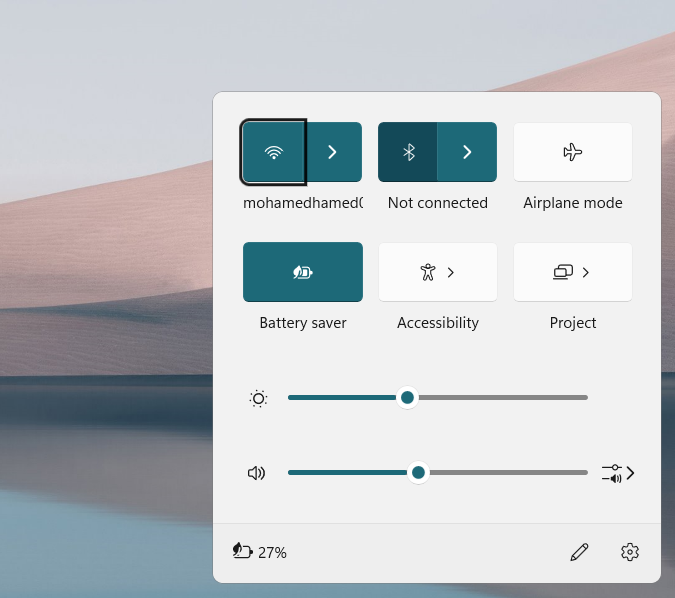
You can either do this via Notification Center or Windows Settings. To enable Bluetooth via Notification Center, click the Quick Settings icon on the taskbar (or use the Win + A key shortcut) and click the Bluetooth option to enable it. If you can't locate the Bluetooth icon here, open Windows Settings by pressing the Win + I keys.
Head to the Bluetooth and Devices section and in the left pane, turn on the toggle switch for Bluetooth. 2. Enable headphone pairing mode Pairing mode helps connect two wireless devices.
Just as you enabled Bluetooth on your Windows 11 device, you need to enable pairing mode for your headphones to make them discoverable. Related articles:
How to connect a Bluetooth headset to the TV - for all devices
In order to successfully establish the connection and finish how to connect a Bluetooth headset to your laptop, make sure that your headphones are fully charged. The exact steps to turn this mode on will vary between headphones, so if you don't know how to enable pairing mode, we suggest you check the user manual or look up the steps on the manufacturer's official website. 3.
Add your Bluetooth speaker Once you've enabled Bluetooth connectivity and pairing mode, it's time to add your speaker to your computer or laptop. Here's how to do it: In the Bluetooth and Devices section of Windows Settings, locate and click the “Add device” button in the left pane. In the next window, click Bluetooth. You should now see your Bluetooth headphones in the list of available devices.
Click on it. If any prompts appear on the screen, confirm their action. Both devices should now be connected.
The connected devices will appear in the Bluetooth and Devices section in Windows Settings, and now you have succeeded in knowing how to connect a Bluetooth headset to your laptop. How to connect a Bluetooth headset to a Windows 10 laptop The steps to connect Bluetooth headphones to Windows 10 are slightly different from the steps described above. If you are a user of this system, follow these steps to continue: 1.
Enable Bluetooth As in Windows 11, you have the option to enable Bluetooth via both Notification Center and Windows Settings. Press Win + A keys to open the Action Center and click on the Bluetooth icon in the tray to enable the feature. If you can't locate this icon, press Win + I to open Settings.
Click on Devices. Choose Bluetooth and other devices from the left pane and turn on the toggle switch for Bluetooth on the right side. 2.
Enable Headphone Pairing Mode Once done, enable pairing mode with your headphones by following the instructions we provided in the method above. Looking at the user guide can help you figure out how to do this. 3.
Add your Bluetooth headset After performing the above steps, all that remains is to add your headphones. To connect Bluetooth headphones to your laptop, here's what you need to do: In the Bluetooth and other devices section of Windows Settings, look for the Add another device option. Click on it and select the Bluetooth option in the next window.
Now, find your Bluetooth headphones in the list of available devices and click on it. Click Yes on any pop-up window that appears on your screen to continue. Your Bluetooth headphones should now be added successfully, and they should work normally after the process of successfully connecting the Bluetooth headset to your laptop.
How to connect a Bluetooth headset to an Android mobile First, you must turn on Bluetooth on your phone. There are two ways: Swipe down from the top of the screen with two fingers to open Quick Settings. Click on the Bluetooth icon to turn it on.
Tapping and holding this button will take you to the Bluetooth settings page. Open Settings on your phone and tap Bluetooth. On the next page, toggle on the button next to the Bluetooth icon.
The Visible to other devices option should be enabled by default in advanced settings. If not, turn it on. Next, make the Bluetooth headset you're connecting to discoverable, and it must be in range and visible to your Android phone to pair successfully.
The pairing process varies from one device to another, which you will find in the user manual of the speaker or any other device in general. On most devices like headphones or speakers, you simply need to press and hold the power button or pairing button that has the Bluetooth icon on it. You will briefly hear a beep or the notification light will flash in pairing mode.
Remember that pairing mode is only active for a short time. Steps for the speaker pairing process Once this is done, you will be able to complete the Bluetooth pairing process through the following steps: Open the Bluetooth settings page on your phone. Now, your phone will search for Bluetooth devices.
This may take some time, but soon you will see the device names appear under Available devices. If the speaker you're trying to pair with doesn't appear, click the Update button next to Available Devices. Your phone will search again for available devices to pair with.
Once the headset appears among the available devices, click on its name to successfully complete the pairing process. You may receive a prompt to pair with the speaker. Press Pair and the speaker will connect to your phone successfully.
Once the speaker is paired, a Bluetooth icon will appear at the top of your phone's screen next to the Wi-Fi or mobile network icons. Most Android devices can connect two to five Bluetooth devices simultaneously, while some support up to seven devices. Remember that once the speaker is paired, it will appear as a paired device under Available Devices even when it is turned off.
Once turned on, it will automatically connect to your Android phone, if your phone's Bluetooth connection is on and both devices are within the allowed range. How to connect a Bluetooth headset to an iPhone Pairing the headset is a quick and easy process. Follow these steps to connect your Bluetooth headset to your iPhone or check out the official guide: Open Settings and go to Bluetooth.
Make sure bluetooth is enabled. Scroll down to “Other devices” and tap on your speaker to pair. Make sure it is in range and in Bluetooth pairing mode.
If the headset becomes out of range, or if Bluetooth is turned off, your iPhone will automatically disconnect from it. However, the headset will undoubtedly not be forgotten. If Bluetooth remains enabled, it will automatically connect to the previously paired headset when it returns to the correct range.
In conclusion, this was our comprehensive and detailed guide to knowing how to connect a Bluetooth headset, whether the device is a laptop running Windows 10 or 11, or even a smartphone running Android or iOS, which is a very easy process and does not require any previous technical knowledge. Related articles:
How to protect Bluetooth from hacking - 5 steps
Don't forget it. Explaining how to turn your phone into a speaker for your computer: Use your phone as a speaker with the AudioRelay program
DROPIDEA
We hope this article has added real value to you. At DROPIDEA, we always strive to deliver high-quality content that helps you grow and evolve in the digital space. Follow us for more useful articles and guides.
Admin
DROPIDEA
Latest Articles

Microsoft Gains $3.2 Billion from Its Investment in Anthropic

Zuckerberg: Billions of People Will Have AI Assistants Within Five Years

Microsoft Enters Direct Competition Against OpenAI and Anthropic

Pangram Raises $9 Million to Detect AI-Generated Content



