How to record games on the phone using Google Play - or via mobile screen recording video applications
 By Admin
Starting from the lines of this topic, we will review more than one useful method that will help you record video games on your Android phone with high resolution to share your gameplay with followers and friends via YouTube, Facebook, or on the Twitch platform. Many Android phone users like to record how they play a game on their devices to share with friends, and they do this using available screen recording tools, but the result is usually beyond expectation as the screen is recorded as a low-quality video and the image is relatively “pixelated”. However, there is a very simple and easy way to record games on the phone, whether it is using the Google Play application that allows you to record how you play a specific game on the device in the highest quality, or using a third-party application that is actually designed to record games in #Android mobile with the best quality.
So, take a look at the methods we have explained below. Read also: “Koplayer” program.. is the best for playing Android games on the computer How to record games on the phone using Google Play By default, it comes
The Google Play Games application is pre-installed on any Android phone, whether old or new. Through it, the user can discover and download new games. It also saves your progress and the levels you have passed in the games installed on the device so that they are synchronized between other devices as long as they are linked to your Google account. Among the features of this application is also recording video games on the phone with very high quality, in addition to photographing the user’s face with the front camera to illustrate his reactions while playing the game. So it is a very important and useful application, and if it is not installed on your phone, you can download and install it from the Play Store with ease.
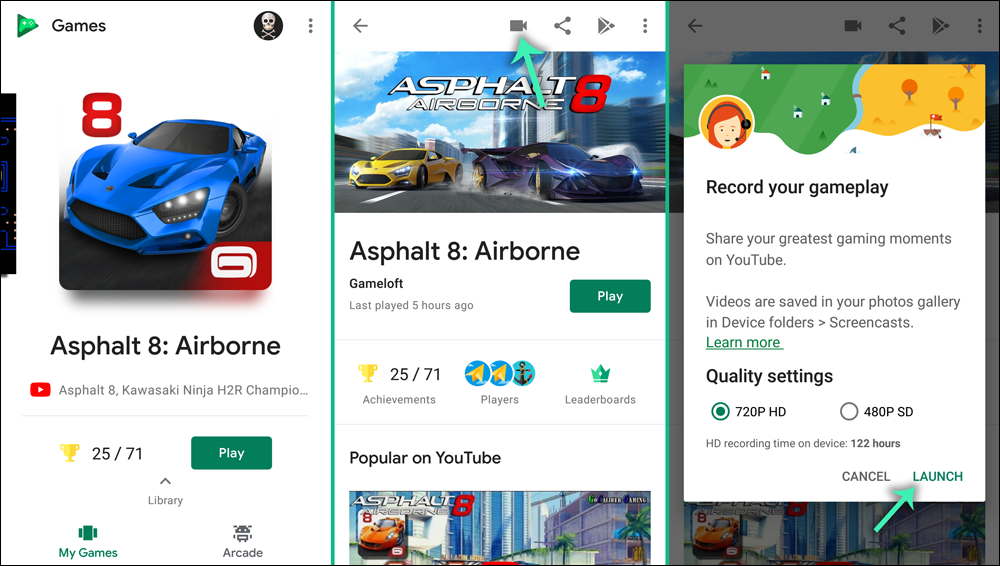
All you have to do is open the Google Play Games application on your Android phone, then browse the games currently installed on your phone, click on the name of the game you want to record a video, then click on the “Record” icon located in the top bar, then you will now be asked to choose the video recording quality, either SD or HD, so choose according to your desire, then press Launch to launch the game. Now after running the game, you will notice that a new set of floating options appear on the screen. Through these options, you can photograph your face with the front camera while playing the game, or if you do not want to, you can click on the video icon in the middle. You can also activate the microphone to record sound while playing the game.
Finally, when you are ready to start recording, click the Record button as indicated in the image attached above. After you record your playing the game on the phone, you can click on the Stop button to stop the recording and you will be notified that the video has been saved to the phone’s memory. You can access and watch the video after you open the file manager application, then go to the internal storage unit, then you will find that it contains a folder called Screencasts, so you open it to find the recorded video file.
Recording games on the phone via screen recording applications If you do not like the method of using the Google Play Games application, you still have the opportunity to record games on the phone with high quality using the best screen recording video applications for Android devices. Let us take a look at them below: Using the Mobizen application The Mobizen Screen Recorder application is one of the best applications for recording video screen Android without the need for Root privileges. Through this application, you can record the screen and share the recorded video between your computer and your Android phone, in addition to the ability to edit it and delete any unwanted part of the video...and more options are available in this free application.
Using the DU Recorder application The DU Recorder application is a free application that helps you record the phone screen and obtain smooth and clear quality video without pixelation or tearing. The application includes a variety of features such as: taking a screenshot or recording a video with the availability of an advanced video editor, and it does not require root privileges as well. The application provides an easy way to start recording video clips, whether within an application or game, or recording video calls. With a press of a button on the icon floating on the screen, the recording begins simply. Using the AZ Screen Recorder app when we talk about
AZ Screen Recorder App We are talking about one of the best Android apps to record phone screen. This application has many features that make it the best choice for users. Through it, you can easily record the screen with the front or rear camera, with the highest possible quality and at a rate of 60 FPS, so you will not feel any slowness in the display. Moreover, the application comes with an editor tool, where you can make numerous adjustments to the recorded video clip to reach the best result before sharing it on websites.
You may be interested in: How to record a mobile screen – 4 ways to make a Screenshot for Android
DROPIDEA
We hope this article has added real value to you. At DROPIDEA, we always strive to deliver high-quality content that helps you grow and evolve in the digital space. Follow us for more useful articles and guides.
Admin
DROPIDEA
Latest Articles

Nscale Acquires Anyscale for $1.65 Billion to Expand Its Dominance in AI Infrastructure

How Is AI Accelerating Meta's New App Launches?

Okta Acquires Security Firm Permiso for Around $200 Million

Microsoft Gains $3.2 Billion from Its Investment in Anthropic