How to speed up games on Windows 10 - Ten steps to speed up a weak laptop with games
 By Admin
Speeding up games on laptops and old computers requires performing some simple, basic steps that we will review in this article. We will also benefit greatly from some features to speed up games on Windows 10, as Microsoft has supported its system with several features that are suitable for running games quickly and without interruption with most available computers. Accelerating games on a weak laptop, of course, the best gaming laptop is able to run the latest games with the highest specifications smoothly, but some cheap laptops may need some improvements and tips to speed up games, especially if they face some problems with running favorite games. Of course, desktop computer users can easily update computer parts, while laptop users face a problem at this point.
Together we explore the 10 best steps to speed up games on low-end laptops that don't have a powerful GPU. 1- Cleaning the laptop from dust. The most important step is to keep the laptop clean from dirt and dust, as it causes the problem of overheating of the laptop and internal parts such as the processor and graphics card, and poor ventilation of the laptop, which causes games to break and not run smoothly when temperatures suddenly rise, which may happen due to the accumulation of dust and dust. The previous video explains how to clean the laptop and its internal parts from dirt and dust. It also shows some tips for cleaning Apple MacBook computers and how to care for and clean the laptop in the long term.
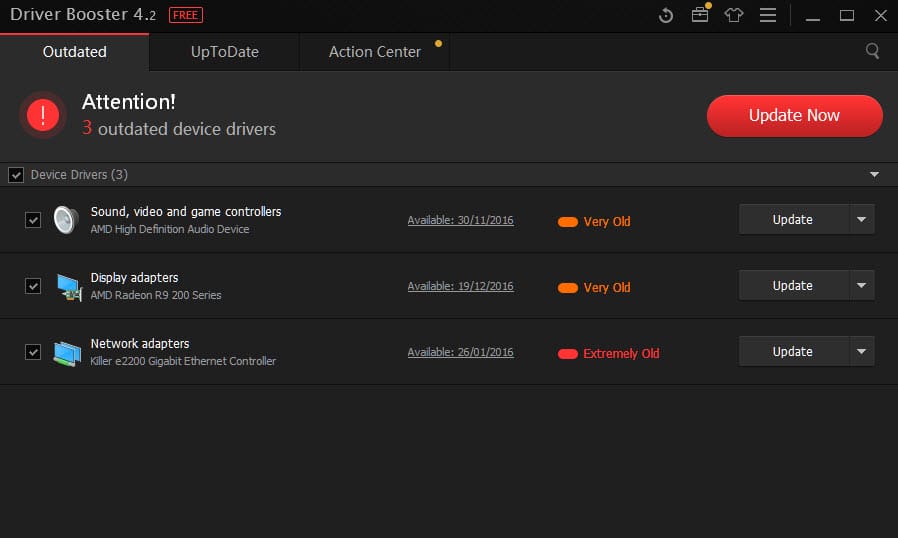
2- Updating the laptop drivers Continuously updating the computer and laptop drivers helps you speed up games and solve common problems facing the graphic card through updates issued by the company, especially graphics card updates for NVIDIA or AMD cards when a new update is issued, and you can download them from the official website of each company. As for Intel graphics cards, they do not need to be updated from the official website. Just follow your Windows updates and they will be updated automatically. In any case, they are not suitable for heavy games. You can also rely on one of the computer and laptop definition programs that enable you to identify any computer in seconds with one click and without the need to search for drivers, as they are obtained first from the official websites and sources that manufacture hardware parts and then from official Microsoft updates. Therefore, you can rely on them in most cases to identify graphics cards easily 3- Install DirectX latest version Direct DirectX is appropriate for the operating system you are working with.
The last version of DirectX that is suitable for Windows Read also: The best ways to install an external graphics card for a laptop - and the best eGPU that can be purchased. You can check the version of DirectX on your computer by pressing WIN + R on the keyboard to launch the Run tool, then type dxdiag and press OK. The Dxdiag tool will launch, then click on the Render/Display window that contains the information for your graphic card with the version of Direct
4- Overclocking the GPU graphics card This step is considered a bit dangerous for beginners, as overclocking the GPU graphics card requires understanding some terms about the frequencies and voltages that you increase, otherwise you will face problems with heat or with the PSU power supply. Overclocking enables you to get better performance from the graphics card in its normal mode.
There are many tools and programs for overclocking the graphics card, whether for Nvidia or AMD. MSI Afterburner is considered the best program for overclocking, as it supports graphics cards from the two most famous companies in this field, but remember that the overclocking process requires more power from your power supply, in addition to making sure that the processor and graphics card cooling fans are clean so that the computer does not crash due to sudden overheating. 5- Adjust the Power settings in Windows Adjusting the Power settings in the Windows 10 system helps you speed up games on the laptop, and it is very important in playing high-resolution videos, in addition to running games smoothly on the laptop, which needs a lot of power, especially when playing games. Therefore, we always advise you to connect the cable to electricity when playing games instead of relying on the battery.
Read also: How to choose the best laptop suitable for gaming. As for adjusting the Power settings, we will go to the Start menu, then click on the Settings button, then System, then Power and sleep, then Additional power settings. Now we will choose High performance to get the highest performance from the laptop with games. Also, I advise you to click on Change plan settings, then click on Change advanced power settings and make sure that the settings are not changed.
6- Turn on Game Mode in Windows 10. The Windows 10 system contains the Xbox App application, and you can download it from the Microsoft Store if it was deleted from your computer. It is a distinctive application that contains some features that help improve and speed up games via Windows 10, in addition to a tool for recording screen videos with games and broadcasting videos over the Internet. Read also:
How to improve FPS in Windows 10 games via
Disabling this feature The most important feature we need here is the Game Mode feature, which requires activating it from within the game after opening it first, then pressing the keyboard shortcut WIN + G. Then a window will appear within the opened game. Now click on Settings, then put a correct mark ✔ in front of the Use Game Mode for this game selection. After that, the settings will be converted to make the most of the computer’s resources for the benefit of the game that is running, and this will of course lead to disabling some tasks that are not currently being used in Windows.
7- Close background applications in Windows. There are many applications and programs that run in the background of Windows and cause the computer to slow down while playing games. Therefore, it is very important to close the programs and applications that you do not use while playing, and certainly, close any game that you use, whether from the lower bar next to the clock or by opening the Task Manager and closing what you do not need. 8- The problem of interrupting online games. The problem of interrupting and interrupting online games does not depend only on the graphics card and processor, as is the case with online games. Here, you are required to check your Internet speed, as most of the problems with interrupting online games are due to unstable Internet speed or problems with the Wi-Fi card. Therefore, you must update the definitions of the Internet and wireless card if you have one on your computer. 9- Disabling system updates One of the most common problems with the slowness of the Windows 10 system will be due to automatic updates that are downloaded and installed at any time. Therefore, you can stop Windows 10 updates before playing games, as the system uses P2P networks to quickly download updates between users’ devices, which certainly consumes your computer.
You can also disconnect your computer from the Internet during games to ensure that updates are not downloaded or installed before playing games. However, it is not just the Windows system that consumes the Internet to download and install new files. There is a Steam program that does the same thing. To disable automatic updates, open the Steam program, then click on Settings, then cancel the option in front of Allow downloads during gameplay to disable downloading game updates while playing a current game. 10- Adjusting the graphics card settings, Texture and Shader, is the last step. Accelerating games effectively may be developed by taking a look at the graphics card settings in your computer and looking for settings for texture or shader details, which determine the quality with which computer games are displayed. However, the memory space of the graphics card usually controls the presence of these capabilities effectively.
Usually, it is better to choose the settings according to providing the best performance and not the highest resolution image, especially if the computer’s capabilities are weak, and the higher the texture settings are, the more resources they will consume and cause the games to slow down. You can only adjust the settings for slow games to speed them up and leave the old game settings as they are. All of the previous steps may contribute directly to speeding up games on an old laptop, especially if you have Windows 10. Share with us any technical advice to speed up games that has achieved good results with you through the comments.
DROPIDEA
We hope this article has added real value to you. At DROPIDEA, we always strive to deliver high-quality content that helps you grow and evolve in the digital space. Follow us for more useful articles and guides.
Admin
DROPIDEA
Latest Articles

Nscale Acquires Anyscale for $1.65 Billion to Expand Its Dominance in AI Infrastructure

How Is AI Accelerating Meta's New App Launches?

Okta Acquires Security Firm Permiso for Around $200 Million

Microsoft Gains $3.2 Billion from Its Investment in Anthropic