Do you want to center the video in WordPress? When you add a video within your article or publication, this video will be aligned by default to the right side of the site page for sites written in Arabic, or along the left side for sites written in English or any other language, moving from left to right (Left to right). If you want to upload a video clip to your site or want to embed a video clip from YouTube or Viemo and display it in an elegant way in the middle of the site pages, this article explains in detail how to align the video to the center in WordPress in different ways and with ease.
The easiest way to center video on your site page Videos are one of the most popular forms of media in the world, and WordPress fully supports them. So if you don't center the video clip, it may leave an empty space next to it. By default, the video clip will be aligned to the left (for the classic editor), while in the new WordPress editor Gutenberg, videos will be automatically centered for you.
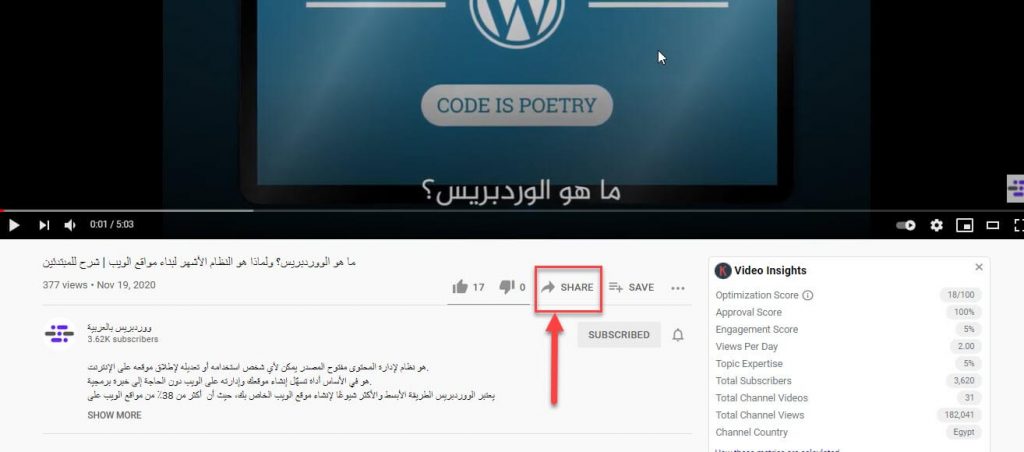
It's super easy to center videos in WordPress, and it only takes a minute of your time! 1- Center the video using the traditional editor in WordPress. To add a video using the classic editor in WordPress (for example, a video from YouTube), and then align the video to the center, you must do the following steps: First, you must choose the video you want to include from YouTube by clicking on the Share link. Then you must choose (Embed) to get a link that enables you to embed the video on your site.
After the link appears as shown in the following image, click the Copy button to copy it to the clipboard. Then you have to go to the traditional WordPress editor, and choose the “Text” tab to go to the HTML code editor as shown in the following image: Then paste the previous code that you copied in the previous step here to add the video. After pasting the code, the video clip will appear as in the following image and will be towards the right.
In order to change the clip's center alignment, you need to add the following simple HTML code before and after the video embed code. // Video embed code here When you preview the changes the video in the middle will be like this: You can now save the changes and preview the post or page.
You will notice that your video has been aligned precisely in the center of your content area. 2- Center the video using the Gutenberg Editor In the new WordPress editor known as the Gutenberg Editor, the video will be automatically centered, but if the video is not centered for some reason, you can do the center alignment as follows: Click on the (+) sign to add a component, and choose Video to add a custom component to the video. You will see several options to add the video (add a video from your media library, upload a new video, or add a video from a URL).
(To embed a video from YouTube, Vimeo, etc. on your site). Read also: Explanation of uploading downloadable files in WordPress. Select the option you want
Add the video, and it will automatically be aligned to the center (the component editor will often align the video to the center automatically). If this does not happen, you can select the video clip and click on the Align tool > then choose Align to the center as shown in the following image. When you preview the results, the video will be in the middle of the screen. These are the easy steps that we explained to center the video to display it during the content better and in a more elegant and streamlined way.
DROPIDEA
We hope this article has added real value to you. At DROPIDEA, we always strive to deliver high-quality content that helps you grow and evolve in the digital space. Follow us for more useful articles and guides.

Admin
DROPIDEA
Latest Articles

Microsoft Gains $3.2 Billion from Its Investment in Anthropic

Zuckerberg: Billions of People Will Have AI Assistants Within Five Years

Microsoft Enters Direct Competition Against OpenAI and Anthropic

Pangram Raises $9 Million to Detect AI-Generated Content



