Transfer songs to iPhone from computer - Add a song from your computer to your library in Apple Music
 By Admin
Instead of carrying a separate MP3 player to listen to music, it's definitely better for you to take your iPhone as a music player, so you can carry your song library with you wherever you go. But if you do not sync music with your mobile phone or want to transfer songs to iPhone from computer. Follow the steps in this topic to see how simple it is to do this.
It's not easy to share music and songs if you are an iOS user. This is a problem faced by more than half of iOS device users, and the reason for this is that Apple is very strict about sharing music, specifically because a large portion of the company’s revenue comes from iTunes purchases such as movies, books, music, etc. However, you can easily transfer songs to iPhone from computer using iTunes.
In fact, this is even easier than transferring iPhone music to computer, as there is more than one way to do this.
It will be reviewed in detail in this article. Before we start listing the steps, there are some tips and information that you should know. First, make sure you have the latest version of iTunes installed on your computer before doing anything.
The program usually checks for this automatically when it starts, but you can force the update by clicking on the Help menu and choosing Check for Updates. If iTunes is not already installed on your computer, you can download the latest version from the iTunes website.
Now, let's get started!! First: Transfer songs to the iPhone from the computer automatically. If you have a lot of songs on the iTunes library on the computer, whether Windows or Mac, you can transfer the songs to the iPhone from the computer through the automatic synchronization method, and thus any songs that will be added to the library will immediately move to your library in Apple Music on #iPhone or iPad. To do this, all you have to do is connect your mobile phone to your computer – most likely via a USB port.
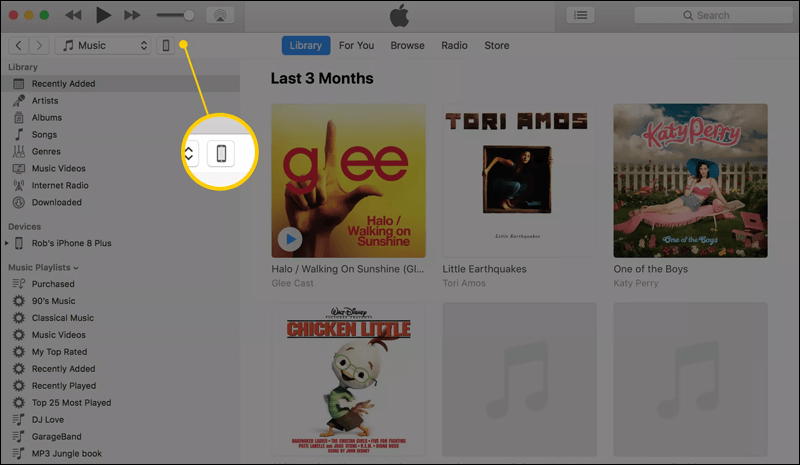
Then launch the iTunes program on the computer, and in the upper left part of the program window, click on the iPhone icon as shown in the image above. In the iTunes window that now displays your device, tap the Music tab in the left pane, then make sure Sync Music is turned on by placing a tick (✅) next to Sync Music. Now if you want to transfer your entire iTunes music library to iPhone, tap on Entire music library.
While if you prefer to select only a few songs from your iTunes library and transfer them to your iPhone, you will need to select Selected playlists, artists, albums, and genres. Then you can select playlists, artists, albums, and other types of lists. Scroll down and select only the songs you want to sync. Finally, to automatically start syncing music to your iPhone, tap the Apply button to start the transfer process. Just let iTunes and your phone take their time until the transfer process completes successfully.
Important Note: iTunes performs one-way sync to your iOS device. This means that any songs or music on your iPhone that are not on your computer or in the iTunes music library will be deleted. So, follow this method only if your Apple Music library on iPhone is completely empty.
Second: Add a song from the computer to the iPhone manually If you do not want iTunes to automatically transfer the music to your iPhone, it is possible to do this process manually. This method provides more control over what is transferred from your iPhone's iTunes library.
But before you can transfer songs to iPhone from computer in this way. You will first need to activate manual management mode instead of automatic. To do this, connect the iPhone to the computer and click on the iPhone icon in iTunes at the top.
Next, go to the Summary section in the right panel. After that, scroll down until you reach the Options section and there put a mark (✅) next to the Manually manage music option and press the Done button at the bottom to successfully activate the manual mode. Now that you've changed the sync mode from iTunes to manual transfer, you can start selecting the songs and playlists in your iTunes library that you want to copy to iPhone.
But if the song you want to transfer is not actually present in the iTunes library, but is located somewhere on the computer’s hard drive. All you have to do is go to the Songs section, then click on the File section from the top toolbar, then click on the Add File to Library option from the drop-down menu, or click on the Ctrl key and the letter O key together on the keyboard. This way, you can select any song on your device and press the Open button to put it in the iTunes library.
If the songs you want to transfer to iPhone are already in the iTunes library; You will not need to do the previous step. Just go to the Songs section and select the Library tab above to view the entire library contents. Now you can easily drag and drop any song from the Songs section to the iPhone currently connected to the computer by inserting it to the iPhone icon under Devices.
If you have a lot of songs to transfer manually, hold down Ctrl or Command (if using a Mac) and select the songs – this will enable you to drag a group of selected items onto your iPhone at once. Once the transfer is complete, the songs will be saved to your Apple Music library for iPhone. As you can see, you can transfer songs to iPhone from the computer, but you have to go through a lot of steps to do so, and this does not matter as long as the method works as intended instead of having to use external programs.
So, if you want to add new songs to iPhone from computer, you can use iTunes to do the job. Note that the program helps you with many other things, such as:
Change iPhone ringtone
For example.
DROPIDEA
We hope this article has added real value to you. At DROPIDEA, we always strive to deliver high-quality content that helps you grow and evolve in the digital space. Follow us for more useful articles and guides.
Admin
DROPIDEA
Latest Articles

Microsoft Gains $3.2 Billion from Its Investment in Anthropic

Zuckerberg: Billions of People Will Have AI Assistants Within Five Years

Microsoft Enters Direct Competition Against OpenAI and Anthropic

Pangram Raises $9 Million to Detect AI-Generated Content



