Forgot your Windows 10 or 11 password? Here are the official solutions to recover your account
 By Admin
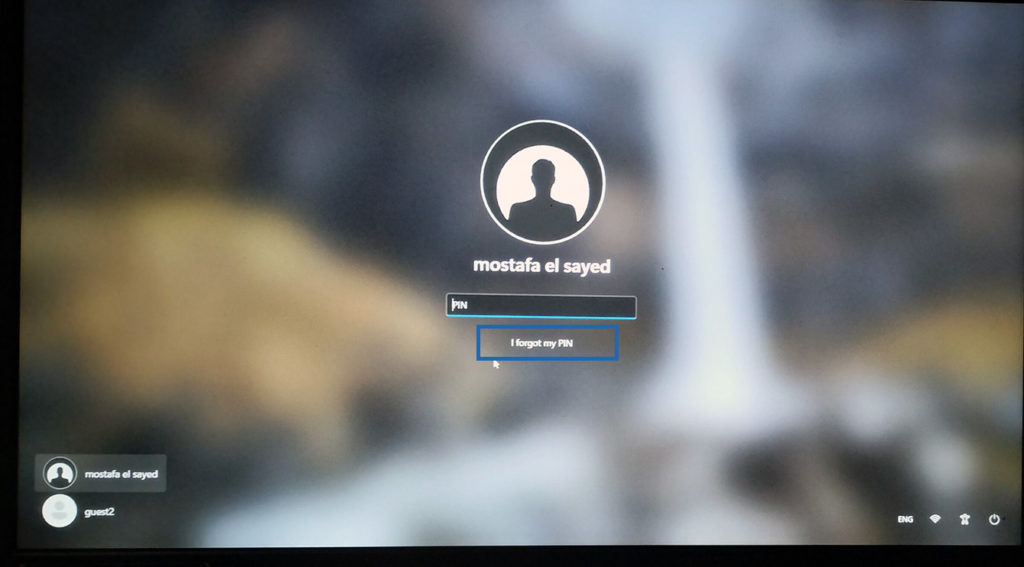
Forgot your Windows password? Have you ever stood in front of your computer screen, trying hard to remember that magic word that opens the portal to your digital world? You feel frustration mounting, and the minutes pass like hours.
You are not alone in this predicament, statistics say that forgetting your password is one of the most common problems that computer users face. We know very well how annoying this situation can be. Suddenly, you find yourself deprived of access to your important files, precious photos, and even your online accounts.
But don't despair! In the world of technology, there is always a solution. Fortunately, Windows 10 and 11 provide several official and effective ways to recover a forgotten password.
Whether you've forgotten your local account password or the associated Microsoft account, we'll walk you through these methods step-by-step, to help you safely regain access to your device. As a technical expert, I have dealt with this issue many times, both in my work and through visitor inquiries on our website and social pages. In this article, I will share with you my experience and provide you with the most effective solutions to recover your Windows 10 password, while emphasizing the importance of choosing a strong password and storing it securely to avoid falling into this predicament again.
Don't worry, the solution is at your fingertips! Ways to recover Windows 10 or 11 password: Official and safe solutions 1. Using a Microsoft account: The easiest and fastest solution If you have linked your Microsoft account to your local account on Windows 10 or 11, you are in luck!
This is the easiest and fastest way to recover a forgotten password. All you need is an internet connection and another device to access your Microsoft account. Steps: On the login screen: Click on the “Forgot password” option below the password entry box.
Verify your account: You will be redirected to the Microsoft account password recovery page. Enter the email address or phone number associated with your account, then click “Next.” Choose a verification method: You will receive a security code on the email or phone number you entered.
Choose the method you prefer to receive the code, then click “Send Code.” Enter the code: Enter the security code you received, then click “Next”. Reset Password: You will now be able to create a new password for your Microsoft account.
Enter your new password twice to confirm, then click “Next.” Login: After resetting the password, you can now log in to Windows using the new password. Pros: Ease of use: This method is easy and fast and does not require any additional tools or software.
Security: The password reset process takes place via Microsoft's secure servers, ensuring your data is protected. Cons: Requires an internet connection: You must have an internet connection to recover the password via a Microsoft account. Requires linking a Microsoft account: You must have previously linked your Microsoft account to your local Windows account.
Tip: If you haven't linked your Microsoft account to your local account, do so now to make password recovery easier in the future. 2. Use Security Questions: A Lifeline If You've Planned Ahead If you've previously set up security questions for your local account on Windows 10 or 11, you can use this feature to recover a forgotten password.
Steps: On the login screen: Click on the “Reset Password” option below the password entry box. Answer security questions: You will be prompted to answer the security questions you set previously. Enter the correct answers, then click “Next.”
Password Reset: After verifying your answers, you will be able to create a new password for your local account. Enter your new password twice to confirm, then click “Next.” Login: You can now log in to Windows using your new password.
Pros: Does not require an internet connection: You can use this method even if you do not have an internet connection. Easy to use: If you remember the answers to security questions, this method is quick and easy. Cons: Requires you to set up security questions in advance: You must have set up security questions beforehand to use this method.
Security questions may be easy to guess: If the security questions are not strong enough, someone else may be able to guess the answers and recover your password. Tip: If you haven't previously set up security questions, do so now as an extra precaution to protect your account. Choose questions whose answers are difficult for others to guess, and make sure to remember the correct answers (see an explanatory guide to preparing security questions from Microsoft).
3. Use a Password Reset Disk: Emergency Preparation If you're someone who likes to plan ahead, creating a password reset disk is the perfect choice for you. This method requires a little effort up front, but it will save you a lot of hassle if you forget your password in the future.
What is a password reset disk? It is a small file that is saved on a USB drive, and it contains information that helps you reset the password for your local account on Windows 10 or 11. Steps: Create a password reset disk: Before you forget your password: Connect the USB drive to your computer.
Search for “Create a password reset disk”: In the Start menu, type “Create a password reset disk” and click the first result. Follow the disk creation wizard: The password reset disk creation wizard will appear. Follow the on-screen instructions, which will ask you to select the USB drive and enter the current password for your local account.
Keep the disk in a safe place: After the creation process is complete, remove the USB drive and keep it in a safe place. Using a password reset disk: On the login screen: After entering the wrong password, click on the “Reset Password” option below the password entry field. Connect the disk: Connect the USB drive containing the password reset disk to your computer.
Follow the instructions: The password reset wizard will appear. Follow the on-screen instructions, which will ask you to select the USB drive and enter a new password for your local account. Login: After resetting the password, you can now log in to Windows using the new password.
Pros: Does not require an internet connection: You can use this method even if you do not have an internet connection. Always effective: As long as you keep your password reset disk in a safe place, you will always be able to recover your password. Cons: Requires advance planning: You have to create a password reset disk in advance, before you forget your password.
Requires a USB drive: You must have a USB drive available to create and use a password reset disk. Tip: If you use a Microsoft account to sign in to Windows, you won't be able to use a password reset disk. You must use one of the other methods mentioned in this article to recover your password.
4. Use Windows Hello (if available): Fast and secure login with a touch or a look If your computer has an infrared camera or Windows Hello-compatible fingerprint reader, you can take advantage of this great feature to log in to Windows 10 or 11 quickly and securely, without having to remember a password.
What is Windows Hello?
Windows Hello is an advanced biometric technology that lets you sign in to your device using your face or fingerprint. It is a very fast and safe method, as it relies on your unique biological characteristics that are difficult for others to imitate.
How to set up Windows Hello for face sign-in: Make sure
From your device compatibility: Your computer must have an infrared camera to support facial recognition. Go to Settings: Click the Start menu, then choose Settings (gear icon). Choose Accounts: In the Settings window, click “Accounts.”
Sign-in options: In the left sidebar, click “Sign-in options.” Set up Windows Hello for your face: Under the “Windows Hello” section, click “Set Up” next to the “Face Recognition” option. Follow the instructions: You will be asked to look at the camera for a few seconds so you can scan your face.
Follow the on-screen instructions to complete the setup process. Pros: Fast and easy: Login is instant once your face is recognized. High security: It is difficult for others to impersonate your face, providing strong protection for your account.
No need to remember password: You won't need to remember a complex password anymore. Cons: Requires compatible hardware: This feature only works on devices that have an infrared camera. You may encounter problems sometimes: You may have difficulty logging in if your appearance changes dramatically (such as wearing new glasses or changing your hairstyle) or if lighting conditions are poor.
Expert tip: If you use Windows Hello to sign in with your face, make sure you set up a backup password or PIN in case the system can't recognize your face. Steps to use when you forget your Windows password: If you have previously set up Windows Hello, whether for facial or fingerprint recognition, you can use it to log in even if you forget the traditional password. Here's how: On the login screen: When you find yourself in front of a locked login screen, look for the “Sign-in options” option below the password entry box.
Click on it. Choose Windows Hello: You'll see icons for different sign-in options. Click the Windows Hello icon, which usually looks like a face or fingerprint.
Use your biometric data: If you have facial recognition set up, look at the camera so the system recognizes your face. If you have a fingerprint set up, place your finger on the fingerprint reader so the system recognizes your fingerprint. Sign in: If your biometric data is successfully matched, you'll be signed in to Windows automatically.
Important notes: Make sure you set up Windows Hello beforehand: You must have set up Windows Hello and registered your biometric data (your face or fingerprint) before you forget your password. You may need a backup password: In some cases, the system may ask you to enter a backup password or PIN to verify your identity, especially if it cannot clearly recognize your biometric data. Don't forget to update your biometric data: If you make big changes to your appearance, like changing your hairstyle or wearing new glasses, make sure your Windows Hello data is up to date to ensure you're easily recognizable.
Windows Hello is an excellent option for fast and secure login, especially if you forget your password. If your device supports this feature, we highly recommend you use it.
Are you ready to move on to the next method?
5. Use BitLocker Recovery Options (if available): Restore access with BitLocker Encryption If you've encrypted your drive with BitLocker, an advanced security feature in Windows, you can use your recovery key to unlock the drive and access your files, including the password reset file.
What is BitLocker?
BitLocker is an encryption tool built into certain versions of Windows that encrypts your entire drive to protect your data from unauthorized access. When BitLocker is enabled, a unique recovery key is generated that you can use to unlock the drive if you forget the password. Steps: On the login screen: After entering the wrong password several times, you will see a message stating that the drive is locked with BitLocker.
Click on “Enter recovery key” option. Enter recovery key: Enter your 48-digit recovery key. You can find the recovery key in your Microsoft account (if you saved it there), on a printout, or on another USB drive.
Unlock the drive: After entering the correct recovery key, the drive will be unlocked, and you will be able to access your files. Password reset: Find the password reset file on your drive, and then follow the on-screen instructions to reset the password for your local account. Pros: High Security: This method provides a high level of security for your data, as a unique recovery key is required to unlock the drive.
Effective if you forget your password: You can use this method even if you forgot the password for your local account and Microsoft account. Cons: Requires BitLocker to be enabled beforehand: You must have enabled BitLocker and stored the recovery key in a safe place before forgetting the password. May be a bit complicated: Some users may find it difficult to understand and use BitLocker recovery options.
Tip: If you use BitLocker, make sure you store your recovery key somewhere safe, such as your Microsoft account or on a printout. Do not store the recovery key on the same drive you encrypted, as you will not be able to access it if you forget the password. 6.
Contact a specialized technician: When all attempts fail If all previous methods have failed to recover your password, it may be time to turn to an expert. A professional computer technician can help you regain access to your account using advanced tools and software.
When should you contact a specialized technician?
When All Else Fails: If you've tried all of the above methods and are unable to recover your password, contacting a professional technician may be the only solution. When your data is very sensitive: If your data on your computer is highly valuable and you can't afford to lose it, it may be best to turn to an expert to make sure you recover it safely. When you don't feel confident performing the steps yourself: If you're not sure you can perform the technical steps mentioned in other methods, it's best to leave it to the professionals.
What information should you provide to the technician? Your computer model: The technician will need to know your computer model to be able to select the appropriate password recovery tools and software. Version of Windows: The technician will also need to know which version of Windows is installed on your device.
Any other relevant information: The technician may ask you to provide additional information, such as your account username or any other details you remember about your password. Pros: High success rate: Specialized technicians have the experience and tools needed to recover the password in most cases. Security: A specialized technician can help you recover your password without putting your data at risk.
Cons: Cost: The services of a specialized technician may be somewhat expensive. Time: The password recovery process may take some time, especially if the problem is complex.
Expert advice: Before contacting any professional technician
Make sure it has a good reputation and experience in recovering Windows passwords. You can search for customer reviews online or ask for recommendations from friends or family.
Additional Tips: Protect your Microsoft account and avoid forgetting your password
Password on Windows Create a strong password: Use a strong password that contains a combination of upper and lower case letters, numbers, and special symbols. Avoid using easy-to-guess passwords such as date of birth or pet's name. Write down your password in a safe place: Don't rely solely on your memory.
Write down your password in a safe place, such as a locked notebook or password manager app. Use a password manager: A password manager is a secure tool to store all your passwords in one place, encrypted and protected with one master password. Update security information: Make sure the security information associated with your Microsoft account, such as your phone number or alternate email, is up to date.
This information will help you recover your password if you forget it. Change your password periodically: Change your password periodically, especially if you suspect someone has obtained it. By following these tips, you can reduce the risk of forgetting your password and better protect your account and data.
Conclusion: Don't let a forgotten password hold you back. In this guide, we have reviewed together a collection of official and effective solutions to recover a forgotten Windows 10 password. Whether you prefer to use a Microsoft account, rely on security questions, or even resort to a password reset disk, there's always a way to suit your needs and level of preparedness. Remember, prevention is better than cure.
Create a strong, unique password, and keep it in a safe place or use a password manager. Don't forget to update your security information regularly. By following these simple steps, you can reduce the risk of forgetting your password and better protect your account and data.
If you forget your password, don't despair! The solutions we have provided for you in this article will help you regain access to your account quickly and safely. Don't let a forgotten password stop you from enjoying your Windows experience.
Read also: How to change the Windows 10 password - more than one easy way. Or if you do not want to write a password for your account, follow our article on how to log into Windows 10 or 11 directly without writing a password for more. Are you having problems with your Windows 10 password? Share your comment below the article.
DROPIDEA
We hope this article has added real value to you. At DROPIDEA, we always strive to deliver high-quality content that helps you grow and evolve in the digital space. Follow us for more useful articles and guides.
Admin
DROPIDEA
Latest Articles

Microsoft Gains $3.2 Billion from Its Investment in Anthropic

Zuckerberg: Billions of People Will Have AI Assistants Within Five Years

Microsoft Enters Direct Competition Against OpenAI and Anthropic

Pangram Raises $9 Million to Detect AI-Generated Content



