Android recovery mode: a detailed explanation of its uses and benefits
 By Admin
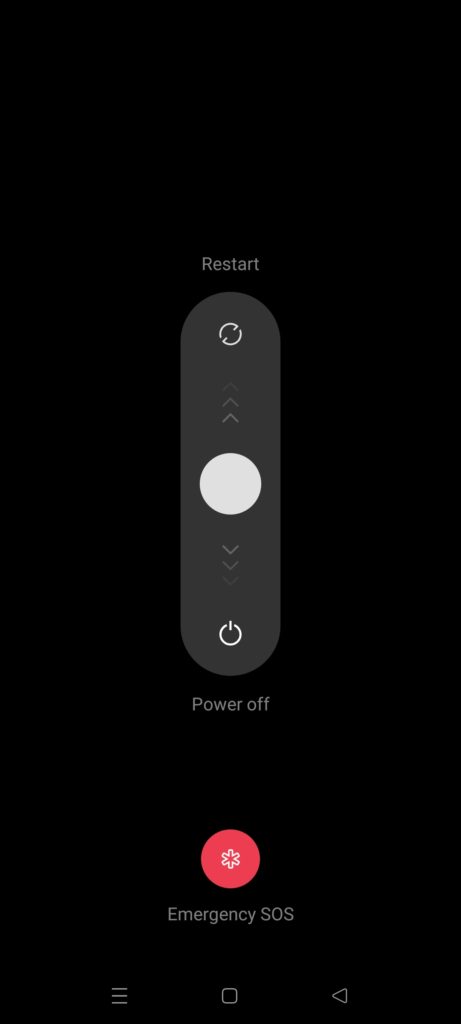
What is Recovery Mode? Why is recovery mode important?
What functions can you perform in recovery mode?
Factory Reset: System Update (Install Update from ADB or SD Card): Install ZIP files (Apply Update from ZIP file): Wipe Cache Partition: Reboot System Now: Important note: Another note: Not all smartphones allow great controls from recovery mode, and settings may differ from one phone to another. How to enter recovery mode: Open the repair portal General steps: Turn off your phone: Make sure that your phone is completely turned off before starting. Press and hold a specific button combination: This is a step where devices may differ.
Try one of these common combinations: Volume Up + Power Button Volume Down + Power Button Volume Up + Volume Down + Power Button Volume Up + Home Button + Power Button (on some older devices) Hold down until the Android logo or recovery menu appears: This may take a few seconds, so be patient. Menu Navigation: Once you enter recovery mode, you will see a list of options. Use the volume buttons to scroll up and down, and the power button to confirm your selection.
Differences between devices: Samsung: Often uses the combination of Volume Up + Bixby Button + Power Button. Huawei: You may need to try Volume Down + Power button, or Volume Up + Power button. Xiaomi: You often use the Volume Up + Power button combination.
Google Pixel: Uses the volume down button + power button combination. Oppo: Uses the volume down button + power button combination. If none of these combinations work, it is best to search online on how to enter recovery mode in your specific device.
Alternative Methods: If you cannot enter recovery mode using the buttons, there are some alternative methods: Using ADB (Android Debug Bridge): This requires connecting your phone to the computer and installing the ADB tools. You can then use the commands in the command window to enter recovery mode. This method requires some technical knowledge.
Special Apps: There are some apps available on the Play Store that help you enter recovery mode with the click of a button. However, you should be careful when using these apps and make sure they are reliable. Once you master how to enter recovery mode, you will be able to use it to fix many common problems and restore your phone to its normal state.
Always remember to be careful when using recovery mode, and to back up your important data before making any changes. Uses of recovery mode: Magic repair tools Factory Reset: Back to the beginning See the guide: Factory Reset for Android: When do you need it and how to do it easily and safely When do you use it? When you forget the password or pattern: When the operating system crashes: Before selling or disposing of the phone: How to do it: Warning: So make sure to backup all your important data before starting the process.
System Update (Install Update from ADB or SD Card): Manual update When to use it? When over-the-air (OTA) updates are not available. If you want to install an older version of the system.
When there are problems installing over-the-air updates. How to do it: Install ZIP files (Apply Update from ZIP file): For advanced users When to use it? If you want to install a custom ROM.
When you want to install modifications to the system. How to do it: Warning: Wipe Cache Partition: Quick Clean When to use it? When you encounter performance issues or conflicts between applications.
After installing system or application updates. How to do it: Note: Now that you know the most important functions of recovery mode and how to use them, you can confidently use it to solve common problems and restore your phone to its best condition. Always make sure to make a full backup of all your important data before making any changes in recovery mode Author update August 2024: The article has been rewritten by the site editor based on the official Google Android support source.
And our personal experience. You may also be interested in: How to enter Safe Mode in Android or disable it “Safe Mode” Factory reset for Android: When do you need it and how to do it easily and safely Explain how to enter recovery mode on Apple Mac devices to repair them
DROPIDEA
We hope this article has added real value to you. At DROPIDEA, we always strive to deliver high-quality content that helps you grow and evolve in the digital space. Follow us for more useful articles and guides.
Admin
DROPIDEA
Latest Articles

Microsoft Gains $3.2 Billion from Its Investment in Anthropic

Zuckerberg: Billions of People Will Have AI Assistants Within Five Years

Microsoft Enters Direct Competition Against OpenAI and Anthropic

Pangram Raises $9 Million to Detect AI-Generated Content

Encore AI تجمع 30 مليون دولار لبناء وكلاء ذكاء اصطناعي يتعلمون من مكالمات العملاء
Related Articles

ASUS ROG Flow Z13 (2025) available: Everything you could dream of in a gaming tablet.
Pay attention: 10 symptoms that confirm damage to the hard disk and the need for your quick intervention!
