Explain how to manage shipping options in WooCommerce
 By Admin
Setting up shipping in WooCommerce stores is important for professional store management, as aspects related to the process of shipping physical products play a pivotal role in how visitors and customers view your online store, as well as in making the decision to purchase the product or not, and for this you must ensure that the process of shipping products in your store is of high quality. Therefore, in this article, we will explain to you how to set up shipping and adjust its options in WooCommerce in detail, starting with specifying shipping areas and adjusting shipping methods to them, and ending with adding shipping categories to change the shipping price based on the product category. We will also introduce you to the best shipping companies that integrate with WooCommerce to facilitate shipping products to customers and save time and effort.
What are WooCommerce shipping options?
Shipping options in WooCommerce are the options and methods that the online store owner can provide or offer to customers to ship products from his store to them. The default shipping options that WooCommerce provides the ability to set up include the following: Flat rate: You can specify a fixed price for shipping to a specific geographical area, as you charge a specific, fixed fee for each shipment to a customer. Free Shipping: When you select this shipping method for a specific region, when the customer requests shipping to that region, he does not pay any amount for shipping, and you can specify a condition that the customer must fulfill in order to be able to benefit from free shipping, such as if it exceeds a specific value for the order. Local Pickup: You can enable the customer to choose to receive products from your store without having to ship them to him. It is preferable to set this option to be without shipping cost to the customer, although WooCommerce provides the ability to adjust its cost.
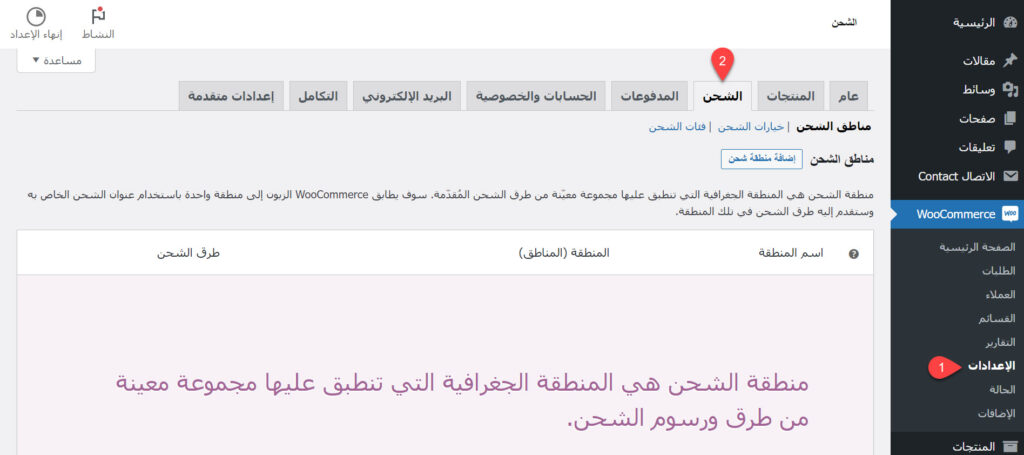
By default, the WooCommerce add-on does not provide you with other shipping options, but more options can be added to it through add-ons. There are WooCommerce add-ons that allow you to add additional shipping options, such as the ability to change the shipping price based on weight, or determine the shipping price based on the shipping rates of transport companies in real time, or other options. How to set up shipping on WooCommerce To set up shipping on WooCommerce, you must adjust a number of settings under the shipping tabs on the shipping page within the program settings page. The way to do this is to specify the shipping areas, and the methods they provide in each area, in addition to the cost of each method. It is also possible to adjust additional settings, which are the shipping categories, which we will explain later. To adjust the default shipping settings on WooCommerce, first go to the WooCommerce settings page by clicking on the (Settings) option under the (WooCommerce) tab in the WordPress control panel, then click on the (Shipping) tab on that page.
The shipping page in WooCommerce settings. The shipping tab includes 3 tabs related to shipping products: shipping areas - shipping options - shipping categories. We explain below how to adjust the settings for each of them to set up shipping in the online store. First: Shipping areas. The shipping areas tab options allow you to specify independent shipping methods and costs for each geographical area (or group of geographical areas). You can, for example, make shipping free within the country of Egypt, and set a price for it in the rest of the Arab countries. One of the most convenient strategies that can often be used to set up shipping zones is to create a shipping zone that includes the city in which your store is located, and allow customers in that zone to pick up products locally by visiting the store.
Create a shipping zone that includes cities near the city where your store is located, and make shipping free in this zone. Create a shipping zone that includes all cities in the same country as your store, and set a low, fixed price for shipping to them. Create a shipping zone that includes all the countries in the world that support shipping to them, and set a high fixed price for shipping to them (this zone can be divided into several zones depending on specific factors).
It is not necessary to adhere to this strategy precisely, but you can modify it according to what you deem appropriate for you. You can cancel free shipping, make shipping free in all cities in the country where the store is located, or make other modifications. When setting shipping zones on WooCommerce, you must adjust each zone separately, and here we do not mean every geographical zone, as a group of geographical zones can be grouped together to create a single shipping zone for them. Rather, the settings of each zone that is supposed to have the same characteristics are adjusted on its own. To add and adjust shipping zone settings, click on the (Add Shipping Zone) button under the Shipping Zones tab in WooCommerce.
Clicking on the Add a Shipping Area in WooCommerce button, the Add a Shipping Area in WooCommerce form will appear directly in front of you, and you must fill it out. Enter the name of the shipping zone you want so you can come back and modify it later when needed (example: Nearby Zones), then select the geographic zones that belong to that zone. Enter the name of the shipping area and specify the geographical areas to which it belongs. Note: You can specify the geographical areas by starting to enter their names and choosing them from the drop-down list that appears as soon as you start entering the name.
After selecting geographic regions, you need to determine the shipping methods available for that shipping region. To do this, click on the (Add shipping method) button. Clicking on the Add Shipping Method button, a window will appear asking you to choose a shipping method. Choose the method you want from the methods we explained previously, then click on the (Add Shipping Method) button.
Choose a shipping method and add to the shipping area. The shipping method will be directly added to the shipping area, and you can edit its options by clicking on the (Edit) button that appears below it when you hover your mouse over it. Go to WooCommerce Shipping Method Edit Options Shipping method options are different, but flat rate shipping options are similar to local pickup options. Whatever shipping method you added, you must adjust the shipping options according to what you want, then click the (Save changes) button.
Adjusting the shipping method settings. After adjusting the shipping method options as you wish, you can add other shipping methods to the shipping area by re-clicking on the (Add shipping method) button and following the same steps that we explained above to adjust its options. Then, you can click on the (Save changes) button to add the shipping area to your WooCommerce store. Add and save the shipping zone by clicking on the Save Changes button. After that, you can add more shipping zones in the same way. When a customer visits your online store, the shipping address he provides will be matched with the shipping zones you added, and the shipping methods you selected and the prices you entered will appear to him.
Add shipping areas that provide shipping capabilities to them
And adjust the shipping methods to it. Note that there is a default shipping area that appears in WooCommerce as (areas that are not covered by your other areas). If you do not add shipping methods in this region by entering it and changing its settings, customers will see that shipping is not available to their region if it is not covered by one of the other added shipping regions. If you do not want to provide the ability to ship to a specific geographical area, you can create a shipping area for it in WooCommerce, and not add shipping methods to it, as this will inform customers who want to ship to that area that shipping is not available in their city.
Second: Shipping Options After you adjust the shipping areas on WooCommerce, you must adjust the settings and options in the Shipping Options tab. This tab includes a group of settings related to shipping. You can leave the options set as default, but you can also change them depending on what you want. The settings in the Shipping Options tab in WooCommerce. One of the important options in the Shipping Options tab is the option (Activate the shipping cost calculator on the shopping cart page). When this option is activated, the shipping cost calculator will appear to the customer on the shopping cart page. When the customer enters the shipping address in the calculator, the costs will appear to him based on the settings that you specified in the shipping areas and methods.
WooCommerce Shipping Cost Calculator The rest of the shipping options are well explained, and you can adjust them as you want by placing or not placing a check mark next to them, then clicking on the (Save Changes) button. Third: Shipping Categories Shipping categories are used on WooCommerce in order to group similar products together and display the same shipping methods and prices for them. For example, you can provide shipping rates for clothing that differ from shipping rates for furniture to the same shipping area, or you can provide shipping rates for light-weight products that differ from shipping rates for medium-weight and heavy products.
If you don't want to use shipping categories in your online store, it's not mandatory, but for most online stores, it's better to use them to optimize the shipping functionality of the store, and charge shipping costs that are fairly proportional to the size and weight of the product. To add and adjust shipping categories on WooCommerce, go to the (Shipping Categories) tab on the Shipping page, then click on the (Add Shipping Category) button. Go to the Shipping Categories tab and click on the Add Shipping Category button. You will be shown a number of fields that you must fill in, which are the category name, nice name, and description.
Do this, then click on the (Save Shipping Category) button to add the category to the category list. How to add a new shipping category in WooCommerce You can add the shipping categories you want, and it is not necessary to add all the categories at the same time, but you can modify the categories and add more of them at any time you want. It is possible to add more than one shipping category to WooCommerce after adding shipping categories. You can specify a custom shipping price for each category based on the region through the Shipping Areas tab. You can return to the Shipping Areas tab, then go to the Edit a Specific Shipping Area page, then click on the Edit button for one of the shipping methods. You will notice that a group of new options appear that allow you to determine the shipping price to this region based on the category.
Options to adjust shipping rates to one of the regions based on the product category Note: Of the default shipping methods in WooCommerce, only the (flat rate) shipping method supports the ability to set the shipping price based on the category, so the options shown in the previous image will not appear unless you have clicked on the Edit button for one of the (flat rate) shipping methods. After adding shipping categories under the Shipping Categories tab in the WooCommerce settings, the categories you added will appear as a drop-down list in the (Shipping) tab in the Product Data section on the Edit Product page. When you choose one of the categories on a product page, its shipping costs will appear to the customer depending on the price you specified for the category in the Shipping Zones settings. The shipping category for WooCommerce products can be specified on the product editing page. Shipping companies that WooCommerce integrates with. WooCommerce offers different strategies for handling the process of shipping products to customers. You can carry out the entire shipping process depending on yourself or the store employees. If your store is still small and you are not receiving many product shipping requests, when a customer buys a product from your store and requests it to be shipped to him, you can assign one of your employees the task of delivering the product to a transportation company to be shipped to the customer’s address.
But if you would like to organize the shipping process more, or if you receive a lot of purchases and shipping requests, it would be inconvenient to carry out shipping in this way, and then you can use shipping companies that integrate with WooCommerce to facilitate the process, reduce the time and effort required for it, and add more options and advantages to the shipping function. The most prominent shipping companies that can be relied upon to ship WooCommerce store products to customers include the following: 1. Aramex Aramex is one of the most famous shipping companies that integrate with WooCommerce in various countries of the world, including Arab countries. In addition to having hundreds of branches around the world, it provides many advantages related to shipping products, including but not limited to: a price calculator to calculate the shipping price.
Wide and precise options for managing shipments. An application for Android and iOS devices that allows easy tracking of shipments. High-level technical support provides helpful answers.
Confirm product delivery via text message or email. Customs clearance services for imported products. Aramex also has many other advantages that make it one of the best shipping companies integrated with WooCommerce. In order to link your online store with this company, you can use the Aramex Shipping WooCommerce add-on, but you will also need to create a company account with Aramex, and this requires identification documents.
2. DHL Company DHL Company, which is one of the most prominent, famous, and best local and international shipping and parcel delivery companies in the world, offers many options and capabilities that facilitate the automation of shipping operations through the company on WooCommerce by taking advantage of the following advantages: Printing shipping labels from the WooCommerce control panel. The ability to order shipping without leaving your WooCommerce dashboard.
Schedule a free delivery after printing the label. You can take advantage of the company's shipping features, such as shipment tracking and express shipping. The company also has many other advantages, and there are several WooCommerce add-ons that can be installed to support the company’s integration with the online store, including DHL Parcel for WooCommerce and DHL + WooCommerce, but these add-ons do not yet integrate well with WooCommerce in the Arab region.
3. Fedex Fedex is the world leader in the field of express shipping, providing this service in more than 220 countries and territories around the world. The shipping services of this company are integrated with WooCommerce depending on the options provided by its WooCommerce add-ons, including the following options and benefits: Displaying the company’s shipping rates to the customer on the payment page.
Add the Fedex shipping price to the total amount
To charge shipping fees from the customer. You can use the weight and height modules you want in your store and the extensions will integrate with them. There are many add-ons that can be used in WooCommerce in order to make the store integrated with Fedex, the best of which is the FedEx Shipping Method add-on, which calculates the shipping price on the payment page and adds the shipping price to the invoice until the customer pays it. It is also possible to use special software that you program yourself or by hiring a freelancer to make the store more integrated with the company.
In addition to Aramex, DHL, and Fedex, there are many companies that integrate with WooCommerce and facilitate the process of receiving and executing shipping orders, including Bosta, which is one of the best shipping companies inside Egypt, and Zajil, which is one of the leading companies in the Kingdom of Saudi Arabia. If you run an online store in Egypt or Saudi Arabia, and you do not want to rely on one of the shipping companies that we mentioned above, you can rely on one of the companies that we mentioned in these two lists: the most important shipping companies inside Egypt for your WooCommerce store.
The best shipping companies in Saudi Arabia.
And here, dear reader, we have finished explaining in detail how to manage and set up shipping on WooCommerce, and introducing you to the best shipping companies that integrate with this program. In conclusion, we would like to draw your attention to the fact that the shipping aspect is one of the important aspects in online stores, and care must be taken to pay attention to it, speed it up, and facilitate it to the maximum extent possible to improve the customer experience, attract new customers, and make existing customers loyal.
DROPIDEA
We hope this article has added real value to you. At DROPIDEA, we always strive to deliver high-quality content that helps you grow and evolve in the digital space. Follow us for more useful articles and guides.
Admin
DROPIDEA
Latest Articles

Microsoft Gains $3.2 Billion from Its Investment in Anthropic

Zuckerberg: Billions of People Will Have AI Assistants Within Five Years

Microsoft Enters Direct Competition Against OpenAI and Anthropic

Pangram Raises $9 Million to Detect AI-Generated Content



