SMTP explanation for delivering your mail messages to users through your WordPress site
 By Admin
All WordPress website owners understand the importance of staying in constant contact with customers and members who subscribe to the site, and email is considered one of the best ways to do this. There is no doubt that you, as a website owner, have previously faced problems with the arrival of your e-mail messages, such as them entering the spam folder, or not arriving at all. So, in this article, we will guide you on how to avoid these problems and ensure that your email messages arrive safely and on time by using an SMTP server.
The importance of email access Whether your site on WordPress is an information blog, or an online store that sells goods or services, you need to use email either to: Register a new user on the site or activate his subscription Change a member’s password or attempt to recover it Receive alerts about comments or purchase requests Send promotional offers, newsletters, and invoices Why do emails not reach the recipient’s box? By default, the WordPress platform uses the email service in PHP, known as PHP Mail, which is a function built into the PHP language. Don't use a dedicated email server. With the many security measures used by well-known email services such as Yahoo, Gmail, Outlook, etc., your emails sent via PHP often fail to pass these security obstacles. They are either delayed in arriving, thrown into the Spam folder, or denied access at all. For this reason, we advise you to dispense with the PHP function in sending email and use another, more efficient method.
Contents of the article Sending email using SMTP What is an SMTP server Advantages of an SMTP server Disadvantages of an SMTP server How to set up an SMTP server to send email Setting up the WP Mail SMTP add-on Obtaining email data from hosting Sending email using SMTP Initially, email can be sent and received on WordPress sites in three ways: Using PHP Mail, which we talked about previously. Using an off-the-shelf external server or a popular email service such as Gmail or Yahoo! Or Outlook, Mailgun, or SendGrid.
Send email via an SMTP server dedicated to your site, with a personal email address. You often pay for this service in advance, as it is available through most hosting sites, and this method is the topic of our article today.
What is an SMTP server SMTP is the abbreviation for Simple
Mail Transfer Protocol or simple mail sending protocol. It is an application used by mail servers to send and receive e-mail, and it is relatively safe from hacking, and from corrupting your site if you make a mistake in configuring it. It is also guaranteed to perform for sending and receiving e-mail messages. Advantages of an SMTP server: Using SMTP in conjunction with email from your hosting site will provide you with a server with the following specifications: Free: The server and email used are provided with most hosting sites, so you will not need to pay an additional fee to use them.
Custom: So you can use your name or website name after (@), such as: [email protected]. This contributes to strengthening your brand, and gives you a more official character in your correspondence. Relatively secure: SMTP servers have security settings (often TLS) to encrypt important and sensitive data being transmitted such as passwords or payment details. Guaranteed: Properly configured SMTP servers can bypass security barriers employed by popular email servers, and are recognized more easily by the latter, ensuring that emails are received and received as intended.
Easy to set up: You only need to transfer some data from the hosting site to your site. Disadvantages of an SMTP server Also, using an SMTP server is not without some disadvantages, such as: Saving the username and password for your email on the WordPress control panel, which constitutes a security vulnerability that hackers may exploit. Having to limit yourself to one email address in all WordPress website messages. Linking email to the hosting site exposes you to it stopping working if the server stops for any reason. Some mail sending options (Mailers) that use SMTP require changing the password for your email in the control panel. WordPress whenever you change the email password. Some hosts limit the emails sent through their servers to a specific number. How to set up an SMTP server to send email. You can set up an SMTP server to send email through an external add-on that facilitates the process of linking the WordPress site to the email and server provided by your site’s hosting. There are many plugins you can use to set up an SMTP server for sending email on WordPress sites.
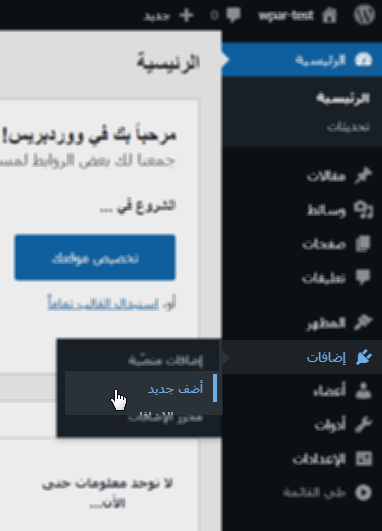
But in our article, we will focus on a reliable and popular plugin: WP Mail SMTP from WP forms. You can install the WP Mail SMTP plugin - like other WordPress plugins - through the WordPress control panel by going to the (Add-ons) tab and choosing (Add New), then search for the plugin in the search box to find that it appears among the results for you. Then install and activate the plugin as we explained in the article the steps to install a WordPress plugin and activate it on your site correctly. Then, after installing and activating the add-on, we move to the next step, which is setting it up.
Setting up the WP Mail SMTP add-on To access the add-on settings page, go to the WordPress control panel, then choose the name of the add-on directly from the side menu in the WordPress control panel, and click on the Settings option. After arriving at the Settings page, open the Setup Wizard by clicking on the Launch Setup Wizard button. Wait for the setup wizard to run, and then the following page will appear: Then choose the digital sender (Mailer) that you will use to work with the add-on. The add-on provides you with several options for sending. Choose from the free sender option Other SMTP, then click Save and Continue. The following window will appear asking you to prepare and fill out the custom email information: To obtain and fill out this information, you must move to the second stage in setting up SMTP, which is to fetch the necessary information from the hosting site.
Obtaining email data from the hosting After that, go to the control panel (CPanel) on the hosting site you are using, and search for the designated email account, or create one if you have not done so before. Since the interfaces of the Cpanel control panels do not differ much, you can follow the following steps to create your own email: Go to the Email Accounts section in Cpanel: In our example, it can be accessed through the following destination: cPanel >> Home >> Email >> Email Accounts Then, after entering the Email Accounts, press the (Create+) button. The custom email address creation page will appear, asking you to fill in the following data: Domain or Domail, which is in our example. wordpress.hichem.com The username that the email address begins with (before @): In our example, it is Support The email password After filling in the required data, we click on the (Create+) button. Thus, we have created the custom email address that we will use on the site: [email protected] Then we need to obtain the rest of the email data present in the hosting, by returning again to the Email Accounts page, then clicking on the Manage button next to our email. Then we click on the Check Email link as shown in the following image: Finally, we choose the link Automatically Configure My Device, and here a window will appear for us containing the information we need (under the section Mail Client Manual Settings. These settings are the data for the setting equipped with a layer of protection.
The following image is for unprotected settings. Of course, we recommend using protected data because it provides greater security. We also need to copy the host (written next to the incoming server or outcoming server) and the port number for this email.
After we obtain the required data for our email, we return again to the setup wizard in the control panel of our WordPress website and paste this information. On this page, we also need to specify the type of encryption, and we will choose (TLS) and enter the user name and password that we used when creating this e-mail, as shown in the following image: Then we fill in (sender’s name) and (e-mail address), and activate the other options that appear to us according to what suits us, and click Save and continue as shown in the following image: You will then see a set of additional features or properties that you can activate in the e-mail sending service as follows: Improved Email Deliverability, which means (improving message delivery), which is a feature Ensures the successful and secure access and reception of emails. Email Error Tracking is a feature that tracks message delivery errors to make it easier to identify them when they occur and resolve them quickly.
Smart Contact Forms to create stylish contact forms in just a few clicks. Weekly Email Summary Creates a weekly summary of the emails you've sent. Detailed Email Logs is a feature that gives you a detailed report on all the messages you sent from your website.
Manage Default Notifications To manage and select the notifications that your site sends via email. Then, after choosing the features that suit you, click the Save and Continue button. The next page will appear, and here you can fill in your personal email to help the add-on development team improve the add-on, or receive their recommendations to improve your use of it. You can also skip this step by clicking on the Skip this step button. The next step invites you to purchase an activation key to obtain the paid version with the full features of this add-on.
You can also bypass it by clicking on Skip this step. You will then reach the sixth step, which is to perform an automatic check to ensure that you have set up the email correctly. If there is any defect in the settings, the following page will appear to you: By clicking on the Start Troubleshooting button, you will go to the Test Email page in the extension, and you will get a set of suggestions to try to correct the error in the settings. Most of the suggestions here focus on contacting your hosting site to ensure your email setup is correct, allowing your firewall to access it, and double-checking your host and port number.
If you have set up SMTP properly, the following image will appear telling you that everything was completed successfully: All you have to do now is test the email sending process by clicking on the (send a test email) button indicated by the arrow in the previous image to send an email message and try using the SMTP server that you created. This will take you to the Email Test tab in the plugin settings on your WordPress dashboard. Fill in the first field (send to) with the email address in which you want to receive the verification message, and click Send email (here you can enter any email you have access to). The following image will appear, confirming that the sending process was successful. Congratulations, that’s all!
All you have to do now is go to the email address you entered to make sure the message arrived. In the end, we remind you that the simple mail sending protocol (SMTP) linked to your hosting server may not be sufficient to bear the requirements of a commercial website that frequently communicates via e-mail, but it is certainly better than PHP Mail, and it is also free, easy to configure and set up, and fast and has guaranteed performance. That is why we invite you to try using it on your WordPress site to communicate with your customers if you are dealing with a simplified form of sending newsletters to ensure that your messages arrive in their receiving inbox.
Read also: What is email marketing? And how to manage it on your site. Read also: MailChimp’s explanation for launching a successful email marketing campaign
DROPIDEA
We hope this article has added real value to you. At DROPIDEA, we always strive to deliver high-quality content that helps you grow and evolve in the digital space. Follow us for more useful articles and guides.
Admin
DROPIDEA
Latest Articles

Microsoft Gains $3.2 Billion from Its Investment in Anthropic

Zuckerberg: Billions of People Will Have AI Assistants Within Five Years

Microsoft Enters Direct Competition Against OpenAI and Anthropic

Pangram Raises $9 Million to Detect AI-Generated Content



