تعرف على الطريقة السحرية : حذف الخلفية من الصورة باحترافية ودقة عبر هذه الأداة
 بقلم الأدمن
أصبح تعديل الصور وتحريرها أمر يتم استخدامه بصفة يومية تقريبًا وخصوصًا مع تطور العالم التقني وانخراطنا أكثر في منصات التواصل الاجتماعي المختلفة وحاجتنا إلى حذف الخلفية من الصورة ومواكبة تطورات العصر الحالي في تقديم صور عالية الجودة ومشاركة الصور مع أصدقائنا وأحبابنا والاستمتاع بالتعليق عليها وتلقي ردود الفعل الإيجابية. الحاجة إلى حذف الخلفية من الصورة المُلتقطة أصبحت أمرًا ضروريًا حيث يقوم أغلبنا بالتقاط الصور المختلفة في الأماكن العامة المكتظة والشوارع والميادين وبالتالي قد تظهر بعض الأشياء الغير مرغوب في تواجدها بعد التقاط الصورة مثل أشخاص وكائنات وما إلى ذلك وبالتالي يجب إزالتها عند البدء في تحرير الصورة من أجل أن تكون جميلة. حذف الخلفية من الصورة عبر Apowersoft Background Eraser يساعد برنامج Apowersoft في حذف خلفية الصور والمنتجات على إنشاء خلفية شفافة على الفور ويزيد من إبداعك وكفاءتك من تحرير الصور والقيام بكل ما يلزم من أجل جعل صورك التي تلتقطها لتوثيق ذكرياتك جميلة وآسرة.
مع التحديث الأخير، تتوفر إزالة الخلفية تلقائيًا من صور متعددة ويتم ذلك عن طريق عملية واحدة مباشرة بدون أي تعقيدات. تم تطوير Apowersoft Background Eraser كبرنامج وحيد الغرض يستخدم الذكاء الاصطناعي للقيام بالعمل الشاق للمستخدمين وجعل تجربة التحرير مرضية.
عن طريق استخدام ذلك البرنامج الرائع، يُمكنك دائمًا اختيار ما تريد حذفه من الصورة سواء كان كائنًا أو حيوانًا أو رسمًا أو مبني في الطريق والقيام بإزالته من الخلفية تمامًا بكل احترافية عن طريق عدة خطوات بسيطة. مع مجموعة واسعة من موارد التصوير المتاحة تحت تصرفنا في تاريخ اليوم، أصبح التقاط الصور أسهل من أي وقت مضى.
لكن ماذا لو احتجت المزيد؟
ماذا لو كنت ترغب في تحميل صورة احترافية على موقع رسمي من أجل غرض مهم، أو استخدامها كصورة لملف تعريف الشركة، أو لإرفاقها بسيرة ذاتية؟ ستحتاج إلى خلفية أفضل للصورة. من الواضح أن استخدام التأثيرات وتغييرات الخلفية أصبح أكثر ضرورة في جميع الأمور تقريبًا، ولا يقتصر على المجالات الإبداعية.
وهنا تظهر الحاجة لاستخدام برنامج Apowersoft يستخدم ذلك البرنامج الذكاء الاصطناعي للقيام بالعمل الشاق للمستخدمين وجعل تجربة التحرير مرضية. باختصار، Apowersoft، أداة تحرير الصور تزيل خلفية الصورة في غمضة عين وتجعل الصورة جذابة للمستخدم. ولكن هناك بالطبع أكثر مما تراه العين، فإن Apowersoft Background Eraser ليست أداة التحرير الشائعة، فهي تأتي مع مجموعة واسعة من الميزات التي تجعلها تبرز من بين مجموعة الخيارات الأخرى المتاحة في السوق.
ما يجعل برنامج Apowersoft فريدًا وجذابًا هو دمج تقنيات التعلم الآلي التي تجعل عملية تحرير الصورة بأكملها مهمة سلسة وسهلة. تعمل خوارزمية المصدر المفتوح للبرنامج تلقائيًا على الرفع من كفاءة جودة الصور، مما يوفر للمستخدمين الجودة والنتائج المرغوبة. كل هذا مجرد عملية بسيطة وسهلة من خطوتين – افتح Apowersoft Background Eraser وانقر فوق زر التحميل.
حدد الصورة التي ترغب في نزع خلفيتها وتحميلها. اعتبر الأمر منتهي!
هذا كل شيء!
يتم الاهتمام بالجوانب الفنية الداخلية بواسطة البرنامج نفسه مما يجعل المهمة سهلة بقدر الإمكان. من أجل أن تكون النتائج أكثر دقة، يمكن للمستخدمين أيضًا ضبط النتيجة وتحديد مواقع المقدمة والخلفية حيث يحتاجون إلى إجراء المزيد من التغييرات. تشير العلامة إلى المناطق التي تنتمي إلى مشهد المقدمة والخلفية، وعلى الشاشة تُعكس على الفور التغييرات الإضافية التي تم إجراؤها، بحيث يمكن للمستخدم رؤية الصورة مع الخلفية التي تمت إزالتها.
بعد الانتهاء، كل ما عليك فعله هو النقر فوق الزر حفظ، وسيتم حفظ الصورة المُعدلة بصيغة PNG أو JPG. أبرز مميزات برنامج Apowersoft: القدرة على إزالة الخلفيات تلقائيًا ويدويًا قوالب ضخمة مدمجة (مناظر، صور ملف شخصي، بطاقات تهنئة، عروض تجارة إلكترونية، إلخ.) تخصيص الخلفيات الخاصة بك معالجة الصور بكميات كبيرة أحجام اقتصاص صور الهوية المحددة مسبقًا تحريك الصور وتكرارها وقلبها ضبط مستوى السطوع والتشبع حفظ الصور التي تم تعديلها بصيغ JPG وPNG طريقة تحميل وتثبيت برنامج Apowersoft: من أبرز مميزات ذلك البرنامج أنه متاح لجميع المنصات تقريبًا، بداية من الهاتف المحمول حيث يُمكن تحميل البرنامج على الهواتف التي تعمل بنظام تشغيل أندرويد من هنا ، بينما إذا كنت تمتلك جهاز آيفون فالتطبيق متوفر أيضًا على متجر آب ستور ويمكنك تحميله من خلال ذلك الرابط . حجم التطبيق أقل من 2 ميجابايت وبالتالي يمكنه العمل بكل سلاسة على الهواتف الضعيفة وما إلى ذلك.
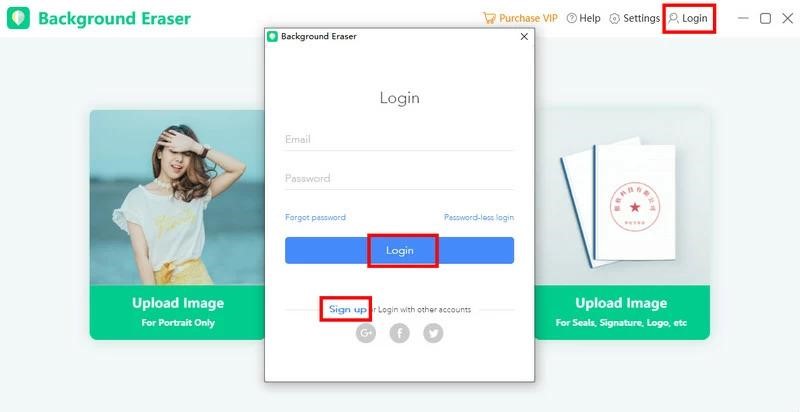
البرنامج متاح أيضًا لأجهزة الكومبيوتر التي تعمل بنظام تشغيل ويندوز ويُمكن تحميله بكل سهولة من الموقع الرسمي وسنشرح لكم في السطور القادمة بالخطوات والصور كيفية إزالة الخلفية المتواجدة في أي صور باستخدام برنامج Apowersoft بالإضافة إلى العديد من المميزات الأخرى بخلاف إزالة الخلفية من الصورة تحميل برنامج Apowersoft Background Eraser الخطوة الأولى: تسجيل الدخول / إنشاء حساب افتح البرنامج، وانقر فوق الزر “تسجيل الدخول” والذي سيُمكنك من تسجيل الدخول إلى برنامج Apowersoft Background Eraser لإزالة الخلفية من الصور بحسابك. 2. إذا لم يكن لديك حساب، فالرجاء النقر فوق “تسجيل” لإنشاء حساب جديد أولاً.
الجدير بالذكر أنه يُمكنك إنشاء حساب خاص بك بسهولة تامة وذلك إما بحساب جوجل الخاص بك أو بحسابك على منصات التواصل الاجتماعي المختلفة إما على فيسبوك أو تويتر. الخطوة الثانية: كيفية إزالة الخلفية من الصورة 1.
انقر فوق علامة التبويب الأولى “تحميل الصورة” الأولى حتى تتمكن من إزالة خلفية الصورة بكل احترافية تامة ثم قم برفع الصورة المُراد تعديلها و إزالة خلفية الصور إلى البرنامج من الكمبيوتر. يجدر الإشارة إلى أن تلك الخاصية تعمل فقط مع الصور المُلتقطة بوضع البورتريه ولا غير الآن ستحصل على قطع بخلفية شفافة تلقائيًا.
إذا لم تكن راضيًا عن تأثير الإزالة التلقائية، يمكنك النقر فوق “إزالة الخلفية يدويًا” لتحرير التفاصيل بمزيد من الاختيار والحرية. كيفية إزالة خلفية صورة لمنتج 1. حدد علامة التبويب الثانية “تحميل الصورة”.
هذه الصور قد تكون للمنتجات والملابس والحيوانات والسيارات والشعارات والتوقيعات وما إلى ذلك. 2. قم بتحميل صورة ومن ثم ستتم إزالة خلفية الصورة تلقائيًا.
3. إذا كنت راضيًا عن نتيجة التعديل وإزالة الخلفية، فانقر فوق الزر “حفظ”. إنشاء صورة شخصية ID انقر فوق علامة التبويب الثالثة وقم برفع صورتك من جهاز الكومبيوتر الخاص بك 2.
ثم ستحصل على تعديل تلقائي مع خلفية ملونة صلبة. 3. بعد ذلك، انقر فوق ميزة “اقتصاص” لتعديل صورتك لتتوافق مع الحجم القياسي لصورة الهوية الخاصة بك.
4. أخيرًا، انقر فوق الزر “حفظ” لحفظه. إزالة الخلفية بكل احترافية اختر بين “إزالة خلفية الشخص بشكل مُجمّع” و “إزالة خلفية المنتج بشكل كامل” وفقًا لذلك.
1. انقر فوق “إزالة خلفية الشخص” أو “إزالة خلفية المنتج كاملة” أدناه من الواجهة لاستيراد مجموعات الصور. بمجرد الاستيراد، انقر فوق الزر “نعم” لمعالجة صورك.
في غضون ثوانٍ قليلة، سترى أن الخلفيات قد تمت إزالتها بدقة. 3. إذا كنت راضيًا بالفعل عن النتائج، فاحفظ صورك بالنقر فوق الزر “حفظ الكل”.
إزالة خلفية الصورة يدويًا 1. بعد خاصية الإزالة التلقائية، انقر فوق “إزالة الخلفية يدويًا” لتعديل التفاصيل. 2.
استخدم أداة “Brush” لتحديد الفرشاة “Remove” أو “Keep” لتشويه المنطقة التي تريد إزالتها أو التي لا تريد إزالتها. ملحوظة: يمكنك سحب الشريط لضبط حجم الفرشاة. بالنسبة لميزة الصلابة، كلما كان النطاق أكبر، كانت الحافة أكثر سلاسة.
4. استخدم أداة “Magic Brush” لتحديد المناطق التي لها نفس اللون وقم بإجراء التعديلات بشكل مستقل. اضبط مستوى التفاوت لزيادة أو تقليل اللون المحدد.
تغيير خلفية الصورة يمنحك هذا البرنامج المذهل أيضًا فرصة لتغيير الخلفية بسهولة من ضمن أدوات تحرير الصور . 1. انقر فوق “تغيير الخلفية” على اليسار، ثم يتم تحويل النافذة الحالية إلى نافذة جديدة تسمح لك بإضافة خلفية جديدة.
2. انقر فوق “لون”، “قالب” في الجزء العلوي الأيسر لاختيار ألوان صلبة أو قوالب خلفية جيدة التصميم لصورتك. أو يمكنك أيضًا تحميل الصور الخاصة بك كخلفية.
3. انقر فوق الزر “حفظ” في الجزء السفلي لحفظ الصورة على هارد الكومبيوتر الخاص بك. قص الصورة هناك بعض الأحجام العادية والجاهزة للاستخدام المتوفرة في ميزة الاقتصاص.
انقر فوق “اقتصاص” على اليسار، يمكنك اختيار حجم واحد جاهز للاستخدام أو يُمكنك القص بحُرية. ملحوظة: بالنسبة لميزة “قص حواف الصور”، فإنها ستقطع تلقائيًا الجزء الإضافي وفقًا لحجم الكائن. 2.
بعد ذلك، يمكنك تكبير الصورة وتصغيرها وتحريكها وتدويرها إذا أردت. 3. انقر فوق “حفظ” لإنهاء تحرير اقتصاص صورتك.
دروب أيديا - DROPIDEA
نأمل أن تكون هذه المقالة قد أضافت لك قيمة حقيقية. في دروب أيديا نسعى دائمًا لتقديم محتوى عربي عالي الجودة يساعدك على النمو والتطور في المجال الرقمي. تابعنا للمزيد من المقالات والشروحات المفيدة.
الأدمن
DROPIDEA
أحدث المقالات
ماساتشوستس تُلزم مراكز البيانات بالطاقة النظيفة

OpenAI تضم باحثاً بارزاً قلقاً من مخاطر الذكاء الاصطناعي إلى مجلس إدارتها
شركة ناشئة للذكاء الاصطناعي تتخلى عن تمويل بـ1.5 مليار دولار لصالح مفاوضات مع سيلزفورس

المساعد الذكي Instinct يحصل على بريد إلكتروني خاص لأداء المهام