Embed a map of your business to your site using the WP Google Map plugin
 By Admin
Local SEO is an important practice for everyone who wants to boost their brand and get more sales. As users rely on mobile phones, their desire to access nearby stores and businesses has increased. In order to achieve this, there are many plugins that enable you to add maps to your WordPress site, including the WP Google Map plugin, which we will learn about today and discuss all the features it offers and how to use them.
Who needs to add WP Google Map? The WP Google Map add-on comes as a custom add-on to show Google Maps on your site, and this map will indicate the location of your business on the ground or the sites of other companies and stores. It can also be used to point to any site or path in order to facilitate the visitor and improve the user experience. This will improve local search engines, so that the audience will be able to know your exact location so that they can navigate and reach your location, whether by driving or walking, and it gives you the opportunity to link the site to the comments in Google Maps through the Marker Ratings features.
With the ability to add images, products, descriptions, and icons to the map. Contents of the article Explanation of the WP Google Map add-on (General settings)
Themes Directions Store Locator
(Branches) Map Settings
Add the map to the site
Adding a WP Google Map through the component editor Adding the map in the core editor
Explanation of the WP Google Map add-on As we said that
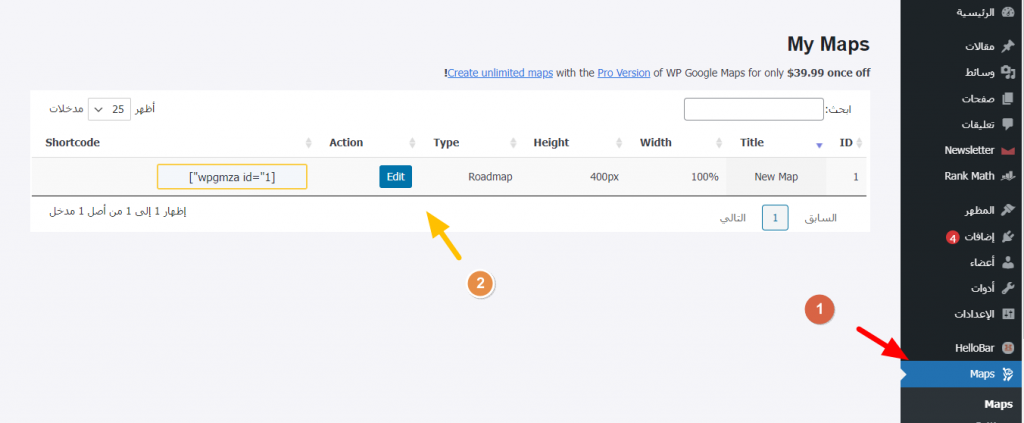
The WP Google Map add-on is one of the easy-to-use add-ons, and it comes with many features, which we will learn about by explaining how to use it. After installing the add-on, it will give you two types of maps, which are Google Maps and OpenLayers Map. The difference between them is that the first will need to add the Google Maps API, while the second will not need it, but it will give you fewer features. After selecting the type you want, you can add the map directly to your site. Now, you will have to specify the settings for your map, which are represented in the settings as follows: (General settings) Shortcode: Through this option you will get the code that enables you to add the map by including it in the traditional editor. Map Name: To modify the name of the map, knowing that it will not appear in the map later.
Zoom Level: To control the map zoom. Width: To control the width of the map, the recommended level is 100% for the map to be compatible with mobile phones. height: To change the length of the map, it is recommended that it be 400 pixels.
Then you will find the following settings tab for templates, Themes. In this section, there are many templates that you can choose between, to change the shape and colors of the map. It is worth noting that this feature is only available in Google Maps. It is possible to use the Google Maps API Design Wizard to create custom maps and then include them in the template field. Directions: Through this section, you will be able to control all settings related to the direction features.
But it is only available in the paid version of the add-on. Store Locator (Branches) By adding branches, site visitors will be able to identify all the branches of your business, by entering their location and specifying the appropriate distance, and then showing them all the branches near them. The section consists of a group of settings, which are: Enable Store Locator: This option is dedicated to enabling the display of branches.
Store Locator Style: To define the map design. Search Area: To determine the zoom degree based on the embedded location. Radius Style: To change the style Default radius: To change the default distance that appears to users.
Restrict to country: To limit searches to a specific country. Show distance: To specify the method for calculating the distance, whether in kilometers or miles. Store Locator Placement: To specify the appropriate location for the search bar.
Show distance from search: Specify whether you want to show the distance from the place the user searched for. allow users to use their location as the starting point: Show center point as an icon: To show the center point as an icon.
Marker animation: Determines how the location marker moves. Hide all markers until a search is done: To hide all markers until the search is done. Query String: To name the title search field.
Default address: To specify a default address that appears on the map. Enable title search: To enable title search. Title search String: To change the name of the search field and by default it comes with Title.
Not found message: To specify the message that appears when the site is not found. Style option: This option allows you to change the line color and saturation, in addition to the color of the circle that determines the available diameter or distance. After completing all the previous settings, and selecting the appropriate one for you, click save map.
Map Settings After clicking on save map, scroll down, and you will find a set of settings related to map selection that allow you to add places and markers the way you want. To be displayed on the site in the future. Which includes the option: Markers: to add a mark to a site.
Advanced Markers: This option gives you additional features over including tags and is only available in the paid version. Polygons: To add polygons. Heatmaps: To add a heat map.
Circles: To select locations in a circle. Rectangles: To identify locations in a terrible shape. After you finish preparing the map, click on the blue Save option at the bottom.
In the lower part of the window, you will find that there is a set of basic functions and features that can be obtained by purchasing the paid version of the add-on. Adding the map to the site After completing all the necessary settings, you can add the map to your site, easily, and to do so there are two ways. This depends on the type of editor you use, namely: adding the map to the component editor.
Add the map to the basic editor. Now let's talk about the first method: Adding a WP Google Map through the component editor. You can add the map by going to the article or page you want to add the map to, then click on the + sign and search for WP Google Map and then click on the map to include it. It will look like this: This is how the map will appear on your site. Let's also talk about the second way to add the map through the basic editor.
Adding the map in the basic editor. It is also known that the classic WordPress editor does not support adding components. In order to be able to add the map, in this case you will have to use the code that the plugin gives you, which is located in the general settings. All you have to do is copy it, then go to the WordPress editor, convert the presentation to text, then paste the code where you want and save the changes. Thus, we have explained the basic aspects of the WP Google Map add-on, knowing that the add-on has a paid version that gives you more features that enable you to get advanced tagging options, in addition to the features of determining store locations and directions, and getting more interactive maps.
DROPIDEA
We hope this article has added real value to you. At DROPIDEA, we always strive to deliver high-quality content that helps you grow and evolve in the digital space. Follow us for more useful articles and guides.
Admin
DROPIDEA
Latest Articles

Microsoft Gains $3.2 Billion from Its Investment in Anthropic

Zuckerberg: Billions of People Will Have AI Assistants Within Five Years

Microsoft Enters Direct Competition Against OpenAI and Anthropic

Pangram Raises $9 Million to Detect AI-Generated Content



