Record Windows 10 screen without software using Game Bar tool
 By Admin
Taking a screenshot in Windows 10 is fairly quick and simple. You can easily capture your screen using the handy Print Screen button on your keyboard or via the Snip & Sketch tool. While Windows 10 screen recording video of the content displayed on your screen is more difficult, Microsoft makes it possible through the use of a built-in video capture tool called Game Bar.
Windows 10 Screen Recording Video The Game Bar tool is designed to record the games you play directly on your computer, and it can easily record the screen video whether on a web browser, Windows applications, and many other programs. Any screen activity you record is automatically saved as an MP4 video file. Game Bar meets certain system requirements, including a good graphics card.
If you try to use Game Bar and your computer does not have good specifications, you may receive an error telling you that your computer does not meet the necessary requirements in order to record screen clips. But fear not, there is a way around this. Enable Game Bar for Screen Recording First, make sure that the Game Bar is enabled.
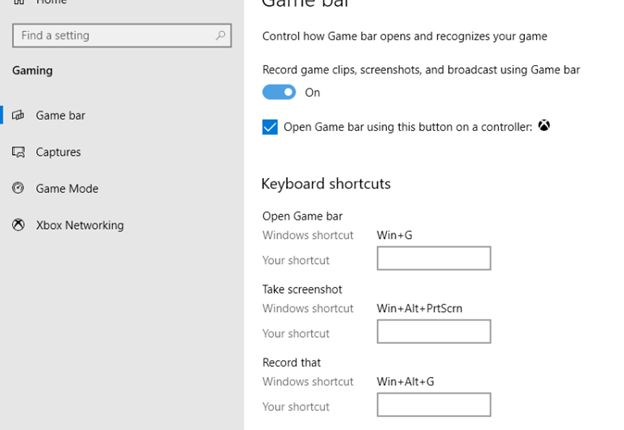
Open Settings > Games > Game Bar and turn on the switch to Record game clips, screenshots, and broadcasts with Game Bar, if the tool isn't already turned on. From this screen, you can also change any of the keyboard shortcuts associated with opening the Game Bar, taking a screenshot, and recording a video. Open what you want to record.
You can start recording from most applications and windows, but there are exceptions. You can't start a video recording from your desktop or some Windows applications like Weather. Otherwise, the field of registration is wide open.
Record your screen Press Win + G to open the Game Bar. Several Game Bar widgets pop up with options to take screenshots and control video and audio. The name of the current application, file, or window as the video capture source is also displayed.
Click the camera icon to take a simple screenshot or tap the Start Recording button to record your screen activity. Instead of using the bar at the top, you can also press Win + Alt + R to start recording. The first time you choose to record your Windows 10 screen from a specific app or window, Game Bar needs your permission.
Click the checkbox to “Enable all features for this app in order to start screen recording.” Click the Start Recording button again, and video capture will start. You can now perform any on-screen actions you want to capture. All of the Game Bar tools disappear, replaced by a small floating bar in the top-right corner of the screen from which you can control recording.
To stop recording, click the record button on the floating bar. A notification appears telling you that the video has been recorded successfully. Click on the notification, which will open File Explorer and give you the option to select the location where you want to save the video.
Just double-click the video file to play it in your favorite multimedia application. If you don't like where videos are saved by default, you can always change the location. Go to Settings > Games > Snapshots.
Click the Open Folder button and choose a different folder. Read also: Explain how to split the screen into two or more halves in Windows 10 Record videos in the background Have you ever done something on your computer and then suddenly wished you had captured a video at the same moment? With Windows 10 Game Bar, you can record your Windows 10 screen the last several seconds or minutes of screen activity after you're already done.
To do this, you first need to give permission to the computer to record your activities in the background. Open the tool and click on the Settings icon. Scroll down the Settings screen and check the box to record in the background while doing any screen activity.
While you can click the drop-down menu to record your recent activity and change the time interval from 15 seconds to 10 minutes. Now you won't have to miss a moment again. Simply click the Record Last 30 Seconds button, and it will start recording a Windows 10 screen video based on the number of seconds or minutes you have selected.
Customize the Game Bar You can view your videos, control which widgets appear, and customize a range of settings directly from the Game Bar. Press Win + G to open Game Bar. In the capture window that appears on the far left, click the link to show a list of all captured videos, and then click the video you want to play.
Fix the issue of Game Bar not opening But what if you receive an error stating that your device does not meet the requirements for recording videos? Don't worry there is one trick you can try through a utility called Game DVR Config. Go to that link, from github and download the GameDVR_Config.exe file.
Open it, and in the installation window, check the box for Force software MFT (16 FPS + VBR). Open Task Manager (right click on the taskbar and select Task Manager). Under Processes, select Gamebar Presence Writer, and then click End Task.
Try the Game Bar again and you'll find it opens normally and you can now start recording screen videos.
DROPIDEA
We hope this article has added real value to you. At DROPIDEA, we always strive to deliver high-quality content that helps you grow and evolve in the digital space. Follow us for more useful articles and guides.
Admin
DROPIDEA
Latest Articles

Microsoft Gains $3.2 Billion from Its Investment in Anthropic

Zuckerberg: Billions of People Will Have AI Assistants Within Five Years

Microsoft Enters Direct Competition Against OpenAI and Anthropic

Pangram Raises $9 Million to Detect AI-Generated Content



