Turn on the dark mode feature on the iPhone – the hidden Dark Mode in “iOS 11”
 By Admin
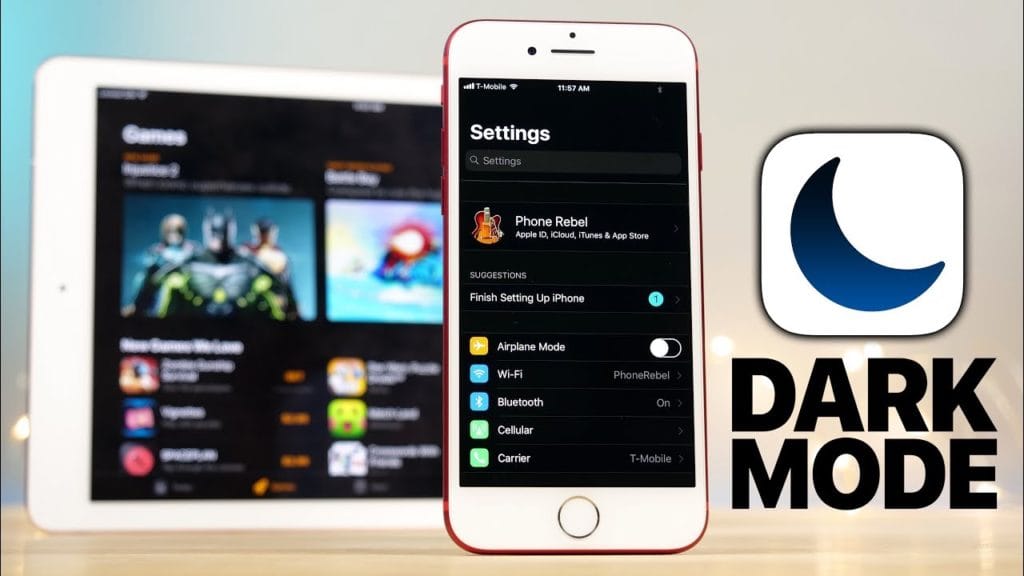
The iOS 11 system introduces the dark mode feature on the iPhone through the screen adjustment settings in a new feature called Smart Invert, which enables you to dim the screen to protect the eyes and is similar to the famous YouTube night mode feature, but with some differences in the features that you will learn about here in the article. Dark mode on iPhone: The Smart Invert feature inverts some, but not all, colors on the mobile/tablet screen. This feature to invert colors was present in previous iOS versions, but this time it comes with new smart updates that allow maintaining the state of images/videos and some items displayed on the screen separately. This mode is considered the closest to Dark Mode on Apple devices.
To turn on the feature, follow these steps: Go to Settings, then General, then Accessibility, then Display Accommodations, then Invert Colors. Now, turn on the button in front of the Smart Invert feature on the iPhone. While you will notice that the Classic Invert option is still available, which is the old feature for those who preferred it. Read also: How to activate the night mode in YouTube - the hidden Dark Mode feature. You will now notice after turning on the Dark Mode feature on the iPhone that the background of the settings screen has become a black/dark color, except for the buttons that remain green, while their color turns to purple in the case of using the old Classic Invert mode. The application icons also remain in their normal color and do not change.
Open the “Photos App” application and you will notice that the background has also become dark, while the images remain clear to the eye when viewing them. What is nice is that the Smart Invert feature knows well that some applications come with a black background, and therefore, it does not expose it to it and does not change the screen display settings for the user. The basic iPhone background does not change in dark mode and remains the same, while the color of the Dock application bar and the written texts at the top of the phone are changed to dark mode as well. It is expected that the capabilities of the Smart Invert feature for dark mode will be developed with the release of the final version of the iOS 11 system, and so far, it makes smart adjustments to dark mode instead of applying it completely without taking into account the design standards of some third-party applications on your phone.
Create a shortcut You can create a shortcut to the dark mode feature in IOS 11 and place an icon ready for quick tapping on the phone’s interface by going to Settings > General > Accessibility, then at the bottom of the phone press > Accessibility Shortcut, then choose Smart Invert Colors. Read also: The 4 most important steps to reduce Internet consumption on the iPhone of all its versions. Now a shortcut icon is created on the desktop to activate dark mode on Apple devices and activate it by pressing 3 times on the shortcut icon.
DROPIDEA
We hope this article has added real value to you. At DROPIDEA, we always strive to deliver high-quality content that helps you grow and evolve in the digital space. Follow us for more useful articles and guides.
Admin
DROPIDEA
Latest Articles

Nscale Acquires Anyscale for $1.65 Billion to Expand Its Dominance in AI Infrastructure

How Is AI Accelerating Meta's New App Launches?

Okta Acquires Security Firm Permiso for Around $200 Million

Microsoft Gains $3.2 Billion from Its Investment in Anthropic