You speak and Google writes for you - your guide to Google Voice Typing
 By Admin
You speak and Google writes for you. Writing has always been the only way to enter data on computers since the moment they appeared, and this was decades ago. The story has changed since then in several different forms until it reached text recognition systems through voices and speech through the voice typing feature from Google and other companies, which caused a tremendous revolution in the methods of entering data on various digital devices. In this way, users have the opportunity to choose voice typing for Google Docs instead of relying on typing data by hand. You can modify, edit and format documents with a few simple voice commands through Google Docs.
It is similar to or opposite to using the text-to-speech feature, and the goal behind these new methods of blogging is to remove the burden from the shoulders of employees who suffer from severe stress resulting from using the keyboard for long periods throughout the day every day and who suffer from repetitive injuries resulting from excessive writing and blogging. Here we will show you how to speak and Google writes for you.
How to use Google Voice Typing and Docs
The voice typing feature will ensure that you do not rely on a keyboard completely? The answer is, of course, it will be an enjoyable experience, just like talking into the microphone with any friend or anyone, but the keyboard is still necessary in some few situations, such as moving to a different line or paragraph in your documents that require you to rely on the keyboard, but over time Google’s feature of voice typing and speech is improving instead of manual writing to reduce resorting to the keyboard. Let us now take a look at how to use Google Docs through You Speak and Google Writes for You. Tweet the article that may interest you: The best instant voice translator for mobile that supports the Arabic language. You speak and Google writes for you: How to start voice typing. The method is very easy and any new user can learn how to conduct and convert speech into text on Google Docs in a few steps.
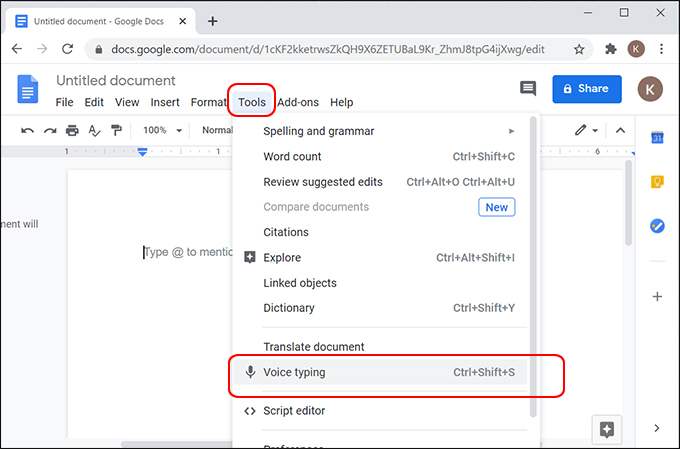
To turn on the Google voice typing feature now, open Google Docs, then click on the Tools tab, and from the drop-down menu, choose Voice typing, or of course you can click the Ctrl+Shift+S keys together to activate voice typing automatically. Once you choose this command, you will notice that a microphone icon appears on the left side of the document, showing the option to start voice typing. Now all you have to do is tap on the microphone, so you speak and Google writes for you through voice typing.
But remember that there are many very useful voice commands while using voice typing in Google Docs. Let us look at the most important of these commands. Read more: How to correct Arabic writing in Photoshop Voice commands used to convert speech into text Select text: To select any text in Google Docs, just say it with your mouth Select Delete text: It is natural that we all have mistakes that we make while writing documents and texts. If you write a word, paragraph, or phrase and feel that it is wrong, all you have to say with your mouth is the word Delete, and all the last words after the mouse cursor will be deleted. Document Formatting: Here there are many commands for applying headings, using standard texts, or changing the font size. Now we will learn about the most important commands related to document formatting: Apply heading: In order to apply a title according to the desired size to use from 1 to 6 degrees of font size Apply normal text: To apply normal text for writing Apply subtitle:
To add a text translation Apply title: To add a title Bold: To enlarge words Italicize: To apply italics Italics: To apply italic letters Strikethrough: To center a line in the middle of speech Subscript: To use a text cursive Superscript: To use a text cursive above the line Underline: To outline words All caps: To convert words or phrases to all caps Capitalize: To enlarge words or phrases Editing commands in Google Editor: Of course, you will often need to copy and paste texts while using Google Docs, and the following is A group of the most important commands that you must memorize to make the most of your experience with converting speech into text: Copy: Copy Cut: Cut Paste: Paste Delete: Delete Delete the last word: Delete the last word Delete: Delete words or phrases Insert link: Insert a link and then mention the name of the link you want to insert into speech Copy link: Copy the link Delete link: Delete the link How to add punctuation marks in voice writing in Google Editor Period: Make a space Comma: Create a space. Exclamation point: Add an exclamation mark. Question mark: Write a question mark. Newline: Write from the beginning of the line. New paragraph: Write a new paragraph at the end. Of course, you will face difficulties at the beginning until you get used to understanding and using Google’s voice typing professionally and accurately, as it is still receiving improvements in the supported languages. However, remember that it has become the popular method and widely relied upon by G Suite users. In this way, you will remove the burden of writing by hand and will give your hands periods of rest and relaxation while writing down private files. With you. Read also: The best site for editing PDF files in moments. Before you start using Google's speech-to-text conversion, you should make sure that the microphone is strong and that it is in good condition. It is also best to speak slowly so that Google understands you while you are typing and that you use the commands correctly. There is certainly no substitute for using the keyboard in many situations, but it is merely a means to help you increase your productive capabilities without causing your hands to become extremely tired.
DROPIDEA
We hope this article has added real value to you. At DROPIDEA, we always strive to deliver high-quality content that helps you grow and evolve in the digital space. Follow us for more useful articles and guides.
Admin
DROPIDEA
Latest Articles

Nscale Acquires Anyscale for $1.65 Billion to Expand Its Dominance in AI Infrastructure

How Is AI Accelerating Meta's New App Launches?

Okta Acquires Security Firm Permiso for Around $200 Million

Microsoft Gains $3.2 Billion from Its Investment in Anthropic