Wondershare DVD Creator: The best way to burn video or burn movies to DVD
 By Admin
DVD discs are considered one of the most popular ways to save, transfer, and copy multimedia. If you have a video or movie and want to copy it to a DVD disc, here is the program that we will highlight here to help you copy movies to DVD with ease. Most of the content most of us have now is just digital content, from personal photos, to movies that you download directly from websites to your device, it is intangible content - just a file among hundreds and thousands of files on the storage device. But sometimes you may need to turn this data into something tangible that you can keep away from your computers or smartphones.
So what if you want to watch a movie in another room without using the computer? What happens when you want to take a backup copy of important documents in the event of a computer malfunction? Of course, you need to use dedicated disks to store this data, such as: multimedia DVDs, or an external hard disk dedicated only to saving backups. In this way, you ensure data security and ease of movement, provided that you store and use it responsibly.
However, it is not as simple as buying a blank DVD and copying the video or movie onto it by copying and pasting. If you want to achieve good results, you must use specialized software to write data to DVDs correctly. Through this article, let me introduce you to the excellent Wondershare DVD Creator program to rip movies to DVD easily.
Wondershare DVD Creator: What is it?
Why is it different from others? The Wondershare DVD Creator program is a distinguished and wonderful program - in fact, at the present time, it is the best way to burn and create DVD or Blu-ray discs from any video, regardless of its format, as the program supports more than 150 video formats that you can easily, and within a few clicks, burn it correctly to a blank DVD disc through your computer, whether Windows or Mac.
The program not only allows you to burn movies to DVD, but when you use it, you will encounter many features and features that ensure you get amazing results, such as: video editing, merging more than one video together, adding video within a custom template... and more, and you will discover for yourself that it is more than just a program for creating optical discs. Not to mention maintaining video quality and extreme ease of use, it is directed to all types of users. Features of the Wondershare DVD Creator program:- An easy and elegant user interface. Support more than 150 video formats.
The ability to copy more than one video together on the same disc. Include professional video editing tools. Providing more than 100 static and dynamic templates for video customization.
Create a slide show, convert it to a video, and burn it to an optical disc. Convert DVDs to regular MP4 video file.
How to burn movies to DVD with the highest quality
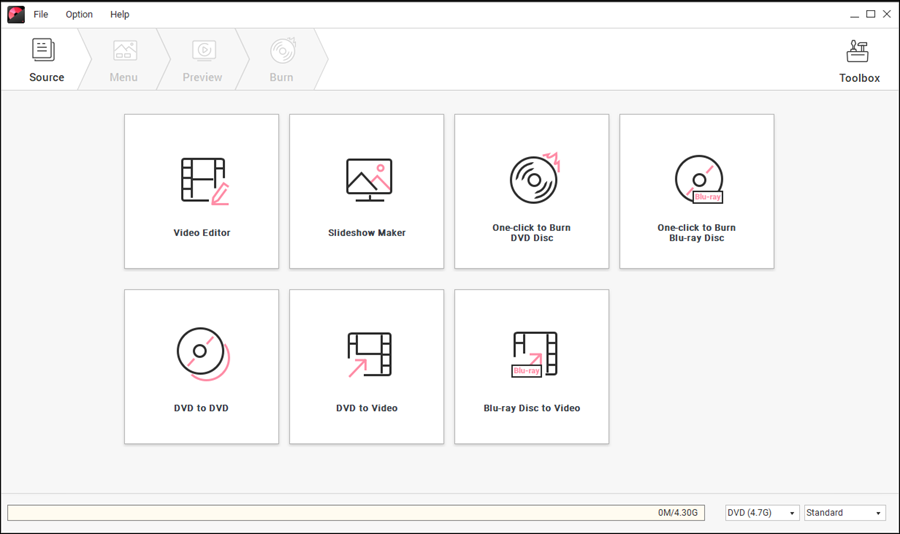
If you want to take a backup of your favorite videos or movies, burning to DVD will be an excellent choice. Below we will show you an instructional guide on how to burn movies to DVD with the highest quality using the Wondershare DVD Creator program. First and foremost, you will need to download the Wondershare DVD Creator program on your device, then install it like any program in the traditional way, then run it to show you the short window (shown in the image above) where you select the type of disc you want to create, whether it is DVD or Blu-ray, then click on Create a DVD Video disc.
After that, click on the “Add pictures or videos” option to add the video that you want to burn to the disc, whether in MP4, AVI, MKV, MOV or any other format. Alternatively, simply drag and drop the video file into the program window. Then, through the bottom bar, you can specify the size of the DVD currently being read on the computer and the method of storing the file, if the program does not specify it automatically.
After adding the video, a preview of it will automatically be displayed on the program under the Source section. From there, you can click the “➕” sign below “Title” if you want to embed and add another video clip to the disc. Or click on the edit button in front of the video preview if you want to add some modifications to the clip.
Editing the video before burning... In the Video Editor window, you can make a different set of modifications to the clip, such as cutting part of it, changing the dimensions of the video, adding color effects, adjusting the degree of contrast, brightness, lighting, etc., or adding a watermark, whether it is text or a PNG image, or also merging the .srt file for the translation with the video. This is of course very useful if this video is a foreign movie. After completing the modifications, click OK to save. After completing everything in the Source section, now move to the “Menu” section, where you can place the video within a custom template from among 100 diverse templates. These templates will change the way the video is displayed, meaning that instead of displaying the clip in full screen, it will be placed inside a specific part of the template, so that you can put instructions or information about the video - it is similar to placing a picture within a picture, while providing the ability to add texts and music freely.
Or you can ignore this if you do not want to put the video in a template and go directly to the “Preview” section, where you can watch a preview of the video after finishing editing and before burning to a DVD. You can always go back to previous tabs to make further adjustments if you are not satisfied. After previewing the video, go to the “Burn” section where you adjust the burning settings, such as specifying whether you want to burn the video to an optical disc, an ISO file, or a virtual optical disc.
Then specify a name for the disc through the “Disc Label” field and select the disc itself through the “Burner” menu. After finishing, press the Burn button to begin the process of burning the video to a DVD disc immediately. Now, you can watch the video or movie through any DVD player via TV without a computer. More tools for Wondershare DVD Creator As we mentioned earlier, Wondershare DVD Creator allows you to do more than burn video to an optical disc, as you can also...
Edit videos professionally through it. All you have to do after running the program is: Click on the “Toolbox” button at the top right, then click on “Video Editor” to show you the window for adding the video you want to make modifications to.
Through the Trim Video section, you can cut out an unwanted part of the clip; That is, it is completely deleted from the video, by marking the start and end points of the video, and the parts that were excluded will be automatically deleted. Through the Rotate Video section, you can, through the options it includes, rotate the video and make it more streamlined for viewing, or change the dimensions of the video so that they are compatible with the dimensions of the TV without the annoying black bar appearing at the top and bottom of the viewing area. There is also an Enhance Video section to improve the colors and lighting of the video, a Watermark section to easily add a watermark, and finally a Subtitles section to add translations and texts to the clip if you want.
Creating a Slide Show If you have a group of images and want to include them in one distinct video, the Wondershare DVD Creator program allows you to create a slide show simply and you will get very good results without the need to purchase other programs.
If you want to do this, open the Wondershare DVD Creator program, click “Toolbox,” select “Slideshow Maker,” and then select the images to add to the program. After that, you can rearrange the images from the side menu, then at the bottom you will find 4 sections through which you can make the video better. You can add color effects through “Effect,” or specify the effect of transitioning from one image to the second through “Transition,” or add text to the video through “Text.” You can also include a music clip that works with the video through “Music.” After finishing, click “Save to mp4” to save the video as a regular mp4 file that you can share. This was a semi-detailed review of the Wondershare DVD Creator program, where we tried to highlight all aspects in terms of characteristics and features, leaving you with some of them to discover for yourself when using the program, and see for yourself how efficient it is in performing the task, especially copying movies to DVD.
DROPIDEA
We hope this article has added real value to you. At DROPIDEA, we always strive to deliver high-quality content that helps you grow and evolve in the digital space. Follow us for more useful articles and guides.
Admin
DROPIDEA
Latest Articles

Nscale Acquires Anyscale for $1.65 Billion to Expand Its Dominance in AI Infrastructure

How Is AI Accelerating Meta's New App Launches?

Okta Acquires Security Firm Permiso for Around $200 Million

Microsoft Gains $3.2 Billion from Its Investment in Anthropic