Solve the problem of the flash drive shrinking to 1GB - and recover the original space of the flash drive or SD Card
 By Admin
Here we review the solution to the problem of the flash drive shrinking to 200MB or to 2GB. It is one of the strange problems that may happen to you suddenly when you find a loss of storage space and a lack of capacity on the flash memory or external memory cards, and then discover that its space on the computer has become 1GB while the original flash space was 4GB. So what happened to cause the size to shrink in this way? Usually, the problem of the reduced flash size may appear after you burn a disc on the flash memory or program it or on SD cards, or use it for things other than storing files, such as converting the flash drive to RAM or a tool to protect the device...etc.
When performing any of these operations, part of the original flash space may be deleted and a small amount of space may be consumed. If you are suffering from this problem, below are 3 different ways to solve the problem of shrinking the size of the flash drive and recover the original space. Reformatting the flash memory Reformatting the flash memory will restore it to its original state.
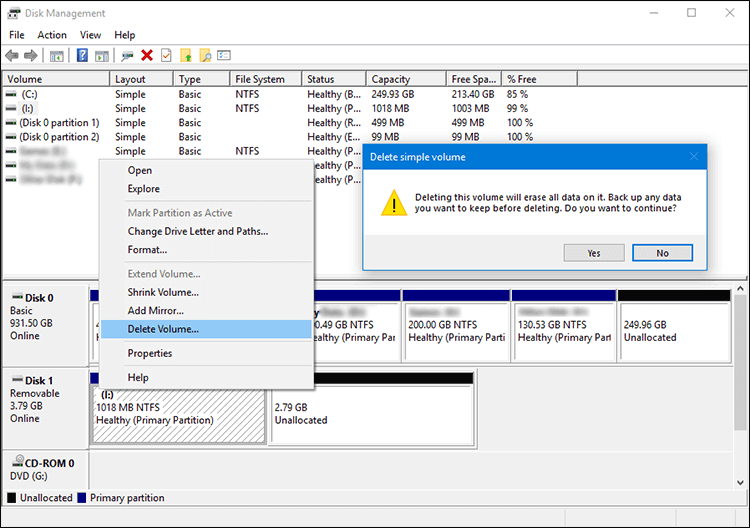
This solution will not require the use of external programs, but rather the Disk Management tool integrated into the Windows system. It is preferable to save a backup copy of any important files on the flash drive before performing the following steps: Connect the flash drive to the computer. Press the Windows key + the letter R together on the keyboard.
Type the command “diskmgmt.msc” in the Run window and press Enter. After opening the Disk Management tool, right-click on the available portion of the flash drive space. Choose from the Delete Volume menu.
Click the Yes button to confirm deletion of the partition. You will notice that the flash drive has disappeared and you can no longer use it, while in the Disk Management tool you will find that the flash drive is connected but the space is Unallocated. All you have to do is right-click on this space, then choose New Simple Volume, and from the window that appears, continue pressing Next until Finish.
The flash should then appear again in its original size and ready to work normally. Read also: The external hard drive does not appear after connecting it to the computer!
- The easiest way to solve the problem is that the hard drive has disappeared!
Recovering lost space from the flash drive without formatting There is another way to solve the problem of shrinking the size of the flash drive, which is using one of the widely available hard disk management programs. This method is considered easy and safe and preserves your files stored on the flash drive without the need for formatting. We will apply this explanation to the MiniTool Partition Wizard program, but you are free to use any other program you prefer and you will find the same options. Download the MiniTool Partition Wizard program and then install it on your device.
After running the program, select the flash drive, then click on the Move/Resize Partition option from the side menu. Under Size And Location, drag the arrow to the far right (as shown in the image). After the total area of the flash is determined, click OK.
Then click the Apply button at the top to apply the new settings to the flash. After the process is completed, the lost space on the flash drive should be recovered without losing any of the files stored on it. Solving the problem of shrinking the size of the flash drive using a format program. If the previous methods fail to solve the problem of shrinking the size of the flash drive, do not despair. There is a more effective solution, which is to use a very light program called SD Memory Card Formatter. It is dedicated to formatting SD Card storage cards as well as flash memory, and performs a complete wipe of the flash drive and returns it to the ideal state.
Download the SD Memory Card Formatter program. Install the program, then run it on the device. Select the flash drive or SD Card from the Select card list.
Select Quick format under the Formatting options section. Click Format and from the confirmation window click Yes. After the process is completed and the message “Formatting was successfully completed” appears, you will be able to use the flash drive after it has been repaired and recover the lost space on the flash drive.
DROPIDEA
We hope this article has added real value to you. At DROPIDEA, we always strive to deliver high-quality content that helps you grow and evolve in the digital space. Follow us for more useful articles and guides.
Admin
DROPIDEA
Latest Articles

Nscale Acquires Anyscale for $1.65 Billion to Expand Its Dominance in AI Infrastructure

How Is AI Accelerating Meta's New App Launches?

Okta Acquires Security Firm Permiso for Around $200 Million

Microsoft Gains $3.2 Billion from Its Investment in Anthropic