Calibrate your computer screen in Windows 10 and Mac – easy and clear steps
 By Admin
Whether you are watching a movie, or editing a photo, you may have noticed that the colors on your screen are not quite right. Some screens find them unnaturally bright, while others have very dark colors. Calibrating the computer screen helps adjust the colors so that they are balanced and appear clearer. We will show you how to calibrate the screen of your computer running Windows 10 or Mac to ensure you get the correct settings for the lighting and colors on the new gaming screen you have chosen. Calibrate your computer monitor in Windows 10 Both Windows 10 and Mac have built-in calibration tools to help guide you through a line-by-line calibration, which is especially useful if you're calibrating your monitor for the first time. Before you begin You will need to do several things before you begin the calibration process. These are essential if you want to get the best results.
To calibrate a Windows 10 computer screen you must run it for at least 30 minutes. This ensures that the screen is heated to its normal operating temperature and conditions and will therefore display normal colors and brightness. Set the screen resolution to the default screen resolution. Make sure to perform the calibration in a room with moderate ambient lighting. The room does not have to be very dark, but rather the lighting is not harsh.
Windows 10 screen calibration You can easily find the color calibration tool if your device is running Windows 10, as you can find it from the Windows search bar. In the Windows search bar, which you find in the Start bar in the form of a magnifying icon, type the word Color Calibration, and click on the result that appears. In older versions of Windows, you can find the Color Calibration tool in the Display section of Control Panel under the Color Management section.
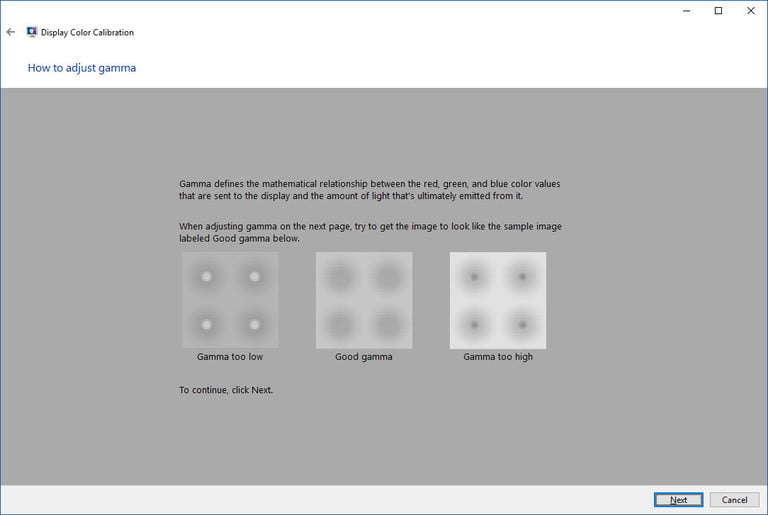
Getting started with calibration Now that you're in the calibration tool, follow the on-screen instructions to change the gamma, brightness, contrast, and color balance settings for your display. Gamma is what defines the mathematical relationship between the values of red, green, and blue colors that are sent to the screen, and the amount of light coming from them. Each setting you will perform will find an explanation supported by pictures that will help you get the best results. All you have to do is make adjustments to mimic the sample (image) that appears on the screen as closely as possible.
Once the calibration wizard is complete, be sure to press Choose the current calibration, or return to the previous calibration, if you are not satisfied with the results. The new calibration will be stored as an ICS file, or color calibration file, and will appear as a new profile in the Color Management Settings app. The easiest way to open this application is to type color management in the search bar, and choose the first result. Once it opens, you will be able to select settings from the list of devices, and see what ICC profiles are available.
Read also: What is the screen refresh rate and how can it be changed? MAC monitor calibration In system preferences under the Displays tab, in the Colors section you will find the Display Calibrator Assistant.
If you're having trouble finding it, try entering the word calibrate to scan various folders and files on your computer. The result should show an option to open the utility in the System Preferences panel. The MAC instructions will walk you step-by-step through the calibration process once you find and open the software utility. You either follow the on-screen instructions to choose.
White point The white point should usually be a standard D50 or D65 point to avoid problems with strange colors. Color Adjustments The system will attempt to scan your screen and offer a number of other color adjustments that you can choose from. Administrator access, only important if you're concerned about other users changing your color profile.
Name, give the profile a unique name so you'll know it in the future. Calibrate your monitor using online tools There are a few online calibration tools that help you manually calibrate your computer screen. These tools can provide a more accurate, more personalized calibration. W4zt Screen Color Test This site shows a few color gamut for comparisons, some grayscale boxes, and a screen gamma test as well.
The easy-to-use Lagom LCD Monitor website allows you to adjust various things like contrast, response time, and lets you download images as a 120KB zip file so you can check out the monitor before purchasing it. Calibrize 2.0 If you want a great tool to help you calibrate your monitor, we suggest Calibrize 2.0, which is an excellent free wizard that guides you correctly and in clear steps to calibrate color, grayscale, gamma, and similar settings on your computer. Photo Friday is a free photo-sharing site, but they also offer a free calibration tool, which you can use to see if your screen's brightness and contrast are right.
Summary: Every site mentioned here for computer screen calibration helps you get the best setting for colors, clarity, brightness, etc. Screen calibration tools include several different wizards to improve the user experience according to his preference and the type of screen used. Related articles: How to calibrate a used laptop battery How to calibrate a mobile battery correctly
DROPIDEA
We hope this article has added real value to you. At DROPIDEA, we always strive to deliver high-quality content that helps you grow and evolve in the digital space. Follow us for more useful articles and guides.
Admin
DROPIDEA
Latest Articles

Microsoft Gains $3.2 Billion from Its Investment in Anthropic

Zuckerberg: Billions of People Will Have AI Assistants Within Five Years

Microsoft Enters Direct Competition Against OpenAI and Anthropic

Pangram Raises $9 Million to Detect AI-Generated Content